
Overview
This QRG is for eMMA users with the ability to create Intake Requests, called “Intake Requesters” in eMMA. Currently, this option is restricted to Procurement Officers within DGS. Intake Requesters can now initiate intake requests, guided by eMMA's intelligent AI assistant, for both IT and non-IT procurement needs in the eMaryland Marketplace Advantage (eMMA).
PRG Goal Setting Requests are created in eMMA via an Intake Request with the "Sourcing Request" Intake Type.
When an approved intake request is determined to have an estimated value above $100,000 and PRG goals are required, a PRG request will be automatically generated based on the information from the original intake request. If the sourcing intake request is below $100,000 a PRG request is still created but it is only necessary to indicate whether the solicitation is associated with the Small Business Reserve (SBR) program.
IMPORTANT
- The PRG tool is for market research purposes only. This does not replace the DoSEM-approved goal-setting policy or methodology
- Depending on your role in eMMA, your screen may vary slightly from the images shown in this QRG.
- For best results, use the Google Chrome browser to access eMMA.
- If you need help at any time, please reach out to the eMMA helpdesk at emma.helpdesk@maryland.gov.
TABLE OF CONTENTS
- Complete an Auto-generated PRG Request
- Create a PRG Request for Multiple Functional Areas
- Create a Stand-alone PRG Request
Step-by-Step Instructions
This QRG uses diagrams with specific callouts to show required and optional fields in forms. A yellow callout with a red border  indicates a required field, while yellow callouts with a black border
  indicate optional fields. Letters within the callouts correspond to the explanations below the diagram. This section of the QRG explains how to submit a PRG request created based on an intake request that you oversaw in eMMA.
- Access eMMA at https://emma.maryland.gov and log in with your credentials.
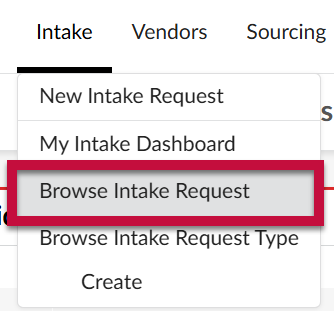
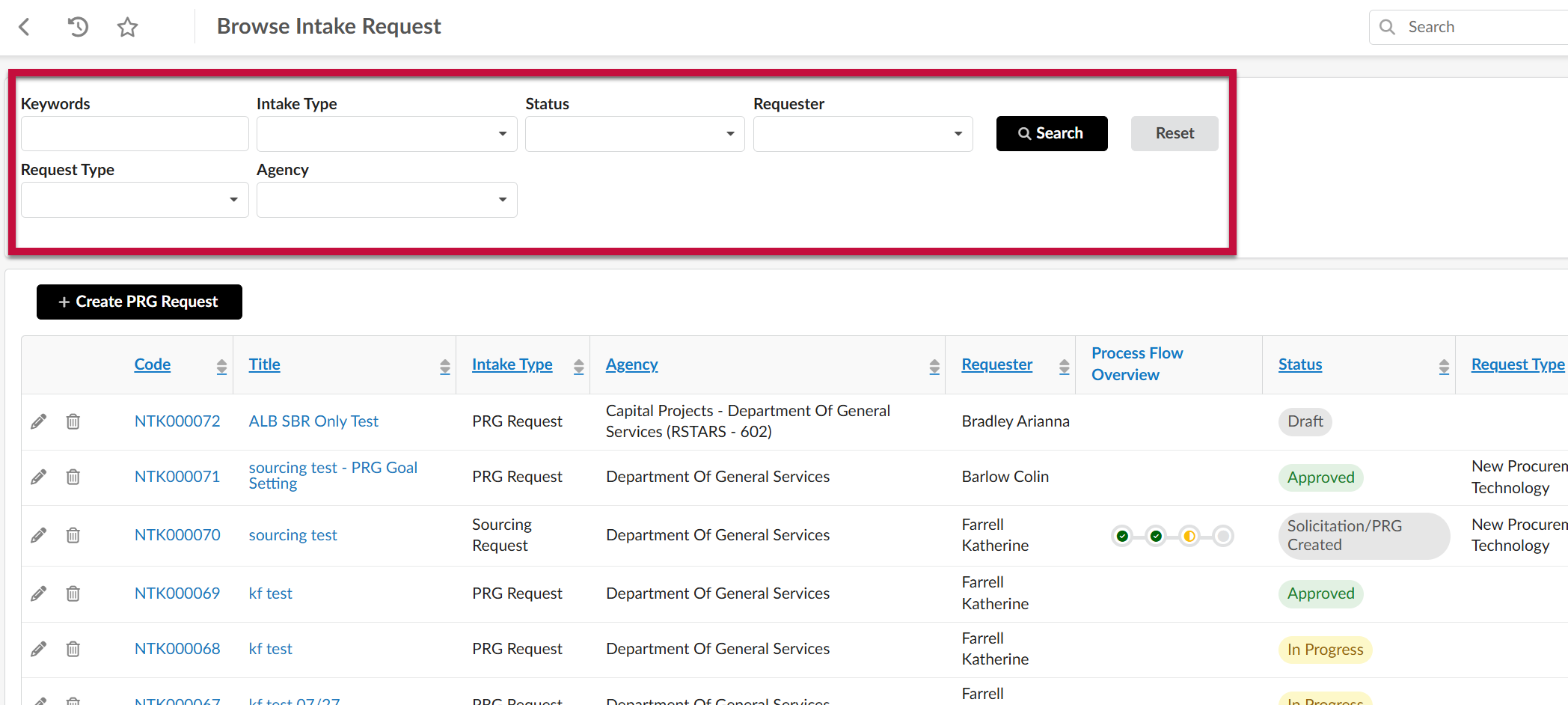
NOTE: Depending on your agency, you may only need to click the State SSO Login (Secure Auth) button or the MDOT SSO Login (MSAzure) button and log in with your credentials. - When you are assigned a PRG request for an intake request that you oversaw, you will receive an email notification with a link directly to the PRG request in eMMA. Additionally, you can access the PRG request by navigating to the Intake tab at the top of the Main Menu Navigation Bar and selecting Browse Intake Request.
Complete an Auto-generated PRG Request
A PRG request will be auto-generated after an intake request with the Intake Type "Sourcing Request" is submitted (if the request contains only one functional area). Refer to the QRG titled "Submit and Browse Intake Requests in eMMA (Enhancement)" for instructions on submitting this request type.
- Review the auto-populated information and complete the blank fields under the Request Information section. Note: mandatory fields are marked with a red asterisk (*).
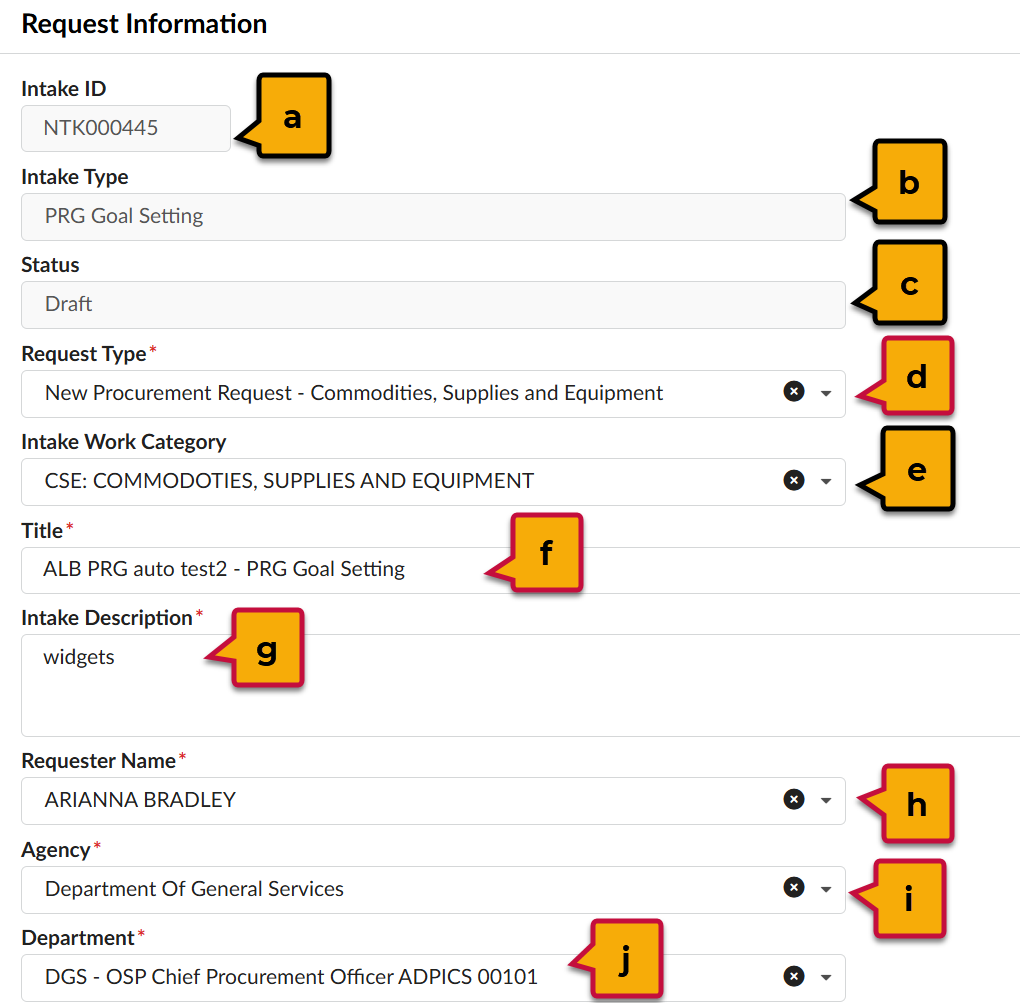
- Intake ID: Unique ID number assigned to the request. Automatically generated by eMMA and uneditable.
- Intake Type: The category for the request (e.g. PRG Goal Setting).
- Status: The workflow status of the request. Auto-generated by eMMA.
- Request Type*: The category for the goods or services requested.
- Intake Work Category: The work category for the request (e.g. CSE).
- Title*: The label for the request. Should be a brief description of the contents.
- Intake Description*: A detailed description of the request.
- Requester Name*: The name of the creator for the request. Auto-populated, but this can be updated if the request is created on behalf of someone else.
- Agency*: The agency that is making the request.
- Department*: The team within the agency that is making the request. With a standalone request, this field will not be editable until after the user clicks the Save button.
- (optional) If the request can be associated with an existing Sourcing Project in eMMA, then use the Existing Sourcing Project field to search for and select the project.

- Complete the Estimations section.
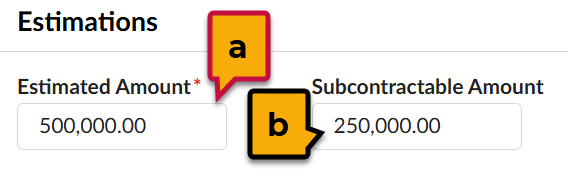
- Estimated Amount*: The total amount of the request.
- Subcontractable Amount: The portion of the estimated amount that can be subcontracted, if limits apply.
- Under Intake Details complete the Market Assessment Parameters.
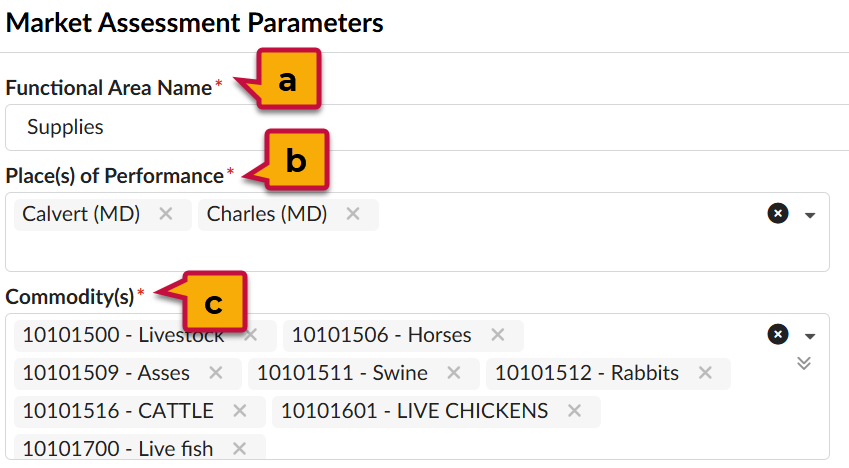
- Functional Area Name*: The name of the functional area associated with the goals.
- Place(s) of Performance*: The geographic areas receiving the goods or where services will be performed.
- Commodity(s)*: The commodity codes associated with the goods or services within the UNSPSC codification system.
- Click Save.
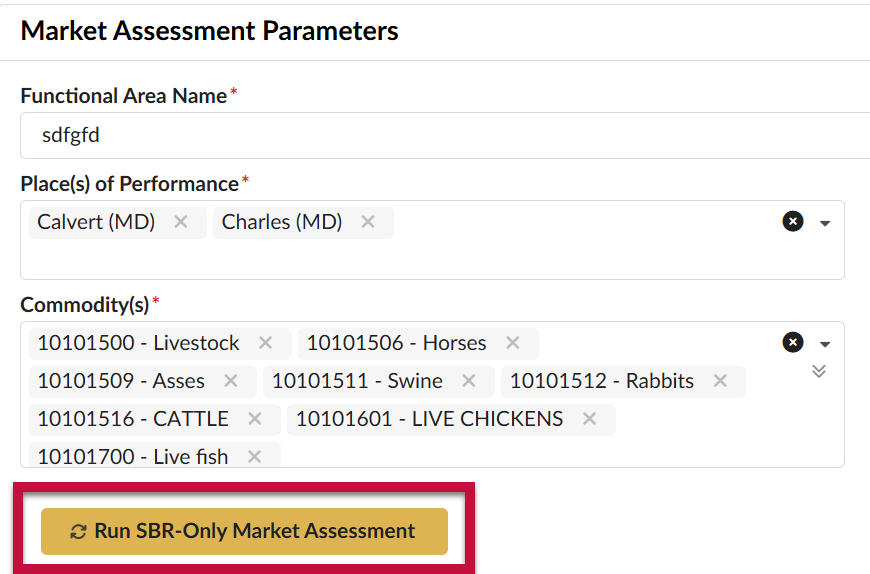
- For SBR-only requests (under $100,000), a button will appear under the Market Assessment Parameters section. Click the Run SBR-Only Market Assessment button. For requests over $100,000, skip to Step 7.
- If the associated sourcing intake request is over $100,000, then utilization goals will need to be created prior to submission. Click Run Market Assessment under the Subcontractor Utilization Goals section to use eMMA AI to suggest utilization goals. eMMA will automatically generate utilization goals in a table within this section .
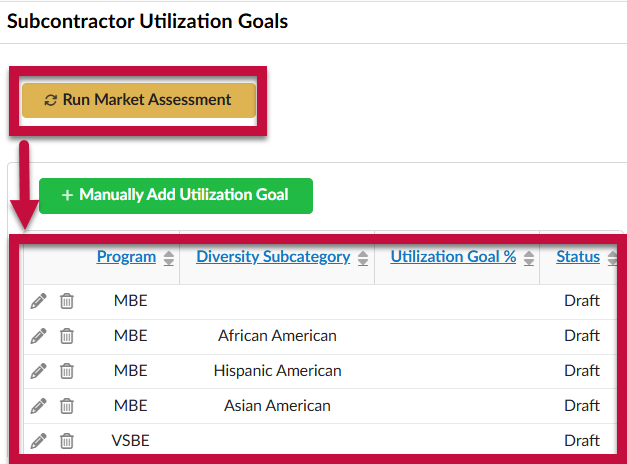
- A separate window for the eMMA AI will appear. This window can be minimized to complete the next steps.
- Review each goal by clicking the Pencil icon next to it. The AI generated assessment and recommendation will appear under the Market-Assessment-Generated Goals section. These fields are not editable, but provide supporting information in order to determine the Selected Utilization Goals %.
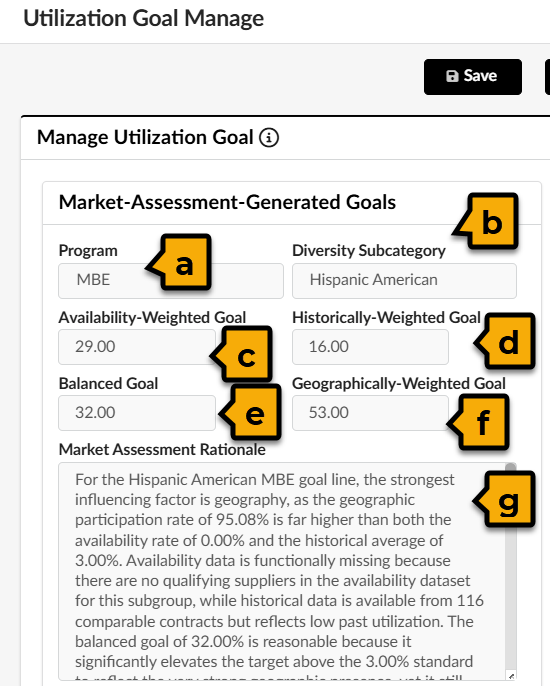
- Program: The relevant diversity program (e.g. "MBE")
- Diversity Subcategory: The applicable subcategory for the program (e.g. African American under the MBE program).
- Availability-Weighted Goal: This recommendation is based on Supplier readiness within available market data.
- Historically-Weighted Goal: This recommendation is based on historical eMMA data.
- Balanced Goal: This recommendation looks at the Availability-weighted, Historically-weighted, and the Geographically-weighted goals to create a balance of all 3.
- Geographically-Weighted Goal: This recommendation is based on the Supplier concentration in a specific geographic market.
- Market Assessment Rationale: Provides a full explanation of how eMMA AI came to created the various goals.
- Complete the Chosen Goal section.
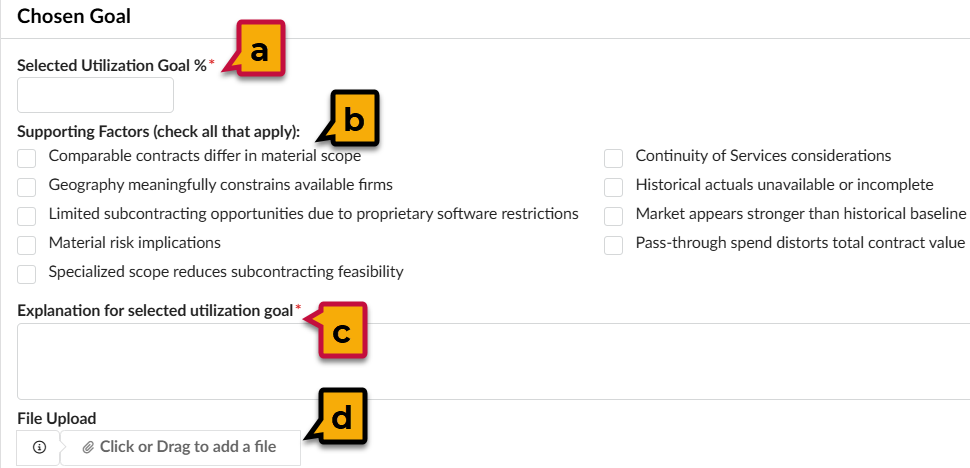
- Selected Utilization Goal %*: This is the final percentage of the total estimated amount that must be allocated towards this line item or diversity category.
- Supporting Factors (check all that apply): The influencing factors when making the determination for the final utilization goal.
- Explanation for selected utilization goal*: A thorough justification for the final utilization goal.
- File Upload: A file that supports the final utilization goal and provides further explanation/supporting factors.
- Click Save and Close.
- Complete the steps above for each goal within the table.
- To delete a recommended goal, click the Trashcan icon next to it.
- To manually add a goal, click +Manually Add Utilization Goal and complete the mandatory fields in the pop-up window.

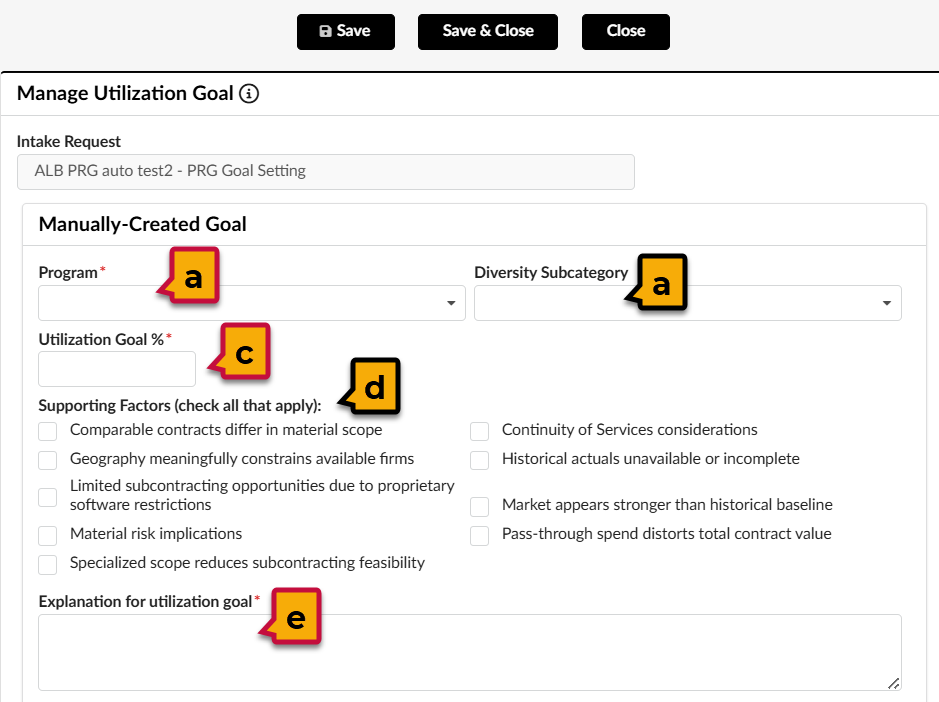
- Program*: The high-level program associated with the goal (e.g. MBE).
- Diversity Subcategory: The applicable subcategory for the program (e.g. African American under the MBE program).
- Utilization Goal %* : The percentage of the total estimated amount allocated to this program and subcategory.
- Supporting Factors (check all that apply): The influencing factors when making the determination for the final utilization goal.
- Explanation of utilization goal* : A thorough justification for the final utilization goal
Then click Save & Close to return to the request details.
- Under the Small Business Reserve Program, eMMA will calculate the number of suitable Certified Small Businesses based on the parameters entered.
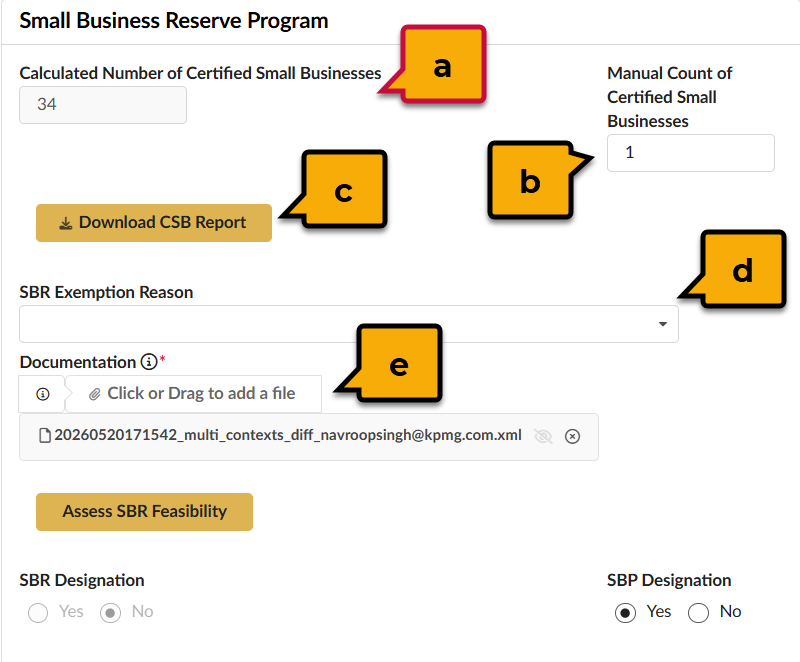
- Calculated Number of Certified Small Businesses: This field indicates the number of certified small businesses that can be considered for this request.
- Manual Count of Certified Small Businesses: The final number of available Certified Small Businesses that meet the parameters of the request. This number overrides the number in the Calculated Number of Certified Small Businesses field.
- Download CSB Report: This button downloads a spreadsheet showing the details for all available CSBs that meet the parameters of the request.
- SBR Exemption Reason: This field is only needed if this request requires an exemption/waiver (i.e. preferred providers, lack of certified small businesses, etc.). If an exemption is selected, DoSEM will be notified upon approval of the request.
- Documentation: This field will appear if the number of certified small businesses is manually input/edited. This is where the research on the number of certified businesses, the exemption waiver, or any other supporting documentation can be uploaded.
- Download the CSB report and review.
- (Optional) If the final count of CSBs that meet the parameters of the request should be changed, input a new value in the Manual Count of Certified Small Businesses field.
- You will be required to upload documentation to support the new value. Click the Click or Drag to add a file button, then select a file from your desktop.
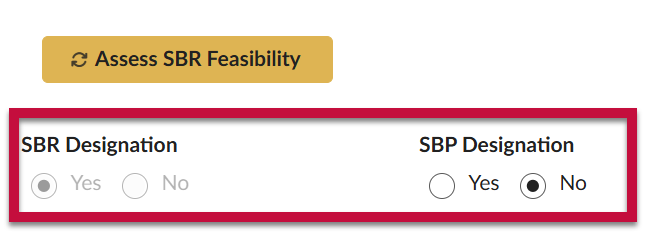
- Click the Assess SBR Feasibility button.
- The SBR Designation and SBP Designation fields will automatically populate. If needed, the value in the SBP Designation field can be edited.
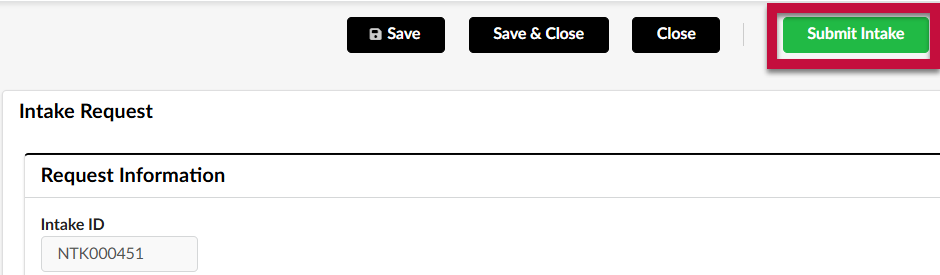
- Click Submit Intake.
Users can also download an MBE Worksheet to view a summary of the diversity goal information in a Microsoft Word document format.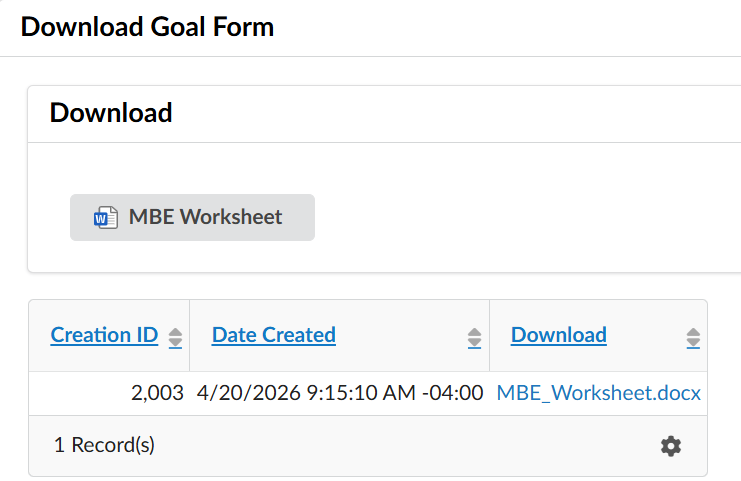
- Under the Download Goal Form section, click the MBE Worksheet button. A new row in the table will appear.
- Click the link next to the current date & time stamp to download the most recent version of the worksheet.
Create a PRG Request for Multiple Functional Areas
A PRG request can be created after an intake request with the Intake Type "Sourcing Request" is submitted. Refer to the QRG titled "Submit and Browse Intake Requests in eMMA (Enhancement)" for instructions on submitting this request type. Within the sourcing intake request, approvers can indicate whether the request contains multiple functional areas. Once the sourcing intake request is approved, each PRG request must be created manually and will not be auto-generated.
- Navigate to Intake and click Browse Intake Request.
- Search for the sourcing intake request and click the Pencil icon.
- Click the +Create Functional Area PRG Request button.

- Review the auto-populated information and complete the blank fields under the Request Information section. Note: mandatory fields are marked with a red asterisk (*).
- Intake ID: Unique ID number assigned to the request. Automatically generated by eMMA and uneditable.
- Intake Type: The category for the request (e.g. PRG Goal Setting).
- Status: The workflow status of the request. Auto-generated by eMMA.
- Request Type*: The category for the goods or services requested.
- Intake Work Category: The work category for the request (e.g. CSE).
- Title*: The label for the request. Should be a brief description of the contents.
- Intake Description*: A detailed description of the request.
- Requester Name*: The name of the creator for the request. Auto-populated, but this can be updated if the request is created on behalf of someone else.
- Agency*: The agency that is making the request.
- Department*: The team within the agency that is making the request. With a standalone request, this field will not be editable until after the user clicks the Save button.
- (optional) If the request can be associated with an existing Sourcing Project in eMMA, then use the Existing Sourcing Project field to search for and select the project.
- Under Intake Details complete the Market Assessment Parameters.
- Functional Area Name*: The name of the functional area associated with the goals.
- Place(s) of Performance*: The geographic areas receiving the goods or where services will be performed.
- Commodity(s)*: The commodity codes associated with the goods or services within the UNSPSC codification system.
- Complete the Estimations section.
- Estimated Amount*: The total amount of the request.
- Subcontractable Amount: The portion of the estimated amount that can be subcontracted, if limits apply.
- Click Save.
- Update the utilization goals. If the associated sourcing intake request is over $100,000, then utilization goals will need to be created prior to submission.
- Click Run Market Assessment under the Subcontractor Utilization Goals section to use eMMA AI to suggest utilization goals. eMMA will automatically generate utilization goals in a table within this section .
- A separate window for the eMMA AI will appear. This window can be minimized to complete the next steps.
- Review each goal by clicking the Pencil icon next to it. The AI generated assessment and recommendation will appear under the Market-Assessment-Generated Goals section. These fields are not editable, but provide supporting information in order to determine the Selected Utilization Goals %.
- Program: The relevant diversity program (e.g. "MBE")
- Diversity Subcategory: The applicable subcategory for the program (e.g. African American under the MBE program).
- Availability-Weighted Goal: This recommendation is based on Supplier readiness within available market data.
- Historically-Weighted Goal: This recommendation is based on historical eMMA data.
- Balanced Goal: This recommendation looks at the Availability-weighted, Historically-weighted, and the Geographically-weighted goals to create a balance of all 3.
- Geographically-Weighted Goal: This recommendation is based on the Supplier concentration in a specific geographic market.
- Market Assessment Rationale: Provides a full explanation of how eMMA AI came to created the various goals.
- Complete the Chosen Goal section.
- Selected Utilization Goal %*: This is the final percentage of the total estimated amount that must be allocated towards this line item or diversity category.
- Supporting Factors (check all that apply): The influencing factors when making the determination for the final utilization goal.
- Explanation for selected utilization goal*: A thorough justification for the final utilization goal.
- File Upload: A file that supports the final utilization goal and provides further explanation/supporting factors.
- Click Save and Close.
- Complete the steps above for each goal within the table.
- To delete a recommended goal, click the Trashcan icon next to it.
- To manually add a goal, click +Manually Add Utilization Goal and complete the mandatory fields in the pop-up window.
- Program*: The high-level program associated with the goal (e.g. MBE).
- Diversity Subcategory: The applicable subcategory for the program (e.g. African American under the MBE program).
- Utilization Goal %* : The percentage of the total estimated amount allocated to this program and subcategory.
- Supporting Factors (check all that apply): The influencing factors when making the determination for the final utilization goal.
- Explanation of utilization goal* : A thorough justification for the final utilization goal
Then click Save & Close to return to the request details.
- Click Run Market Assessment under the Subcontractor Utilization Goals section to use eMMA AI to suggest utilization goals. eMMA will automatically generate utilization goals in a table within this section .
- Under the Small Business Reserve Program, eMMA will calculate the number of suitable Certified Small Businesses based on the parameters entered.
- Calculated Number of Certified Small Businesses: This field indicates the number of certified small businesses that can be considered for this request.
- Manual Count of Certified Small Businesses: The final number of available Certified Small Businesses that meet the parameters of the request. This number overrides the number in the Calculated Number of Certified Small Businesses field.
- Download CSB Report: This button downloads a spreadsheet showing the details for all available CSBs that meet the parameters of the request.
- SBR Exemption Reason: This field is only needed if this request requires an exemption/waiver (i.e. preferred providers, lack of certified small businesses, etc.). If an exemption is selected, DoSEM will be notified upon approval of the request.
- Documentation: This field will appear if the number of certified small businesses is manually input/edited. This is where the research on the number of certified businesses, the exemption waiver, or any other supporting documentation can be uploaded.
- Download the CSB report and review.
- (Optional) If the final count of CSBs that meet the parameters of the request should be changed, input a new value in the Manual Count of Certified Small Businesses field.
- You will be required to upload documentation to support the new value. Click the Click or Drag to add a file button, then select a file from your desktop.
- Click the Assess SBR Feasibility button.
- The SBR Designation and SBP Designation fields will automatically populate. If needed, the value in the SBP Designation field can be edited.
- Click Submit Intake.
Users can also download an MBE Worksheet to view a summary of the diversity goal information in a Microsoft Word document format.
- Under the Download Goal Form section, click the MBE Worksheet button. A new row in the table will appear.
- Click the link next to the current date & time stamp to download the most recent version of the worksheet.
Create a Stand-alone PRG Request
- Navigate to Intake and click Browse Intake Request.
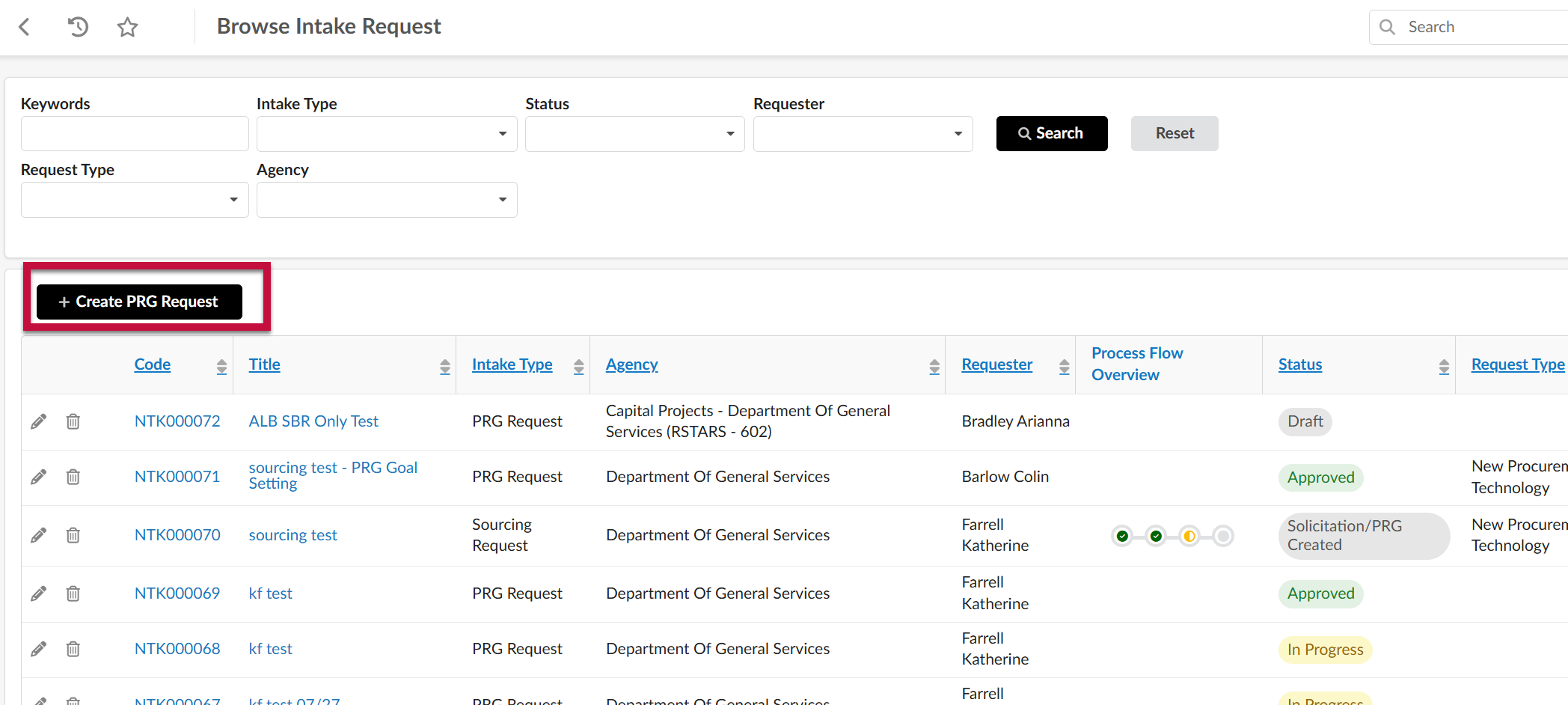
- Click the +Create PRG Request button.
- Complete the blank fields under the Request Information section. Note: mandatory fields are marked with a red asterisk (*).
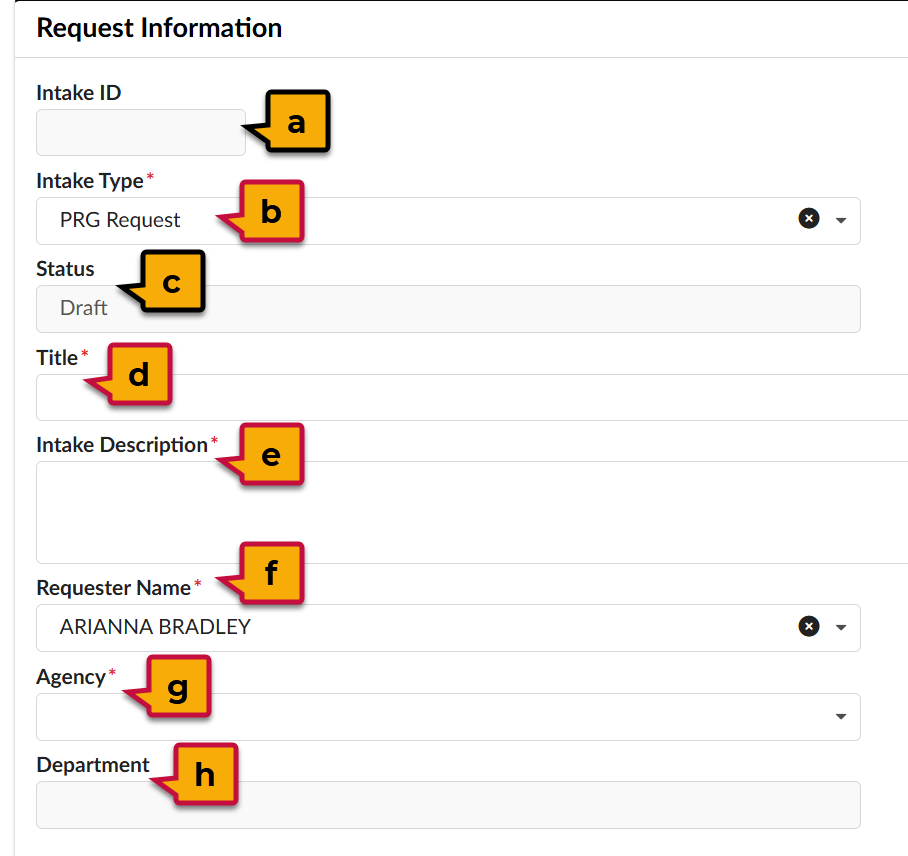
- Intake ID: Unique ID number assigned to the request. Automatically generated by eMMA and uneditable.
- Intake Type: The category for the request (e.g. PRG Goal Setting).
- Status: The workflow status of the request. Auto-generated by eMMA.
- Title*: The label for the request. Should be a brief description of the contents.
- Intake Description*: A detailed description of the request.
- Requester Name*: The name of the creator for the request. Auto-populated, but this can be updated if the request is created on behalf of someone else.
- Agency*: The agency that is making the request.
- Department*: The team within the agency that is making the request. With a standalone request, this field will not be editable until after the user clicks the Save button.
- (optional) If the request can be associated with an existing Sourcing Project in eMMA, then use the Existing Sourcing Project field to search for and select the project.
- Complete the Estimations section.
- Estimated Amount*: The total amount of the request.
- Subcontractable Amount: The portion of the estimated amount that can be subcontracted, if limits apply.
- Under Intake Details complete the Market Assessment Parameters.
- Functional Area Name*: The name of the functional area associated with the goals.
- Place(s) of Performance*: The geographic areas receiving the goods or where services will be performed.
- Commodity(s)*: The commodity codes associated with the goods or services within the UNSPSC codification system.
- Click Save.
- For SBR-only requests (under $100,000), a button will appear under the Market Assessment Parameters section. Click the Run SBR-Only Market Assessment button. For requests over $100,000, skip to Step 9.
- If the associated sourcing intake request is over $100,000, then utilization goals will need to be created prior to submission. Click Run Market Assessment under the Subcontractor Utilization Goals section to use eMMA AI to suggest utilization goals. eMMA will automatically generate utilization goals in a table within this section .
- A separate window for the eMMA AI will appear. This window can be minimized to complete the next steps.
- Review each goal by clicking the Pencil icon next to it. The AI generated assessment and recommendation will appear under the Market-Assessment-Generated Goals section. These fields are not editable, but provide supporting information in order to determine the Selected Utilization Goals %.
- Program: The relevant diversity program (e.g. "MBE")
- Diversity Subcategory: The applicable subcategory for the program (e.g. African American under the MBE program).
- Availability-Weighted Goal: This recommendation is based on Supplier readiness within available market data.
- Historically-Weighted Goal: This recommendation is based on historical eMMA data.
- Balanced Goal: This recommendation looks at the Availability-weighted, Historically-weighted, and the Geographically-weighted goals to create a balance of all 3.
- Geographically-Weighted Goal: This recommendation is based on the Supplier concentration in a specific geographic market.
- Market Assessment Rationale: Provides a full explanation of how eMMA AI came to created the various goals.
- Complete the Chosen Goal section.
- Selected Utilization Goal %*: This is the final percentage of the total estimated amount that must be allocated towards this line item or diversity category.
- Supporting Factors (check all that apply): The influencing factors when making the determination for the final utilization goal.
- Explanation for selected utilization goal*: A thorough justification for the final utilization goal.
- File Upload: A file that supports the final utilization goal and provides further explanation/supporting factors.
- Click Save and Close.
- Complete the steps above for each goal within the table.
- To delete a recommended goal, click the Trashcan icon next to it.
- To manually add a goal, click +Manually Add Utilization Goal and complete the mandatory fields in the pop-up window.
- Program*: The high-level program associated with the goal (e.g. MBE).
- Diversity Subcategory: The applicable subcategory for the program (e.g. African American under the MBE program).
- Utilization Goal %* : The percentage of the total estimated amount allocated to this program and subcategory.
- Supporting Factors (check all that apply): The influencing factors when making the determination for the final utilization goal.
- Explanation of utilization goal* : A thorough justification for the final utilization goal
Then click Save & Close to return to the request details.
- Under the Small Business Reserve Program, eMMA will calculate the number of suitable Certified Small Businesses based on the parameters entered.
- Calculated Number of Certified Small Businesses: This field indicates the number of certified small businesses that can be considered for this request.
- Manual Count of Certified Small Businesses: The final number of available Certified Small Businesses that meet the parameters of the request. This number overrides the number in the Calculated Number of Certified Small Businesses field.
- Download CSB Report: This button downloads a spreadsheet showing the details for all available CSBs that meet the parameters of the request.
- SBR Exemption Reason: This field is only needed if this request requires an exemption/waiver (i.e. preferred providers, lack of certified small businesses, etc.). If an exemption is selected, DoSEM will be notified upon approval of the request.
- Documentation: This field will appear if the number of certified small businesses is manually input/edited. This is where the research on the number of certified businesses, the exemption waiver, or any other supporting documentation can be uploaded.
- Download the CSB report and review.
- (Optional) If the final count of CSBs that meet the parameters of the request should be changed, input a new value in the Manual Count of Certified Small Businesses field.
- You will be required to upload documentation to support the new value. Click the Click or Drag to add a file button, then select a file from your desktop.
- Click the Assess SBR Feasibility button.
- The SBR Designation and SBP Designation fields will automatically populate. If needed, the value in the SBP Designation field can be edited.
- Click Submit Intake.
Users can also download an MBE Worksheet to view a summary of the diversity goal information in a Microsoft Word document format.
- Under the Download Goal Form section, click the MBE Worksheet button. A new row in the table will appear.
- Click the link next to the current date & time stamp to download the most recent version of the worksheet.