
Overview
This QRG is for eMMA users that will review and process Intake Requests in eMMA. Some eMMA users can now initiate intake requests, guided by eMMA's intelligent AI assistant, for both IT and non-IT procurement needs in the eMaryland Marketplace Advantage (eMMA). This allows an intake request to be routed for the appropriate approvals in eMMA, including necessary approvals from the Department of General Services (DGS) and/or the Department of Information Technology (DoIT). eMMA will also connect intake requests to subsequent solicitations when one is created.
This QRG is broken into specific sections covering the different approvers that are present in the Intake approval workflow. Use the Table of Contents below to access the workflow step relevant to your role.
TABLE OF CONTENTS
- Department Head Approval
- Financial Approver
- Procurement Review Queue
- Procurement Officer Approval
- DoIT Approvers
- Category Approvers
- Additional/Adhoc Approvers
- DGS OSP Queue
- DGS OSP Procurement Officer Review
NOTE: Depending on your role in eMMA, your screen may vary slightly from the images shown in this QRG.
NOTE: For best results, use the Google Chrome browser to access eMMA.
If you need help at any time, please reach out to the eMMA helpdesk at emma.helpdesk@maryland.gov.
NOTE: This QRG uses diagrams with specific callouts to show required and optional fields in forms. A yellow callout with a red border  indicates a required field, while yellow callouts with a black border
  indicate optional fields. Letters within the callouts correspond to the explanations below the diagram.
Step-by-Step Instructions
Department Head Approval
- Access eMMA at https://emma.maryland.gov and log in with your credentials.
NOTE: Depending on your agency, you may only need to click the State SSO Login (Secure Auth) button or the MDOT SSO Login (MSAzure) button and log in with your credentials. - You will receive an email notification whenever an Intake Request requires your review. The Intake Request will also appear in the My Pending Validations section of your homepage with an Activity of Dept Head Approver. From the homepage, click on the Object hyperlink to open the Intake Request.

- Review the details of the Intake Request.
- The Request Information section at the top of the page will include basic information about the request.
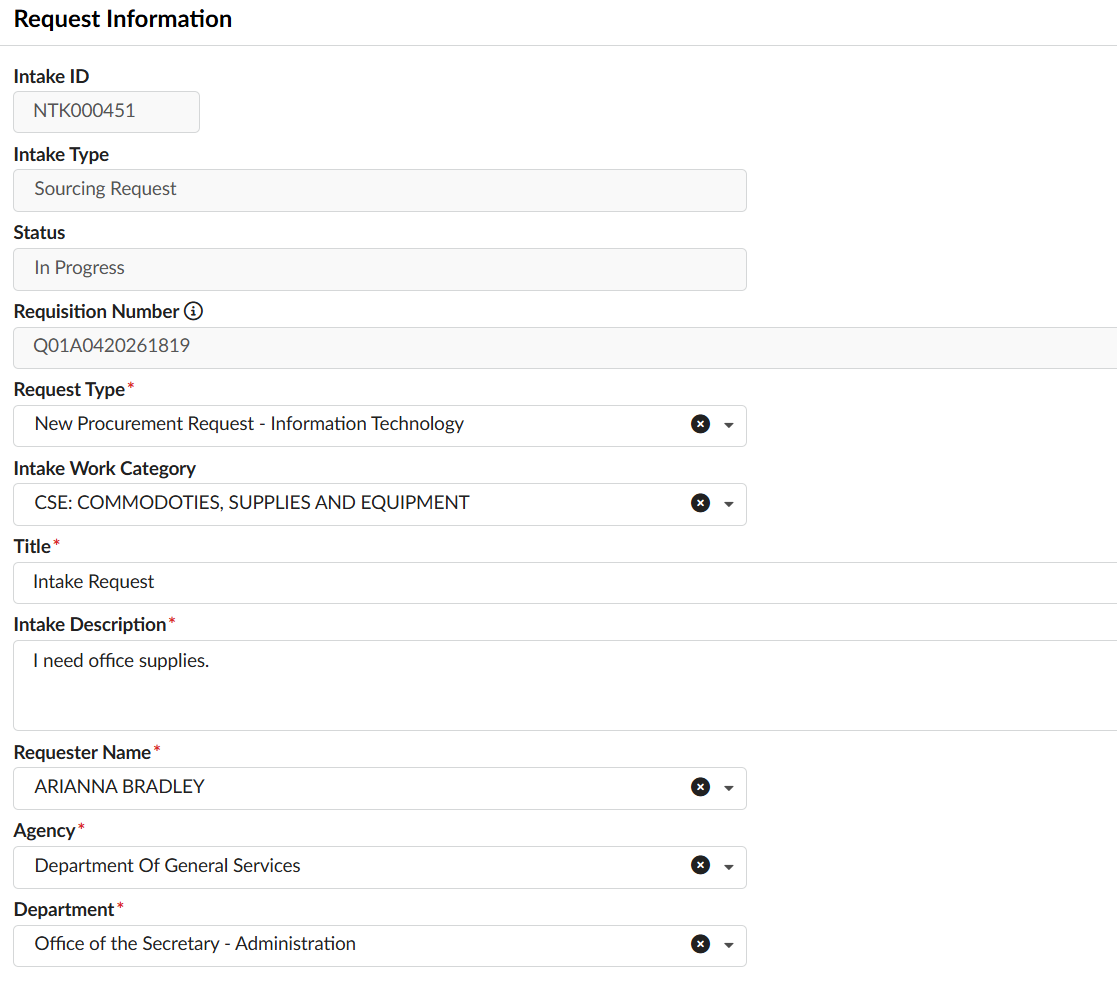
- IMPORTANT!! If the Request Type selected on the Intake request is incorrect, you must Reject it back to the original Requester with instructions to update the request.
- At the bottom of the page is the Request User Inputs section, where you can find the Estimated Budget, Fiscal Year, three different fields for uploading attachments, and various fields that will be completed during the review process.
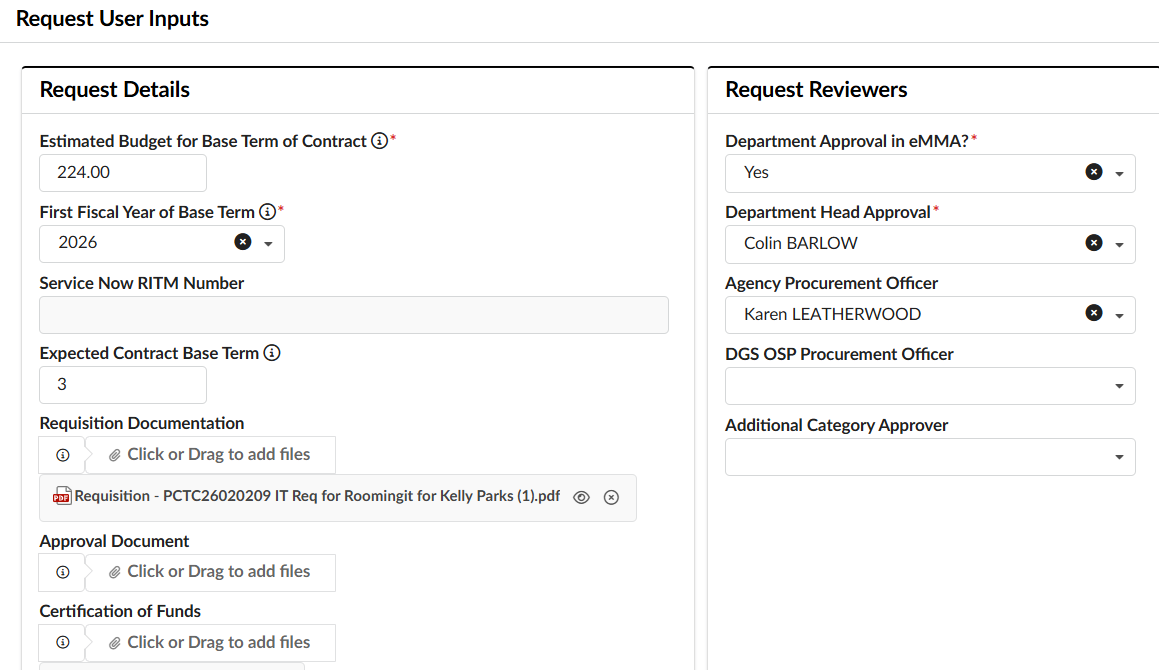
- To download an attachment, click the document's name. It will be downloaded onto your desktop where you will need to open and review outside of eMMA. Attachment fields include:
- Requisition Documentation: A catchall where users can upload other kinds of supporting documentation.
- Approval Document: Mandatory if the user selected 'No, just upload the offline approval document' in the Department Approval in eMMA field.
- Certification of Funds: Where either the Financial Approver, or the Requester will upload the Fund Certification. Note that this field is not visible to the Requester when first creating the Intake request.
- To download an attachment, click the document's name. It will be downloaded onto your desktop where you will need to open and review outside of eMMA. Attachment fields include:
- The Request Information section at the top of the page will include basic information about the request.
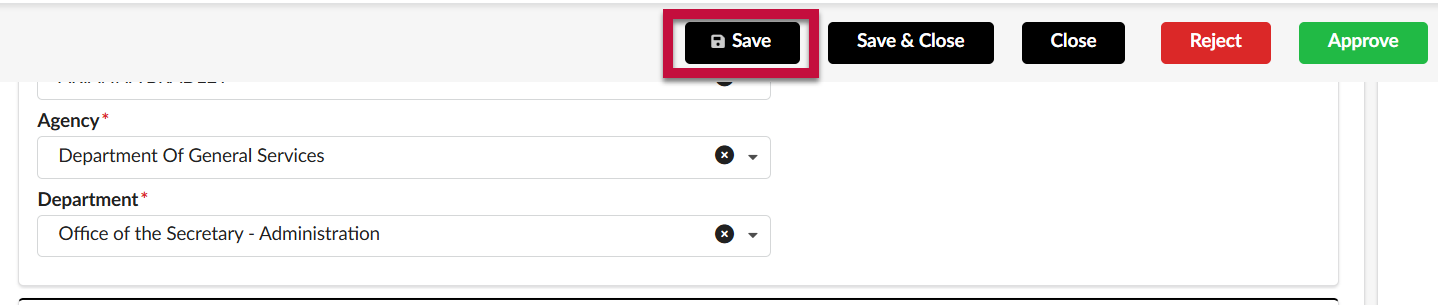
- Click Save.
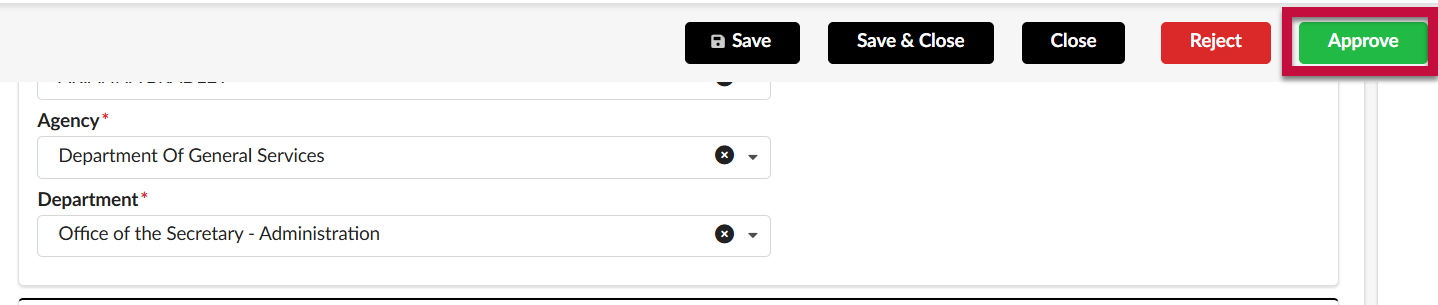
- To approve the Intake Request, and send it to the next step in the workflow, click Approve.
- To reject the intake request and send it back to the initial Requester at the Draft step, click Reject. The Requester will receive an email notification informing them of the rejection.
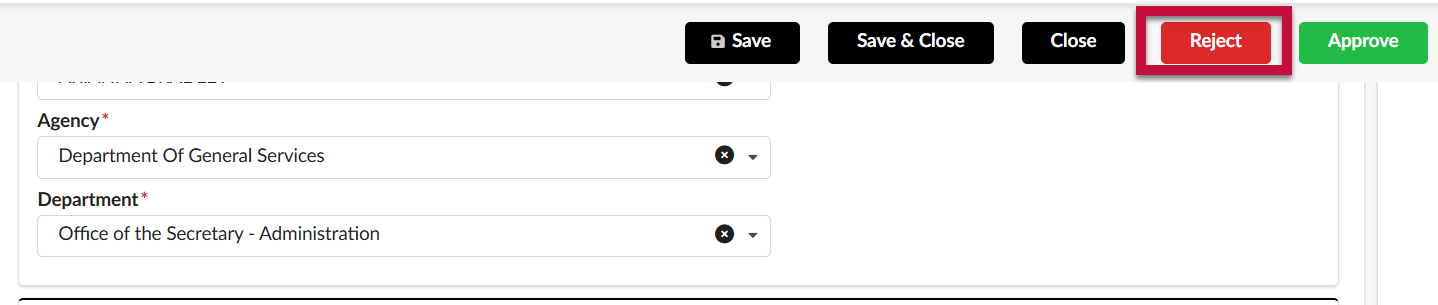 IMPORTANT!! If you reject, you will be required to enter a reason for the rejection in the pop-up that appears. These comments are open-ended and should include as much detail as possible, including instructions to the requester on what to correct and how to proceed, or an explanation why the procurement request is being denied. After entering the reason, click Confirm.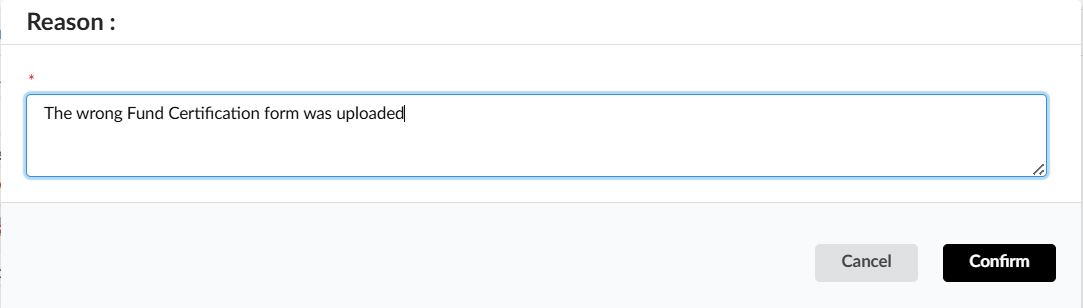
Financial Approver
- Access eMMA at https://emma.maryland.gov and log in with your credentials.
NOTE: Depending on your agency, you may only need to click the State SSO Login (Secure Auth) button or the MDOT SSO Login (MSAzure) button and log in with your credentials. - You will receive an email notification whenever an Intake Request requires your review. The Intake Request will also appear in the My Pending Validations section of your homepage with an Activity of Financial Approver. From the homepage, click on the Object hyperlink to open the Intake Request.
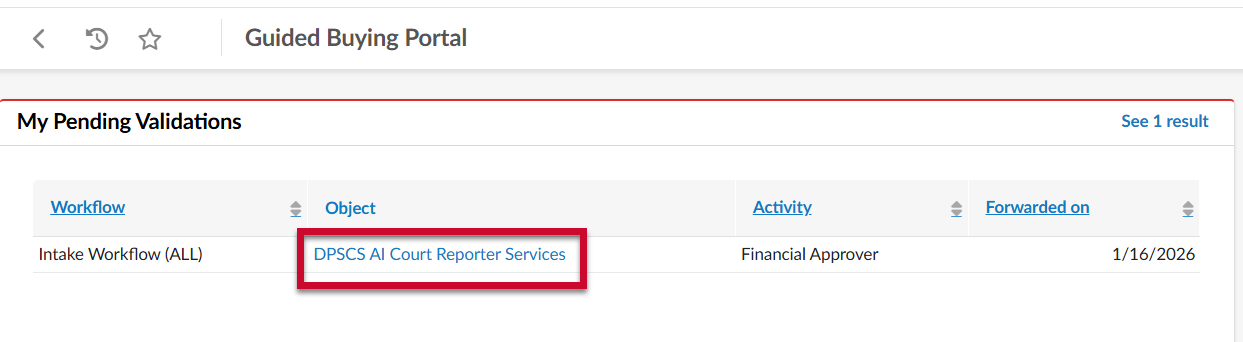
- Review the details of the Intake Request.
- The Request Information section at the top of the page will include basic information about the request.
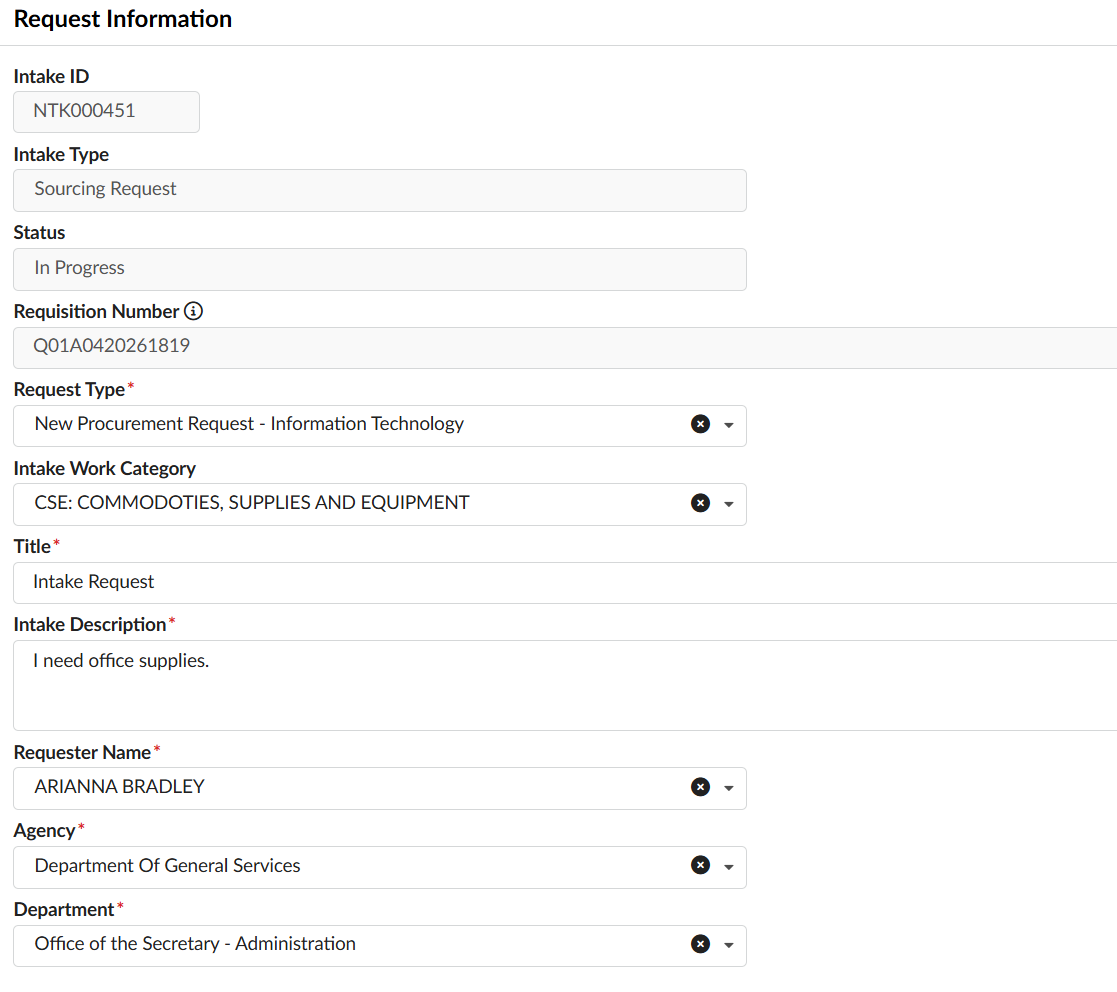
- IMPORTANT!! If the Request Type selected on the Intake request is incorrect, you must Reject it back to the original Requester with instructions to update the request.
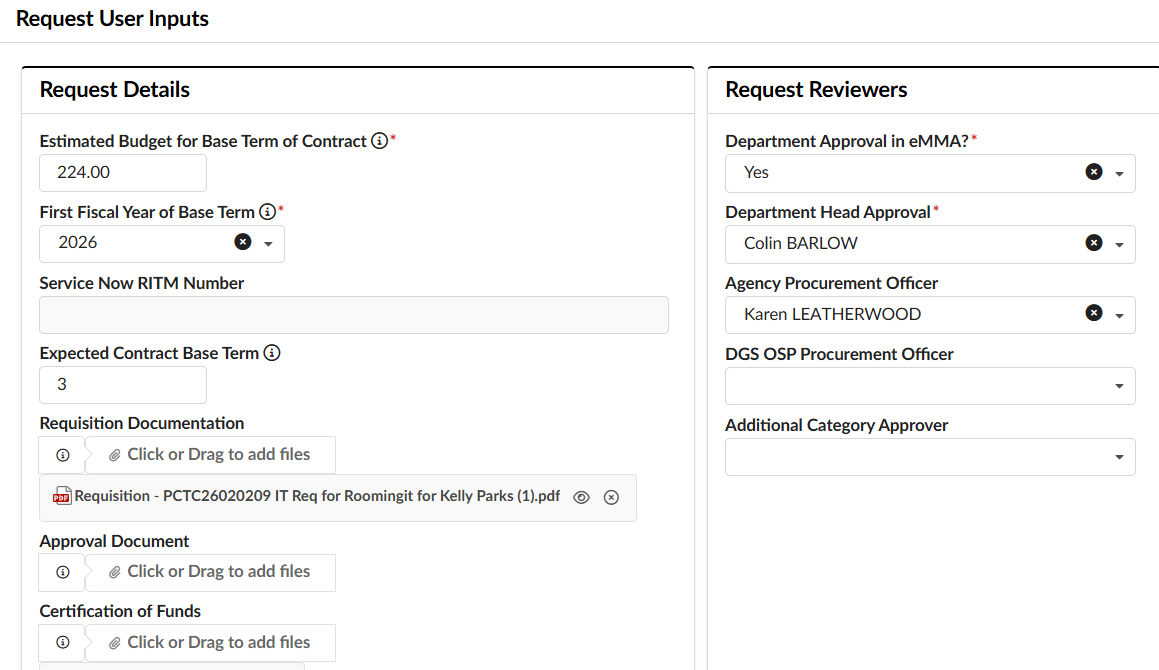
- At the bottom of the page is the Request User Inputs section, where you can find the Estimated Budget, Fiscal Year, three different fields for uploading attachments, and various fields that will be completed during the review process.
- Attachment fields include:
- Requisition Documentation: A catchall where users can upload other kinds of supporting documentation
- Approval Document: Mandatory if the user selected 'No, just upload the offline approval document' in the Department Approval in eMMA field.
- Certification of Funds: Where either the Financial Approver, or the Requester will upload the Fund Certification. Note that this field is not visible to the Requester when first creating the Intake request.
- Attachment fields include:
- The Request Information section at the top of the page will include basic information about the request.
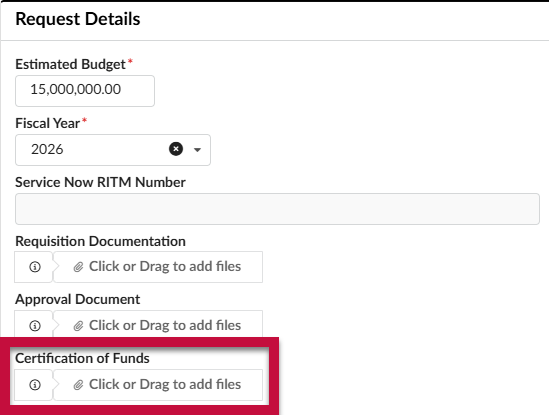
- If you are going to upload the Certification of Funds, scroll down to the Request User Inputs section. In the Certification of Funds field, use the Click or Drag to add a file button to select the fund certification document from your desktop and upload it.
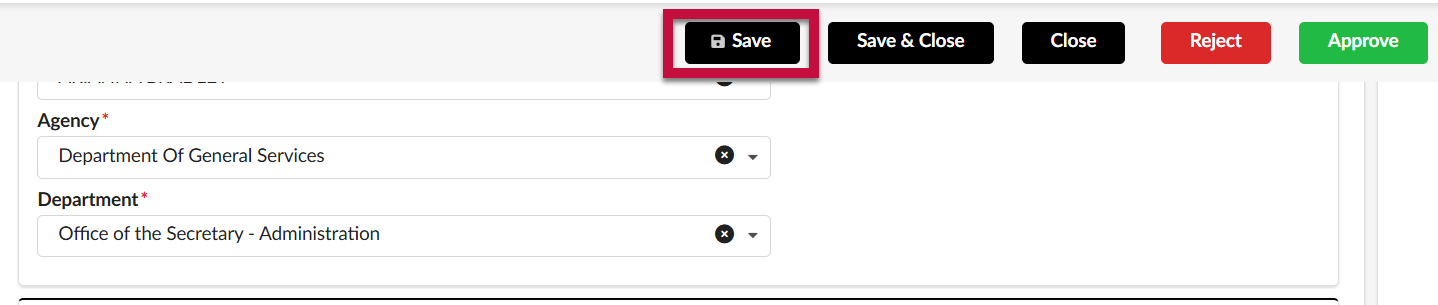
- Click Save.
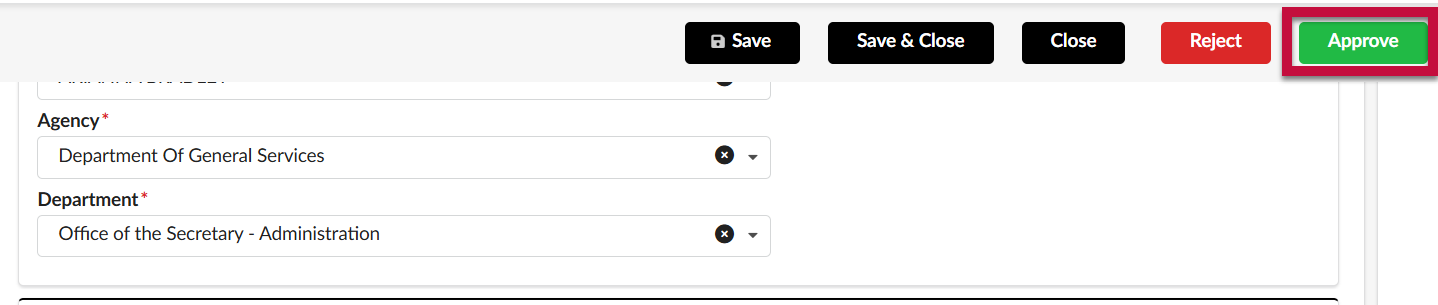
- To approve the Intake Request, and send it to the next step in the workflow, click Approve.
- To reject the intake request and send it back to the initial Requester at the Draft step, click Reject. The Requester will receive an email notification informing them of the rejection.
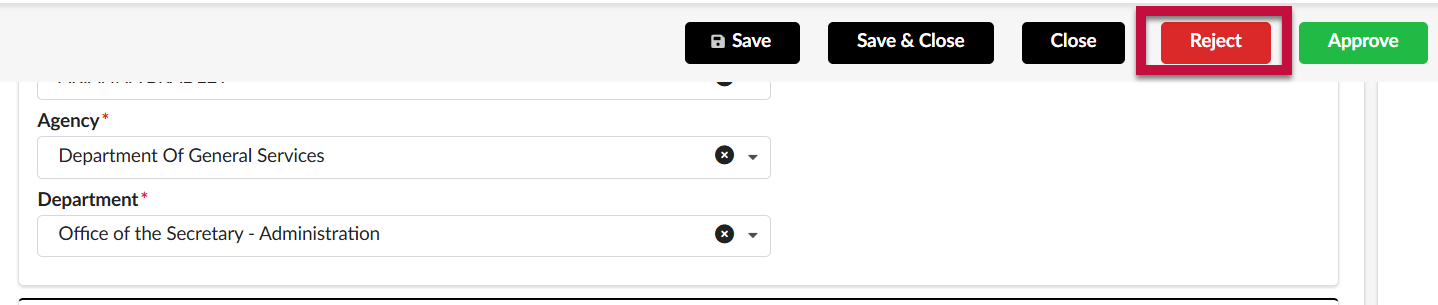 IMPORTANT!! If you reject, you will be required to enter a reason for the rejection in the pop-up that appears. These comments are open-ended and should include as much detail as possible, including instructions to the requester on what to correct and how to proceed, or an explanation why the procurement request is being denied. After entering the reason, click Confirm.
Procurement Review Queue
- Access eMMA at https://emma.maryland.gov and log in with your credentials.
NOTE: Depending on your agency, you may only need to click the State SSO Login (Secure Auth) button or the MDOT SSO Login (MSAzure) button and log in with your credentials. - You will receive an email notification whenever an Intake Request requires your review. The Intake Request will also appear in the My Pending Validations section of your homepage with an Activity of Procurement Review Queue. From the homepage, click on the Object hyperlink to open the Intake Request.
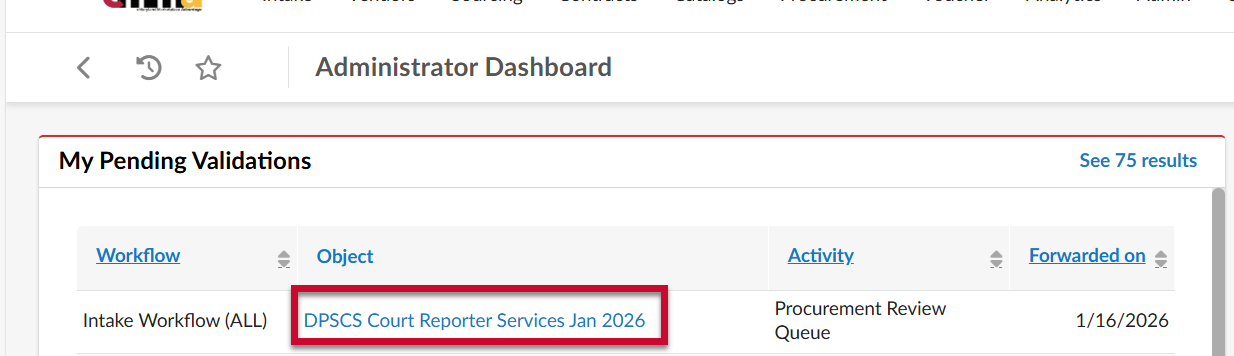
- Review the details of the Intake Request.
- The Request Information section at the top of the page will include basic information about the request.
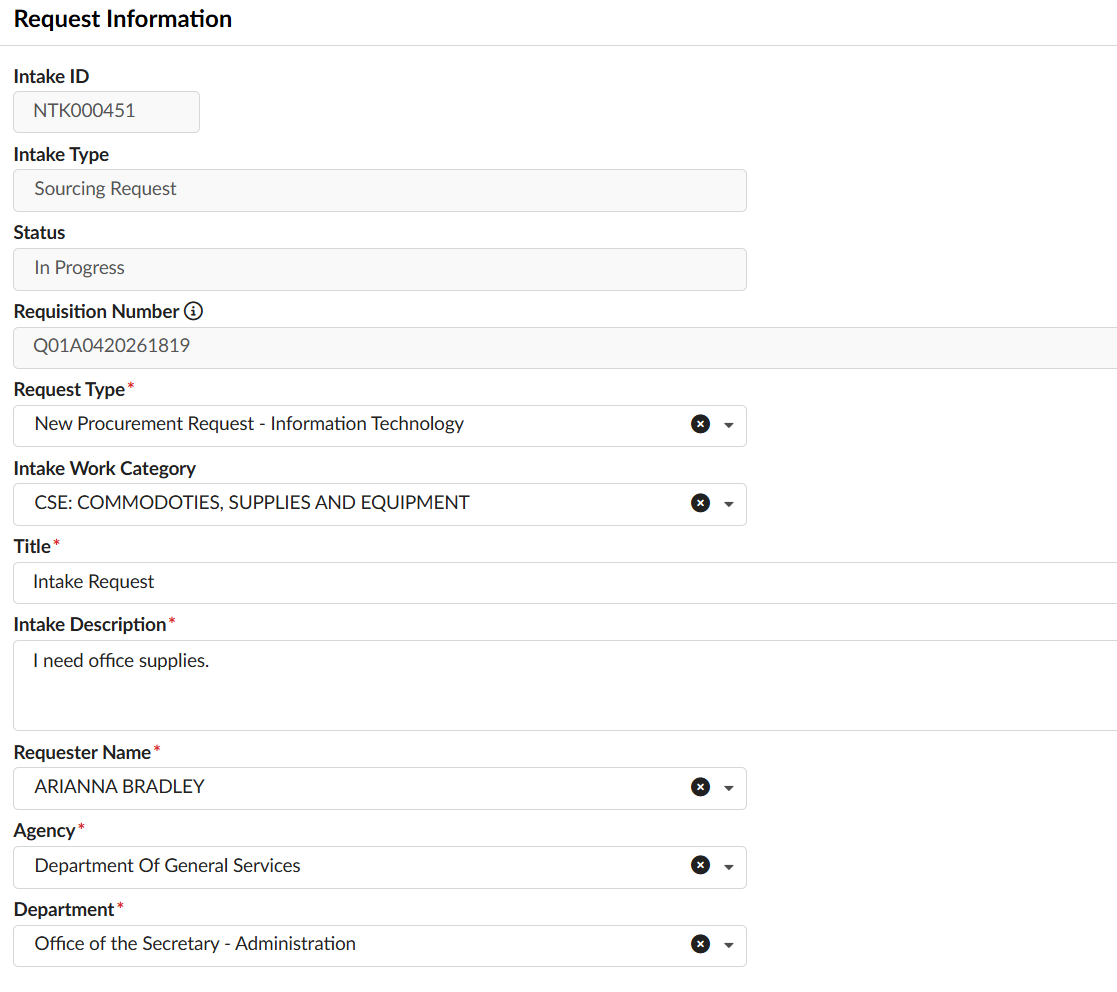
- IMPORTANT!! If the Request Type selected on the Intake request is incorrect, you must Reject it back to the original Requester with instructions to update the request.
- At the bottom of the page is the Request User Inputs section, where you can find the Estimated Budget, Fiscal Year, three different fields for uploading attachments, and various fields that will be completed during the review process.
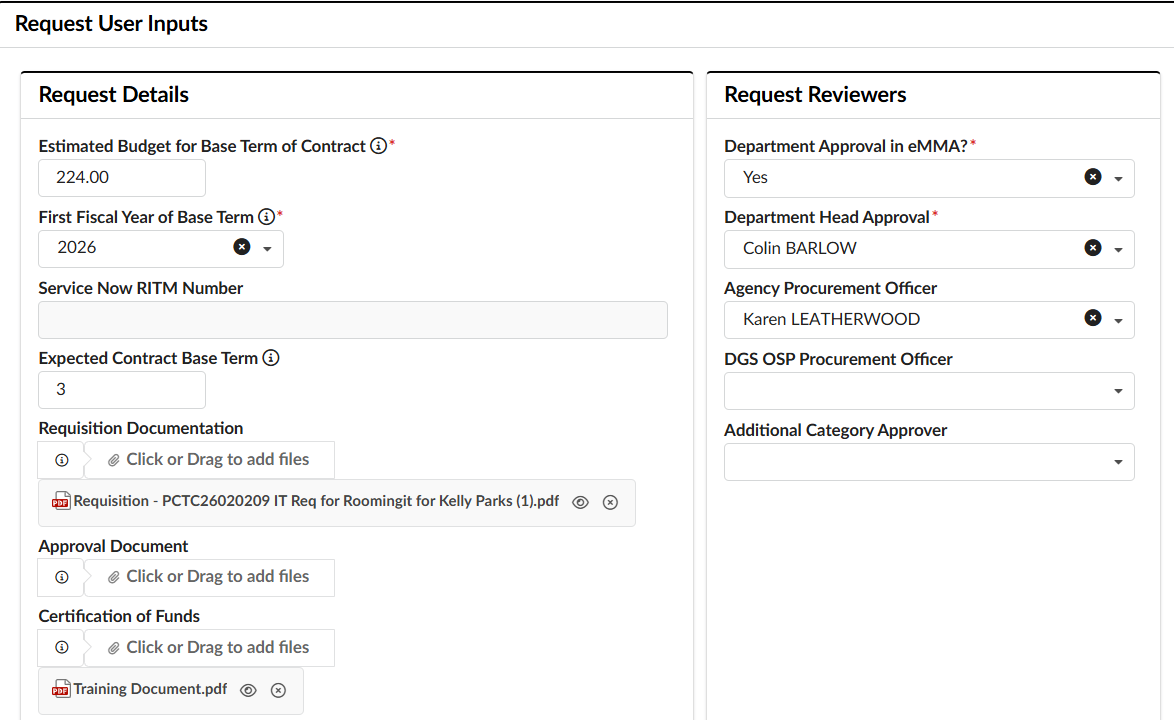
- Attachment fields include:
- Requisition Documentation: A catchall where users can upload other kinds of supporting documentation
- Approval Document: Mandatory if the user selected 'No, just upload the offline approval document' in the Department Approval in eMMA field.
- Certification of Funds: Where either the Financial Approver, or the Requester will upload the Fund Certification. Note that this field is not visible to the Requester when first creating the Intake request.
- Attachment fields include:
- The Request Information section at the top of the page will include basic information about the request.
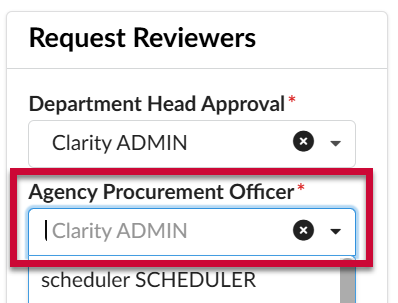
- In the Intake Reviewers section, click on the Agency Procurement Officer field, and begin typing in the name of the Procurement Officer that will be assigned to this Intake Request. Click to select them from the drop-down menu when they appear.
- Click Save.
- To approve the Intake Request, and send it to the next step in the workflow, click Approve.
- To reject the intake request and send it back to the initial Requester at the Draft step, click Reject. The Requester will receive an email notification informing them of the rejection.
 IMPORTANT!! If you reject, you will be required to enter a reason for the rejection in the pop-up that appears. These comments are open-ended and should include as much detail as possible, including instructions to the requester on what to correct and how to proceed, or an explanation why the procurement request is being denied. After entering the reason, click Confirm.
Procurement Officer Approval
- Access eMMA at https://emma.maryland.gov and log in with your credentials.
NOTE: Depending on your agency, you may only need to click the State SSO Login (Secure Auth) button or the MDOT SSO Login (MSAzure) button and log in with your credentials. - You will receive an email notification whenever an Intake Request requires your review. The Intake Request will also appear in the My Pending Validations section of your homepage with an Activity of Procurement Officer Approval. From the homepage, click on the Object hyperlink to open the Intake Request.
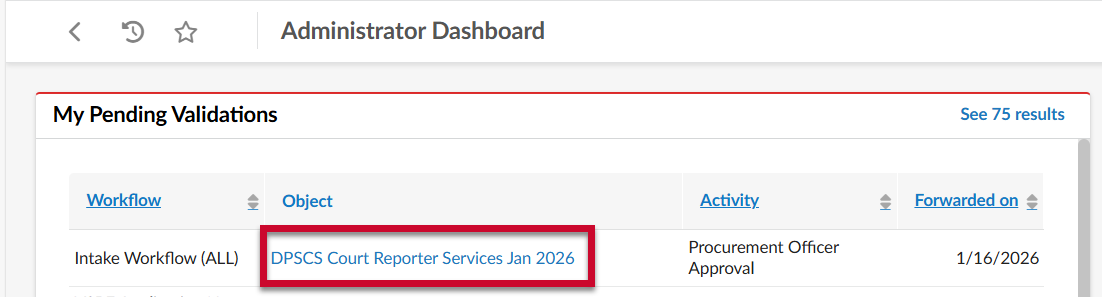
- Review the details of the Intake Request.
- The Request Information section at the top of the page will include basic information about the request.
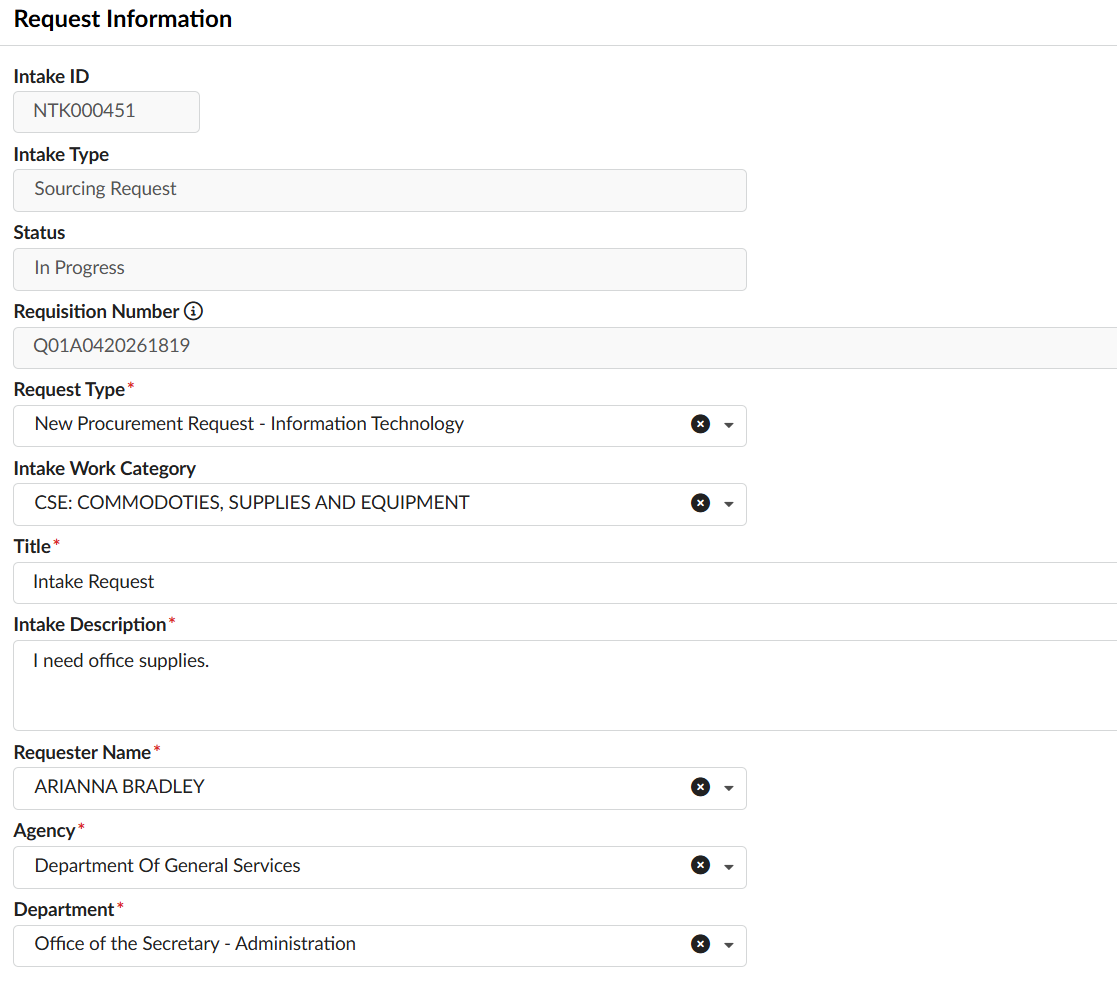
- IMPORTANT!! If the Request Type selected on the Intake request is incorrect, you must Reject it back to the original Requester with instructions to update the request.
- At the bottom of the page is the Request User Inputs section, where you can find the Estimated Budget, Fiscal Year, three different fields for uploading attachments, and various fields that will be completed during the review process.
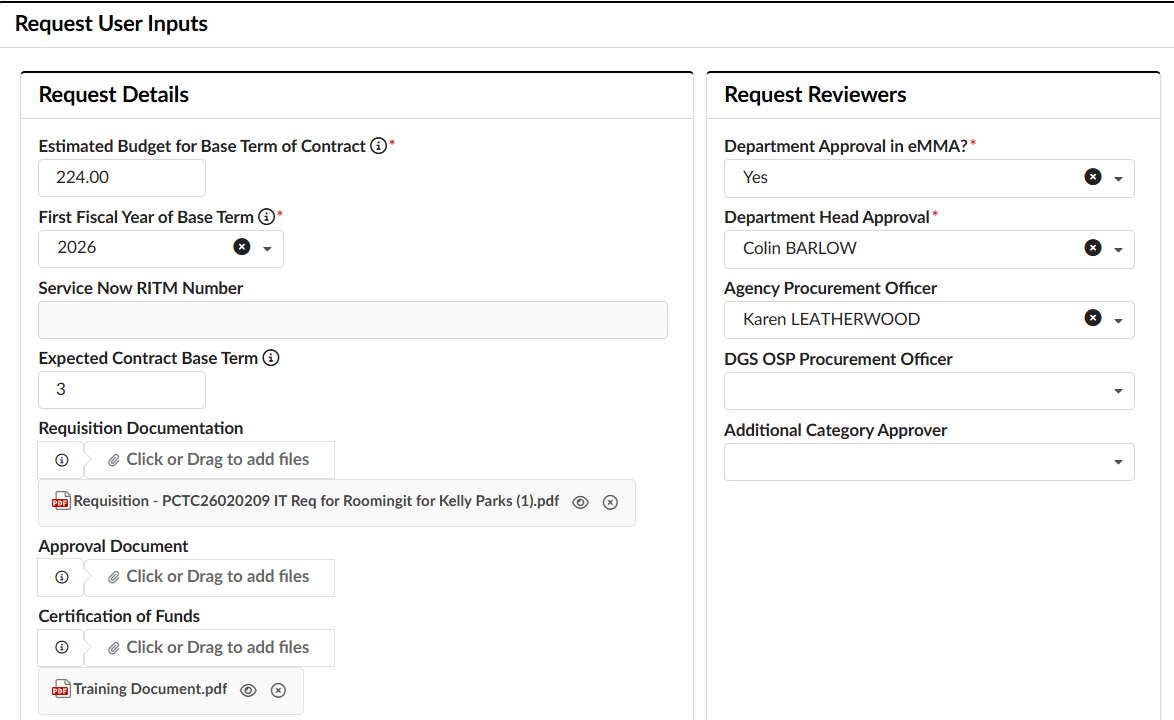
- Attachment fields include:
- Requisition Documentation: A catchall where users can upload other kinds of supporting documentation
- Approval Document: Mandatory if the user selected 'No, just upload the offline approval document' in the Department Approval in eMMA field.
- Certification of Funds: Where either the Financial Approver, or the Requester will upload the Fund Certification. Note that this field is not visible to the Requester when first creating the Intake request.
- Attachment fields include:
- The Request Information section at the top of the page will include basic information about the request.
- Complete the Request Decisions section.
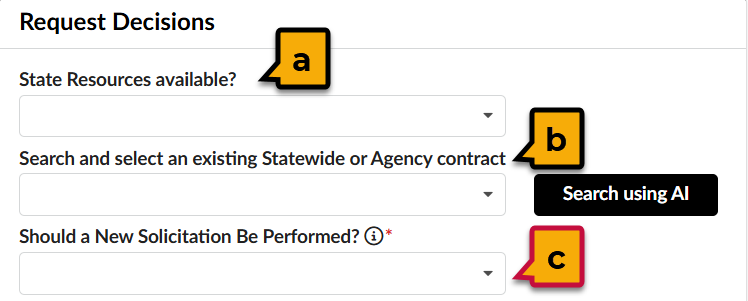
- State Resources available?: Indicates if resources available to conduct a solicitation.
- Search and select an existing Statewide or Agency contract:Select an existing eMMA contract that the Requester can purchase from. The eMMA AI tool can be used two different ways to search for and select an eMMA contract.
- Under the eMMA AI Recommendation section, click Recommend an Existing Contract button. The AI chat window will appear.
 eMMA AI will recommend the best contract based on the Request Details provided. Note: Only one contract will be recommended and appear in the field.
 - eMMA AI can also provide a short-list of multiple contracts suitable for the request if the first suggestion does not fit the request. Click the Search using AI button next to this field. The AI chat window will appear and provide a list of additional contracts to choose from.
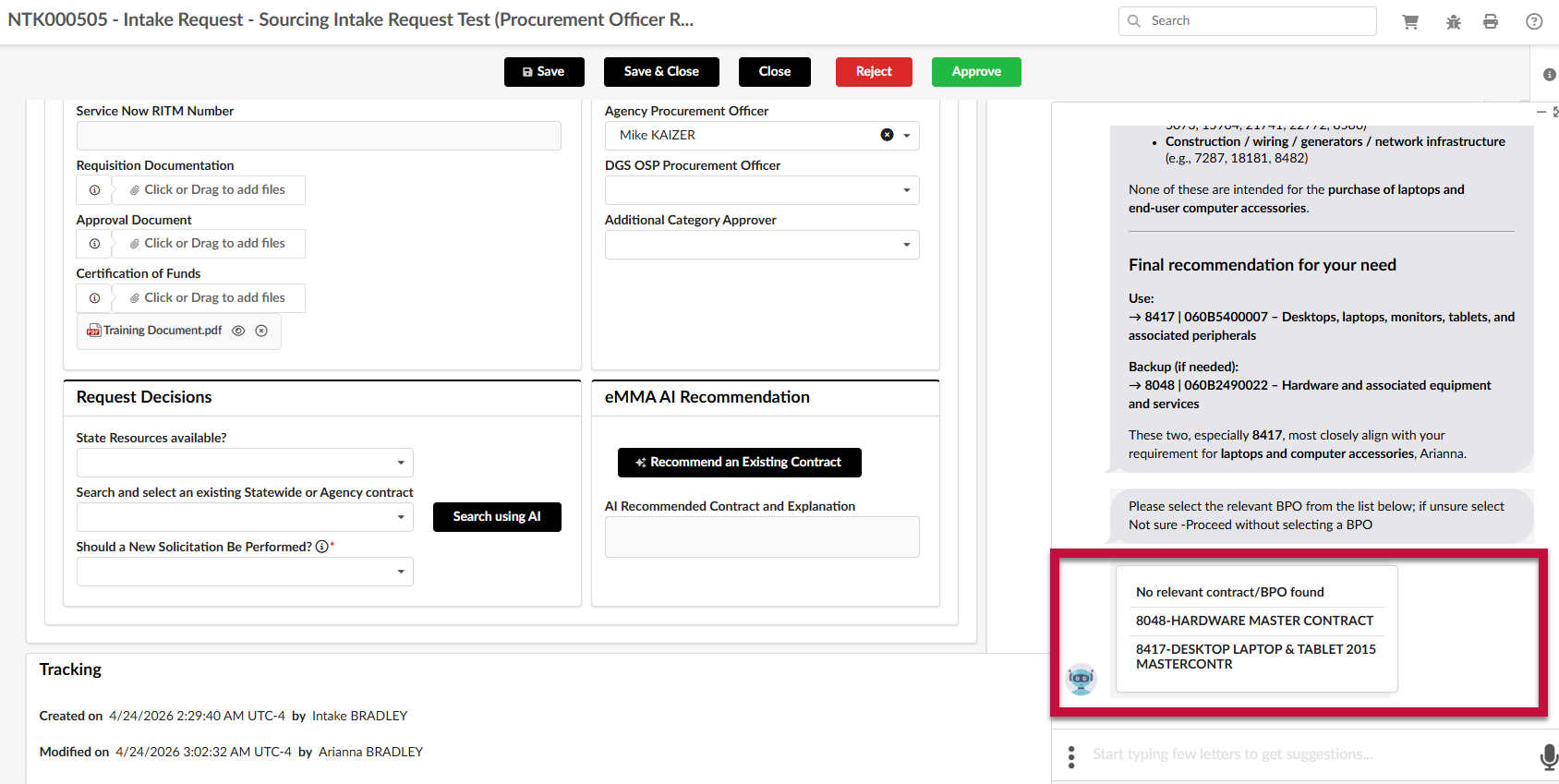
If one of the recommended contracts can be used, click the name and it will appear in the field.
- Under the eMMA AI Recommendation section, click Recommend an Existing Contract button. The AI chat window will appear.
- Should a New Solicitation Be Performed?*: Indicates whether a new solicitation should be performed. If yes, then new fields will appear.
- Do you want to use an existing solicitation?*: Only appears if Should a New Solicitation Be Performed? is "Yes".
- If yes: Existing Sourcing Project*: Lists the existing eMMA project that should be associated with this request.
- If No: The Intake Request Details section will appear.
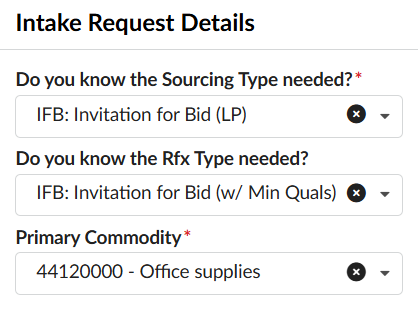
- Do you know the Sourcing Type needed?*: Indicates the type of sourcing project that will be created in eMMA.
- Do you know the Rfx Type needed?: Indicates the type of solicitation in eMMA that will be created.
- Primary Commodity*: Indicates the primary commodity for the solicitation.
- Who will conduct the procurement?*: Indicates if the agency or DGS OSP will own and manage the solicitation.
- Will this procurement contain multiple functional areas?*: If no, eMMA will auto-generate a PRG request upon approval of this sourcing intake request regardless of the value of the intake request. If yes, you will be required to manually create a PRG request for each functional area. Refer to the QRG for Creating and Submitting a PRG Request in eMMA.
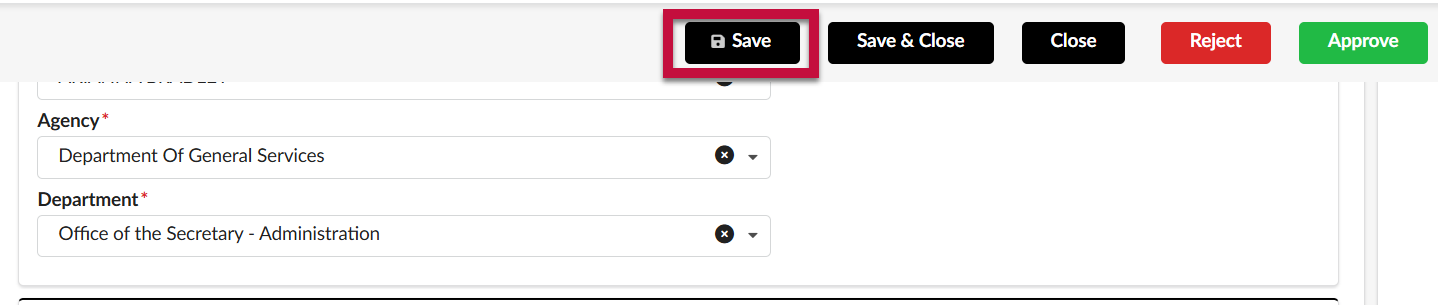
- Click Save.
- To approve the Intake Request, and send it to the next step in the workflow, click Approve.
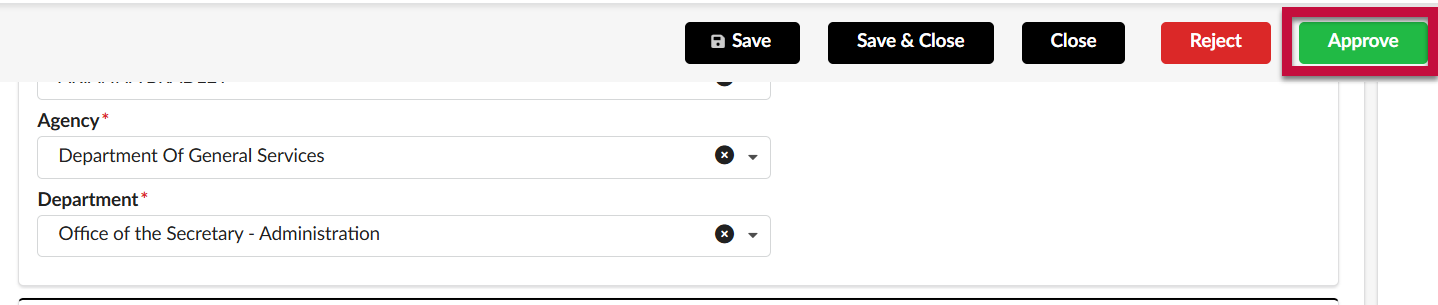
- To reject the intake request and send it back to the initial Requester at the Draft step, click Reject. The Requester will receive an email notification informing them of the rejection.
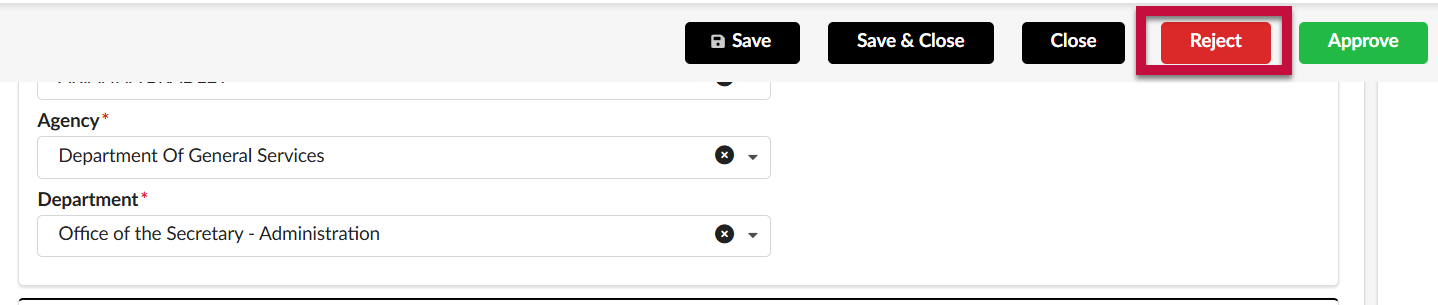 IMPORTANT!! If you reject, you will be required to enter a reason for the rejection in the pop-up that appears. These comments are open-ended and should include as much detail as possible, including instructions to the requester on what to correct and how to proceed, or an explanation why the procurement request is being denied. After entering the reason, click Confirm.
 - If you approve the Intake Request and...
- The Intake Request is for an IT purchase, it will be routed to a DoIT Approver to review the request (See DoIT Approvers)
IMPORTANT: You are no longer required to separately email DoIT when creating an IT request. eMMA will automatically notify DoIT and create the ServiceNow number. - The Intake Request is for a non-IT purchase, no new procurement is needed, and the Estimated Budget is below the approval threshold associated with that category, the workflow will complete and the original requester will receive a notification of the resolution
- The Intake Request is for a non-IT purchase, a new procurement is needed, and the Estimated Budget is above the approval threshold associated with that request type, it will be routed to the Category Approver to review the request (See Category Approvers)
- The Intake Request is for a non-IT purchase, a new procurement is needed, and the Estimated Budget is below the approval threshold associated with that Request Type, a new solicitation will be automatically created using the information from the Intake Request.
- The Intake Request is for an IT purchase, it will be routed to a DoIT Approver to review the request (See DoIT Approvers)
DoIT Approvers
NOTE: eMMA will only route Intake Requests with a Request Type associated with an IT Procurement to the DoIT Approval step.
- Access eMMA at https://emma.maryland.gov and log in with your credentials.
- You will receive an email notification whenever an Intake Request requires your review. The Intake Request will also appear in the My Pending Validations section of your homepage with an Activity of DoIT Review. From the homepage, click on the Object hyperlink to open the Intake Request.
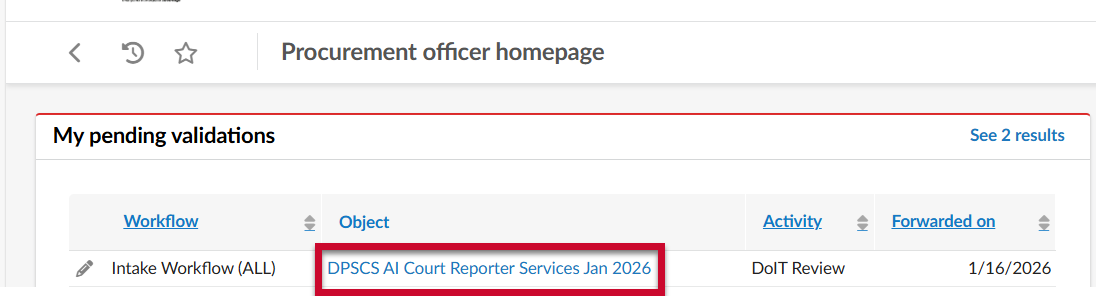
- Review the details of the Intake Request.
- The Request Information section at the top of the page will include basic information about the request.
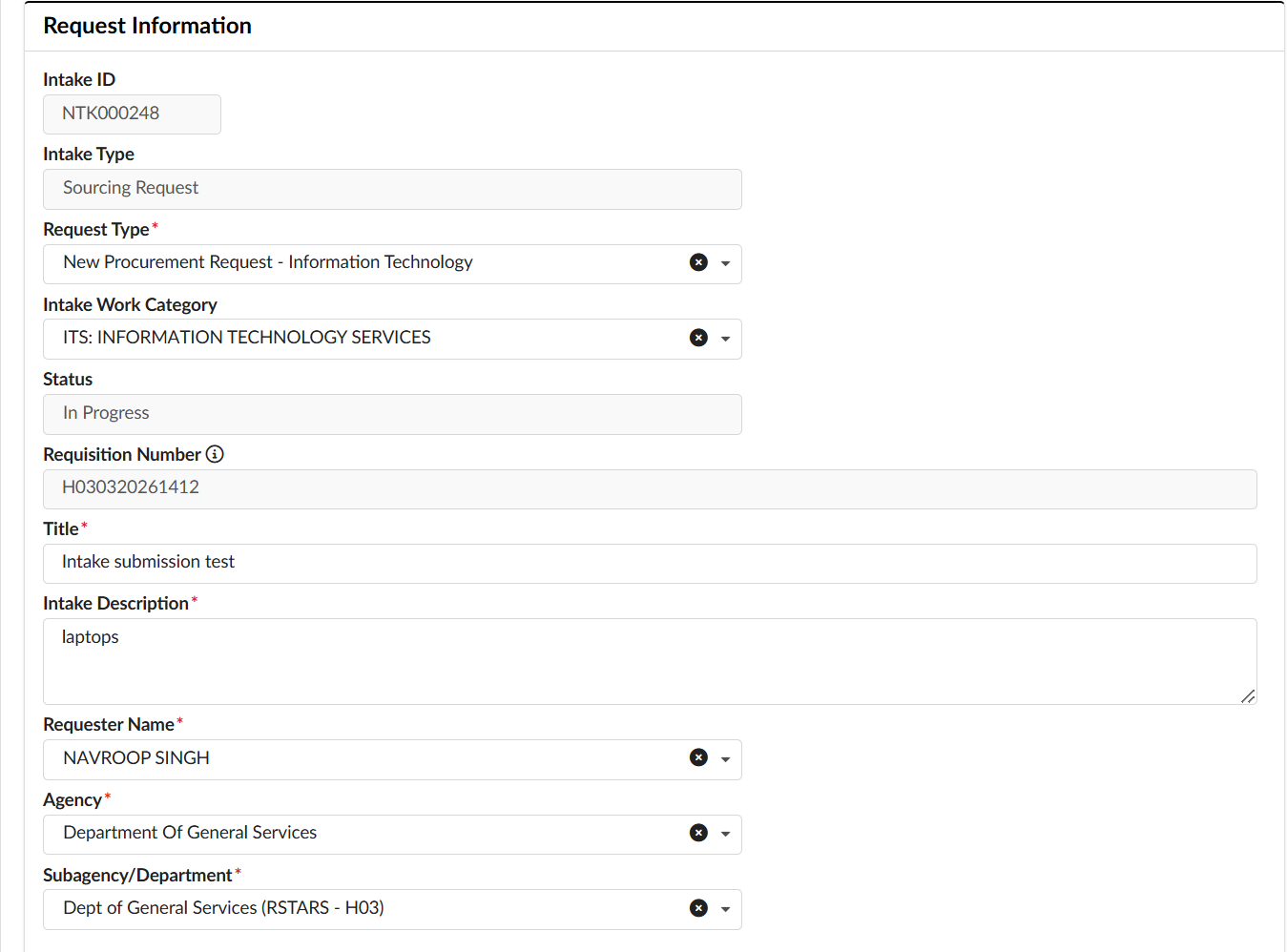
- IMPORTANT!! If the Request Type selected on the Intake request is incorrect, you must Reject it back to the Procurement Officer with instructions to reject it back to the Requester to make the updates.
- At the bottom of the page is the Request User Inputs section, where you can find the Estimated Budget, Fiscal Year (three different fields for uploading attachments) and various fields that will be completed during the review process.
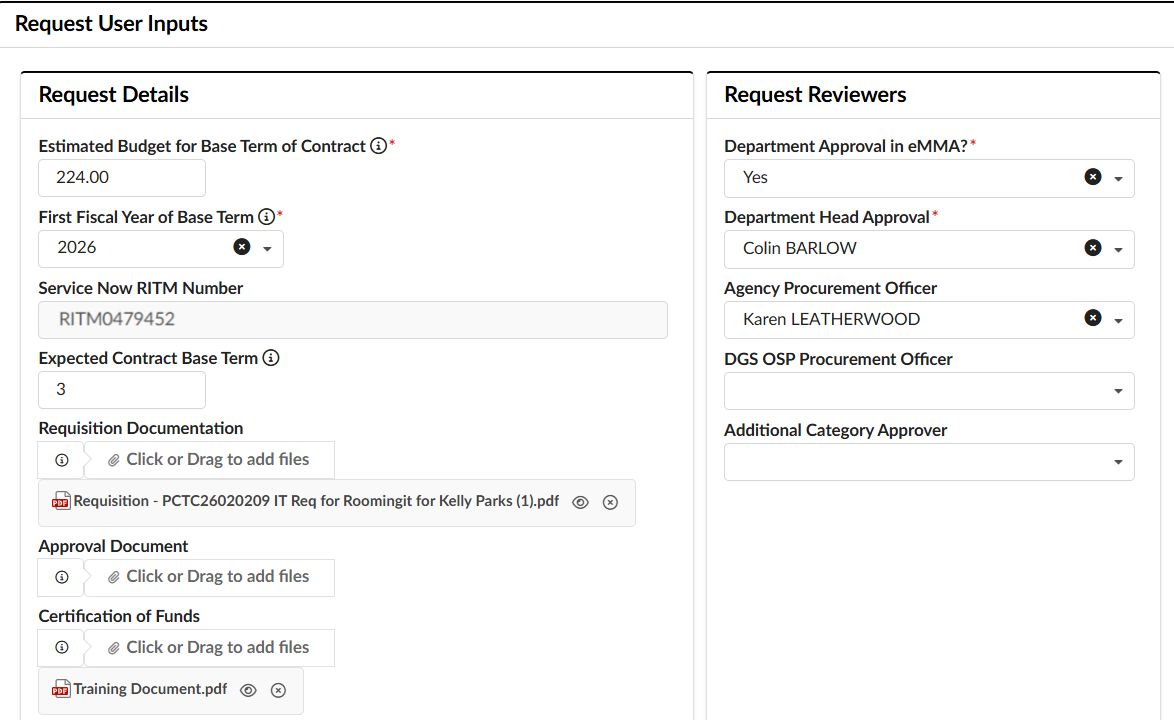
- Attachment fields include:
- Requisition Documentation: A catchall where users can upload other kinds of supporting documentation
- Approval Document: Mandatory if the user selected 'No, just upload the offline approval document' in the Department Approval in eMMA field.
- Certification of Funds: Where either the Financial Approver, or the Requester will upload the Fund Certification. Note that this field is not visible to the Requester when first creating the Intake request.
- Attachment fields include:
- The Request Information section at the top of the page will include basic information about the request.
- Prior to your approval, eMMA will automatically create a ticket in Service Now. You will no longer receive a separate email from the Requester to manually create the ServiceNow ticket. The Service Now ticket number will automatically populate under the Request Details section.
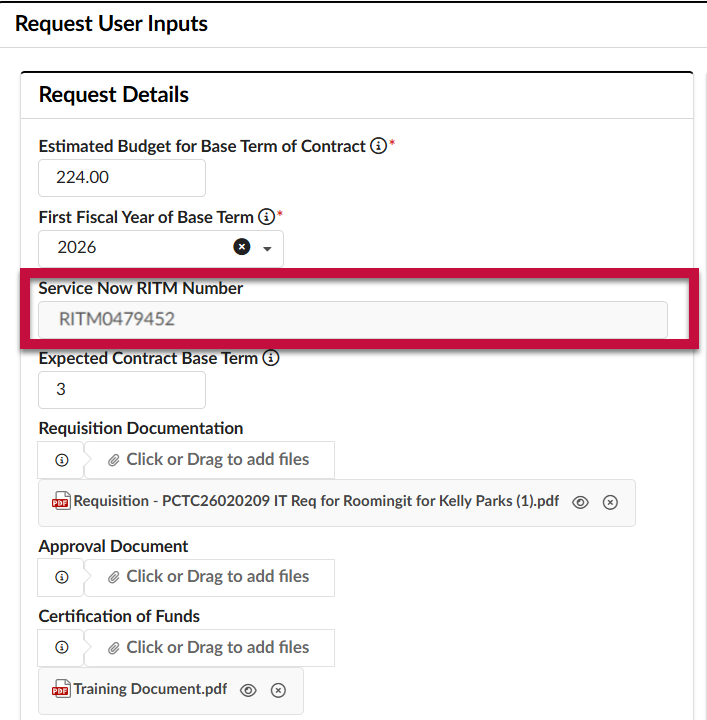
- (optional) If appropriate, update the remaining fields in the Request Decisions section.
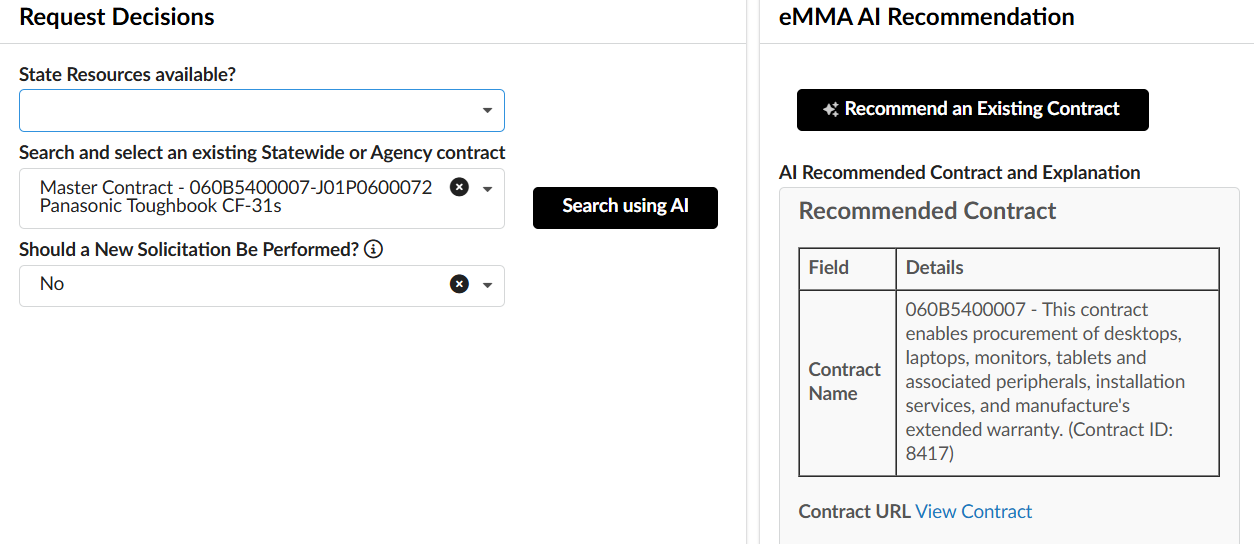
- If there are State Resources available that can meet the needs outlined in the Intake Request, update the State Resources available? field to Yes.
- If there is an existing contract that the user should purchase off of that is different from the one suggested in the eMMA AI Recommendation section to the right, update the Search and select an existing Statewide or Agency contract field with the name of the contract.
- Under the eMMA AI Recommendation section, click Recommend an Existing Contract button. The AI chat window will appear.eMMA AI will recommend the best contract based on the Request Details provided. Note: Only one contract will be recommended.
- eMMA AI can also provide a short-list of multiple contracts suitable for the request. Click the Search using AI button next to this field. The AI chat window will appear and provide a list of contracts to choose from.
If one of the recommended contracts can be used, click the name and it will appear in the field.
- Under the eMMA AI Recommendation section, click Recommend an Existing Contract button. The AI chat window will appear.
- If you disagree with the Procurement Officer's assessment regarding whether a solicitation should be performed:
- Because there are existing State IT contracts or resources that meet the Requester's needs, update the Should a New Solicitation Be Performed field to No.
- Because there are no existing State IT contracts or resources that meet the Requester's needs, update the Should a New Solicitation Be Performed field to Yes. If you select Yes, a new Solicitation Inputs section will appear directly below the Intake Inputs section. Complete the mandatory and optional fields in this section as appropriate.
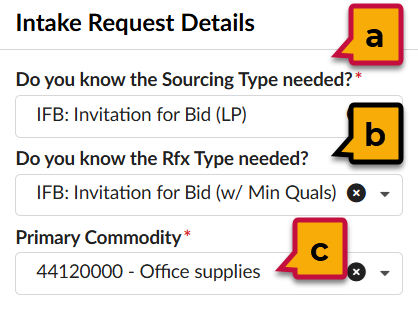
- Do you know the Sourcing Type needed?*: Indicate the type of solicitation that needs to be conducted.
- Do you know the Rfx Type needed?: If known, select the corresponding RFx type to go along with the type of solicitation selected above.
- Primary Commodity*: Indicate the primary commodity code that should be used on the header of the solicitation.
- Click Save.
- To approve the Intake Request, and send it to the next step in the workflow, click Approve.
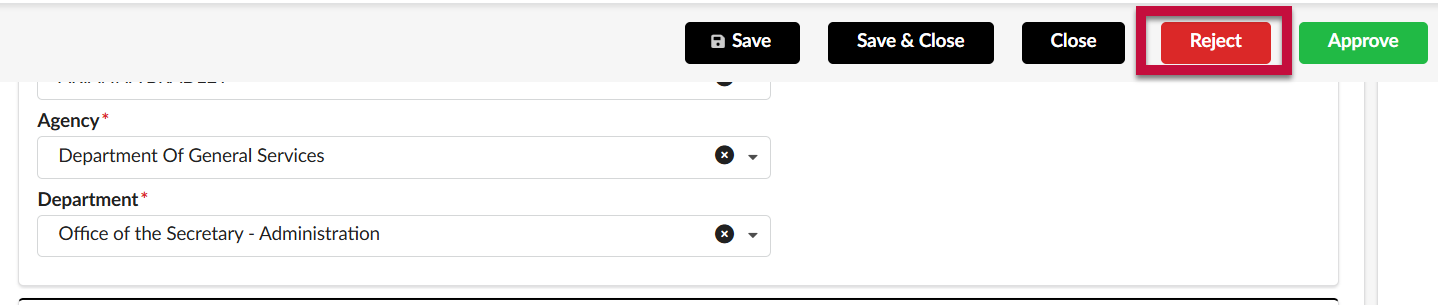
- To reject the intake request and send it back to the Procurement Officer, click Reject. The Procurement Officer will receive an email notification informing them of the rejection.
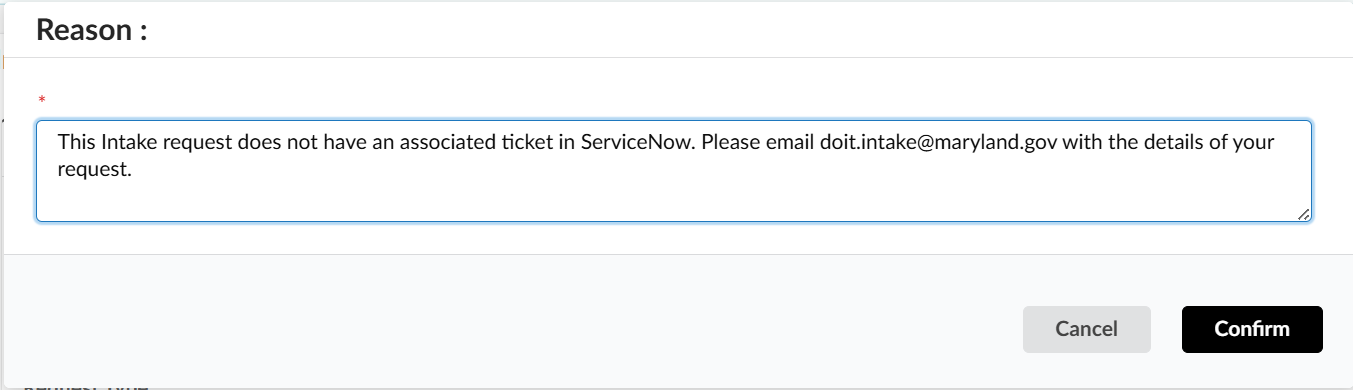
 IMPORTANT!! If you reject, you will be required to enter a reason for the rejection in the pop-up that appears. These comments are open-ended and should include as much detail as possible, including instructions to the Procurement Officer on what to correct and how to proceed, or an explanation why the procurement request is being denied. After entering the reason, click Confirm.
 If you approve the Intake Request and...
- The Estimated Budget is above the approval threshold associated with that request type, it will be routed to the Category Approver to review the request (See Category Approvers)
- The Estimated Budget is below the approval threshold associated with that request type and no new procurement is needed, the workflow will complete and both the Procurement Officer, and the original Requester will receive a notification of the resolution
- The Estimated Budget is below the approval threshold associated with that request type and a new procurement is needed, a new solicitation will be automatically created using the information from the Intake Request.
Category Approvers
NOTE: eMMA will only route Intake Requests that exceed the threshold associated with that Request Type and where a new procurement has been recommended to Category Approvers.
- Access eMMA at https://emma.maryland.gov and log in with your credentials.
NOTE: Depending on your agency, you may only need to click the State SSO Login (Secure Auth) button or the MDOT SSO Login (MSAzure) button and log in with your credentials. - You will receive an email notification whenever an Intake Request requires your review. The Intake Request will also appear in the My Pending Validations section of your homepage with an Activity of Category Approver. From the homepage, click on the Object hyperlink to open the Intake Request.
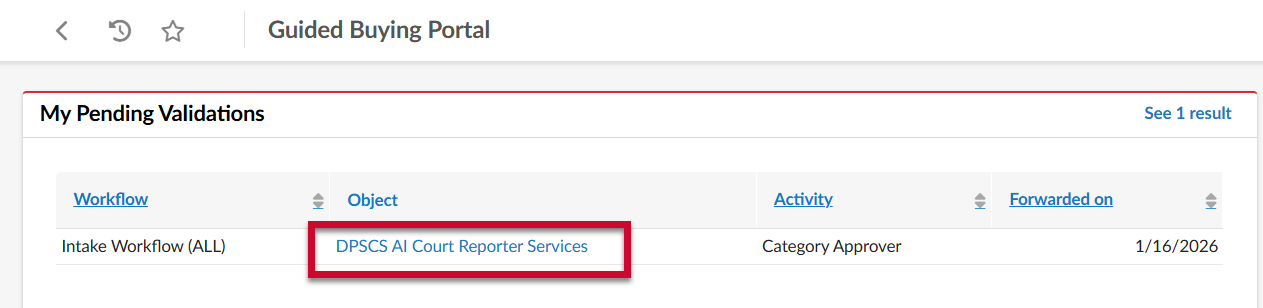
- Review the details of the Intake Request.
- The Request Information section at the top of the page will include basic information about the request.
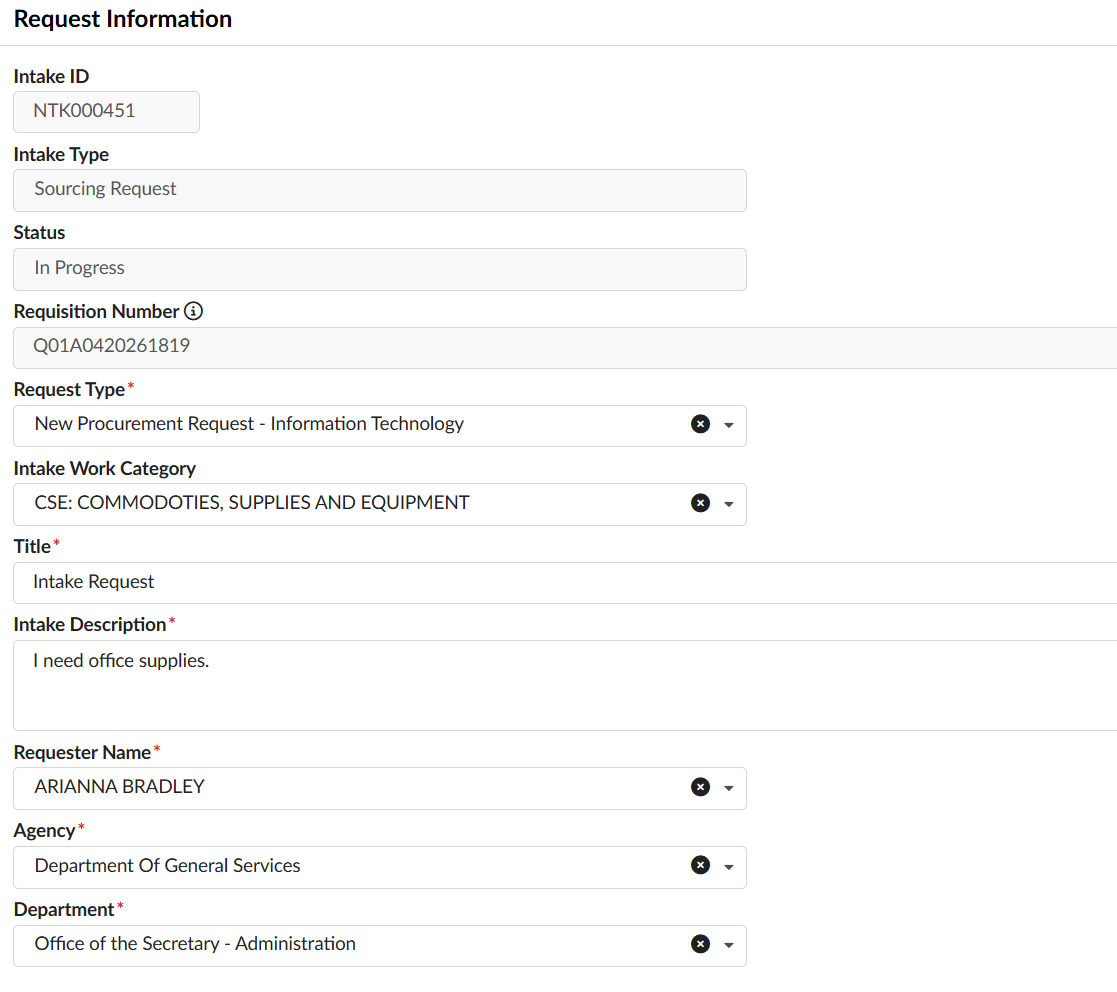
- IMPORTANT!! If the Request Type selected on the Intake request is incorrect, you must Reject it back to the Procurement Officer with instructions to reject it back to the Requester to make the updates.
- At the bottom of the page is the Request User Inputs section, where you can find the Estimated Budget, Fiscal Year, three different fields for uploading attachments, and various fields that will be completed during the review process.
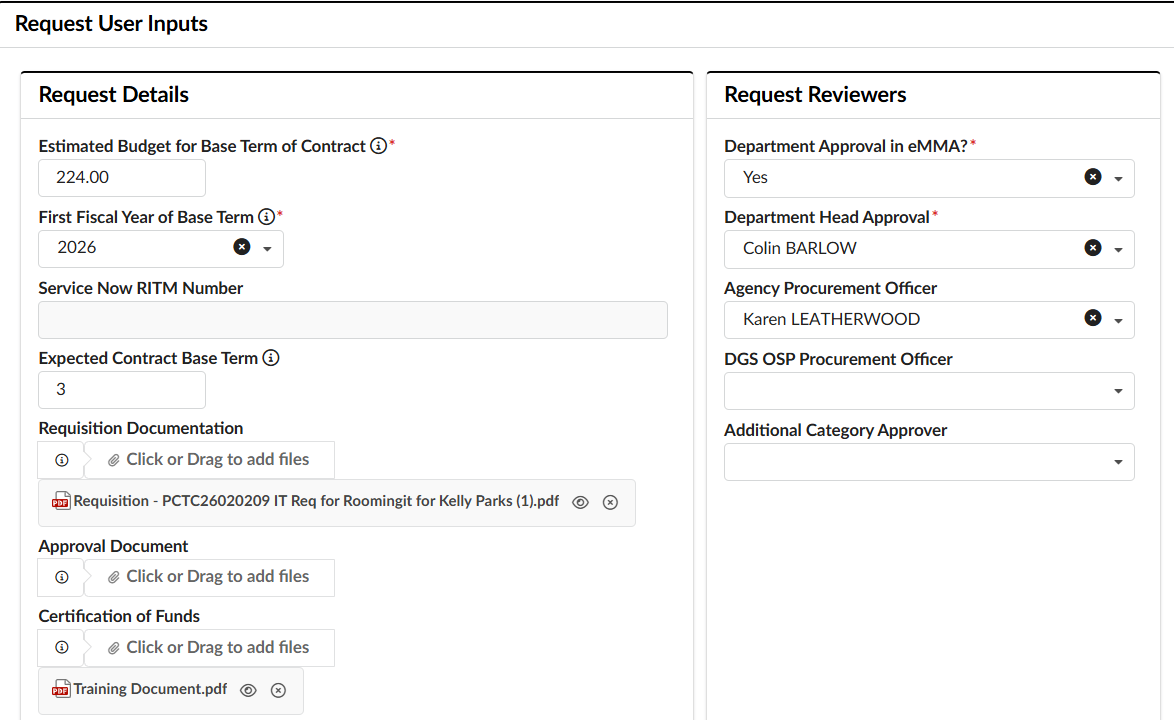
- Attachment fields include:
- Requisition Documentation: A catchall where users can upload other kinds of supporting documentation
- Approval Document: Mandatory if the user selected 'No, just upload the offline approval document' in the Department Approval in eMMA field.
- Certification of Funds: Where either the Financial Approver, or the Requester will upload the Fund Certification. Note that this field is not visible to the Requester when first creating the Intake request.
- Attachment fields include:
- The Request Information section at the top of the page will include basic information about the request.
- (optional) If appropriate, update the remaining fields in the Request Decisions section.
- If there are State Resources available that can meet the needs outlined in the Intake Request, update the State Resources available? field to Yes.
- If there is an existing contract that the user should purchase off of that is different from the one suggested in the eMMA AI Recommendation section to the right, update the Search and select an existing Statewide or Agency contractfield with the name of the contract.
- Under the eMMA AI Recommendation section, click Recommend an Existing Contract button. The AI chat window will appear.eMMA AI will recommend the best contract based on the Request Details provided. Note: Only one contract will be recommended.
- eMMA AI can also provide a short-list of multiple contracts suitable for the request. Click the Search using AI button next to this field. The AI chat window will appear and provide a list of contracts to choose from.
If one of the recommended contracts can be used, click the name and it will appear in the field.
- Under the eMMA AI Recommendation section, click Recommend an Existing Contract button. The AI chat window will appear.
- If you disagree with the Procurement Officer's assessment regarding whether a solicitation should be performed:
- Because there are existing State IT contracts or resources that meet the Requester's needs, update the Should a New Solicitation Be Performed field to No.
- Because there are no existing State IT contracts or resources that meet the Requester's needs, update the Should a New Solicitation Be Performed field to Yes. If you select Yes, a new Solicitation Inputs section will appear directly below the Intake Inputs section. Complete the mandatory and optional fields in this section as appropriate.
- Do you know the Sourcing Type needed?*: Indicate the type of solicitation that needs to be conducted.
- Do you know the Rfx Type needed?: If known, select the corresponding RFx type to go along with the type of solicitation selected above.
- Primary Commodity*: Indicate the primary commodity code that should be used on the header of the solicitation.
- (optional) If you would like to add another layer of review on the Intake Request, you can add an ad-hoc approver using the Additional Category Approver field in the Request Reviewers section. To add an approver, click in the Additional Category Approver field and begin typing in the desired user's name, then select them from the drop-down menu when they appear.
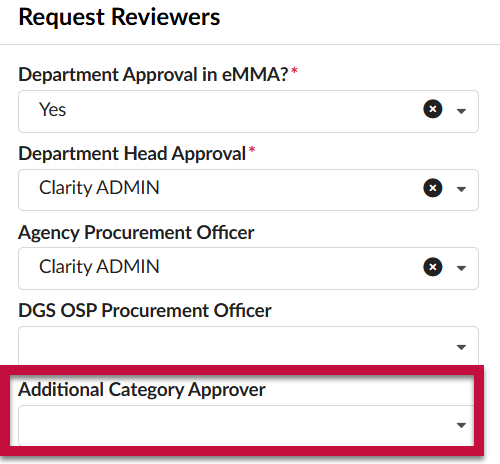
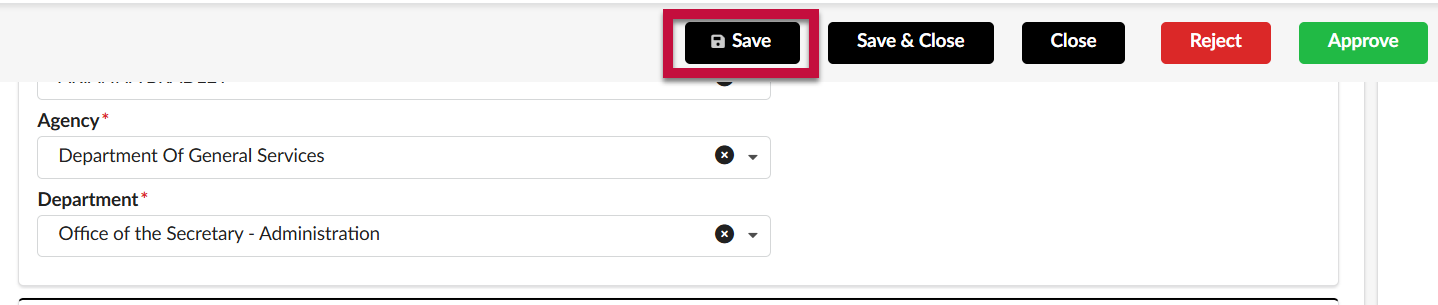
- Click Save.
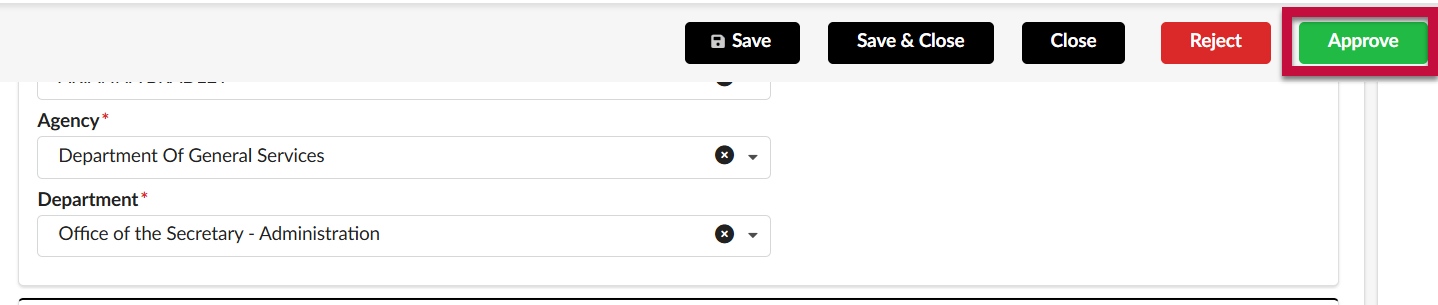
- To approve the Intake Request, and send it to the next step in the workflow, click Approve.
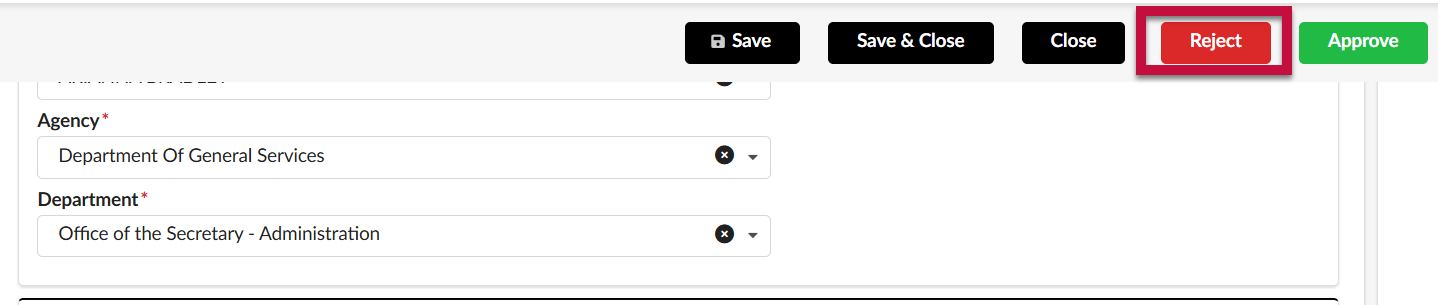
- To reject the intake request and send it back to the Procurement Officer, click Reject. The Procurement Officer will receive an email notification informing them of the rejection.
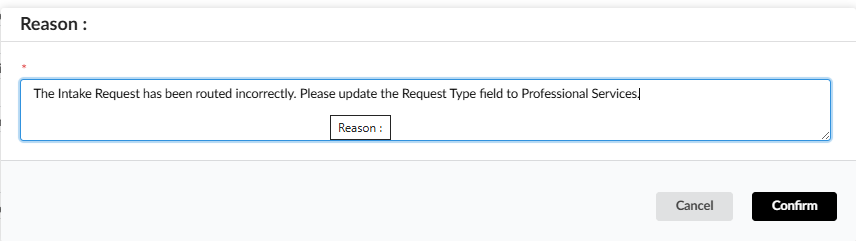
 IMPORTANT!! If you reject, you will be required to enter a reason for the rejection in the pop-up that appears. These comments are open-ended and should include as much detail as possible, including instructions to the Procurement Officer on what to correct and how to proceed, or an explanation why the procurement request is being denied. After entering the reason, click Confirm.
  If you approve the Intake Request and...
- A user was entered in the Additional Category Approver field, the Intake Request will route to that user (See Additional/Adhoc Approvers)
- No Additional Category Approver was assigned it will be routed to the DGS OSP Queue for review (See DGS OSP Queue)
Project Manager/Additional Review Approvers
NOTE: A Project Manager/Additional Review Approver will only be included in the Intake Request approval workflow is one is assigned at the Category Approver step.
- Access eMMA at https://emma.maryland.gov and log in with your credentials.
NOTE: Depending on your agency, you may only need to click the State SSO Login (Secure Auth) button or the MDOT SSO Login (MSAzure) button and log in with your credentials. - You will receive an email notification whenever an Intake Request requires your review. The Intake Request will also appear in the My Pending Validations section of your homepage with an Activity of Category Approver. From the homepage, click on the Object hyperlink to open the Intake Request.
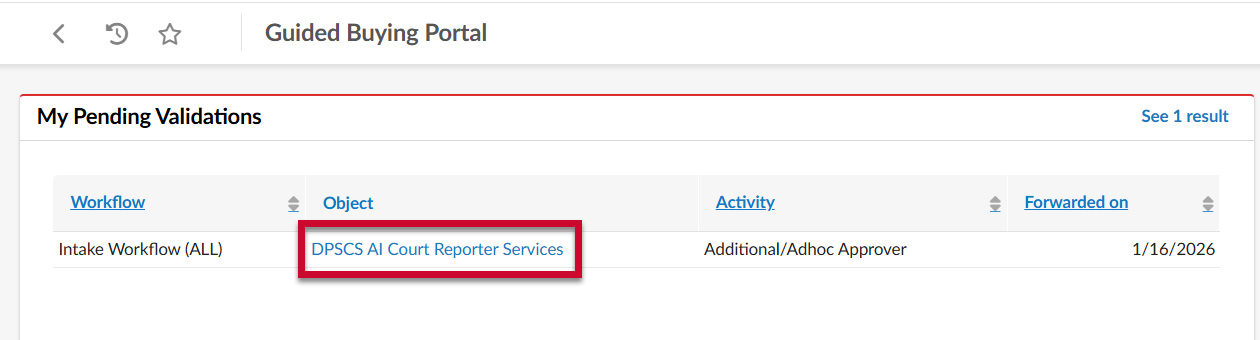
- Review the details of the Intake Request.
- The Request Information section at the top of the page will include basic information about the request.
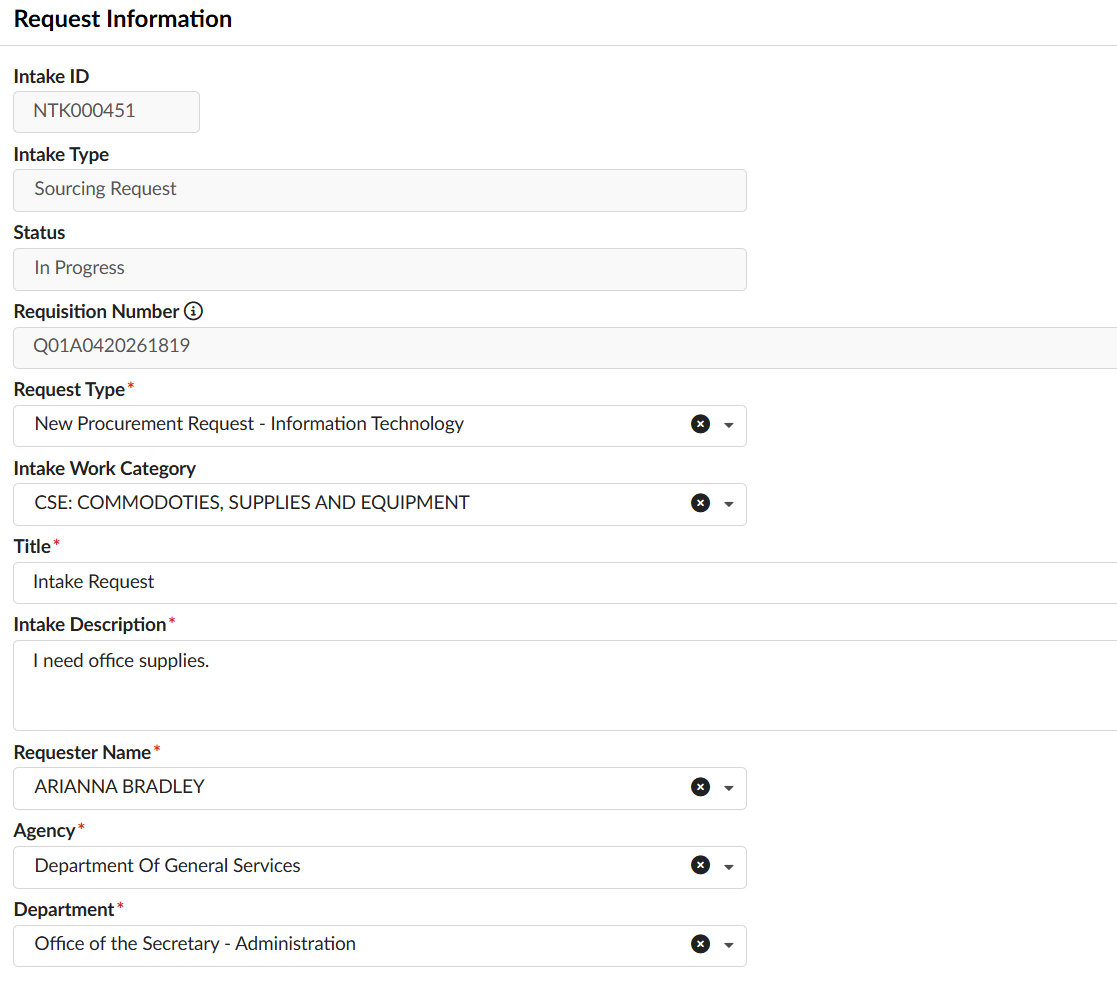
- IMPORTANT!! If the Request Type selected on the Intake request is incorrect, you must Reject it back to the Procurement Officer with instructions to reject it back to the Requester to make the updates.
- At the bottom of the page is the Request User Inputs section, where you can find the Estimated Budget, Fiscal Year, three different fields for uploading attachments, and various fields that will be completed during the review process.
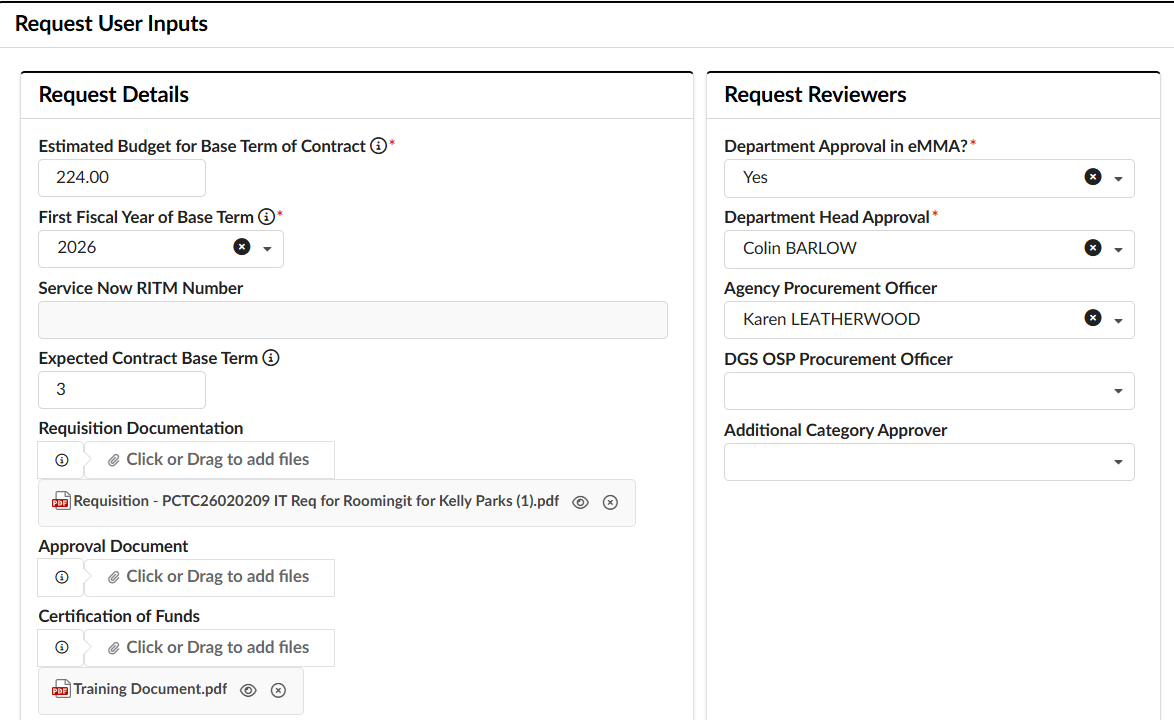
- Attachment fields include:
- Requisition Documentation: A catchall where users can upload other kinds of supporting documentation
- Approval Document: Mandatory if the user selected 'No, just upload the offline approval document' in the Department Approval in eMMA field.
- Certification of Funds: Where either the Financial Approver, or the Requester will upload the Fund Certification. Note that this field is not visible to the Requester when first creating the Intake request.
- Attachment fields include:
- The Request Information section at the top of the page will include basic information about the request.
- (optional) If appropriate, update the remaining fields in the Request Decisions section.
- If there are State Resources available that can meet the needs outlined in the Intake Request, update the State Resources available? field to Yes.
- If there is an existing contract that the user should purchase off of that is different from the one suggested in the eMMA AI Recommendation section to the right, update the Search and select an existing Statewide or Agency contractfield with the name of the contract.
- Under the eMMA AI Recommendation section, click Recommend an Existing Contract button. The AI chat window will appear.eMMA AI will recommend the best contract based on the Request Details provided. Note: Only one contract will be recommended.
- eMMA AI can also provide a short-list of multiple contracts suitable for the request. Click the Search using AI button next to this field. The AI chat window will appear and provide a list of contracts to choose from.
If one of the recommended contracts can be used, click the name and it will appear in the field.
- Under the eMMA AI Recommendation section, click Recommend an Existing Contract button. The AI chat window will appear.
- If you disagree with the Procurement Officer's assessment regarding whether a solicitation should be performed:
- Because there are existing State IT contracts or resources that meet the Requester's needs, update the Should a New Solicitation Be Performed field to No.
- Because there are no existing State IT contracts or resources that meet the Requester's needs, update the Should a New Solicitation Be Performed field to Yes. If you select Yes, a new Solicitation Inputs section will appear directly below the Intake Inputs section. Complete the mandatory and optional fields in this section as appropriate.
- Do you know the Sourcing Type needed?*: Indicate the type of solicitation that needs to be conducted.
- Do you know the Rfx Type needed?: If known, select the corresponding RFx type to go along with the type of solicitation selected above.
- Primary Commodity*: Indicate the primary commodity code that should be used on the header of the solicitation.
- Click Save.
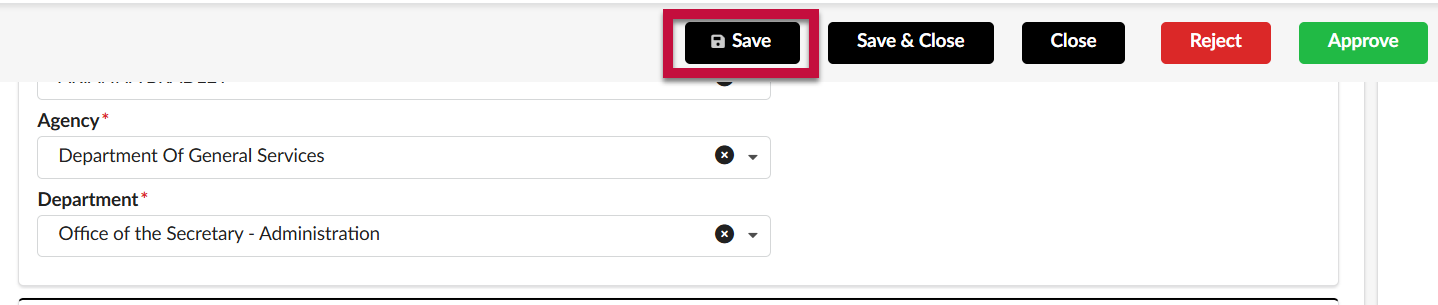
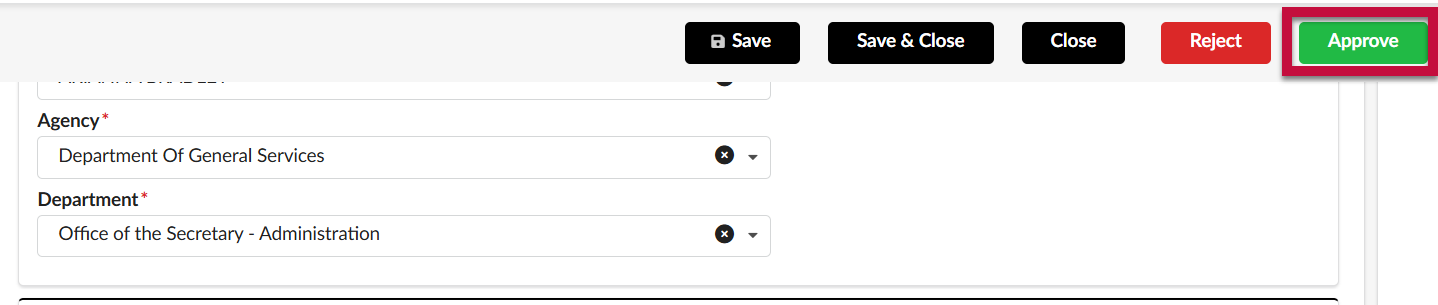
- To approve the Intake Request, and send it to the next step in the workflow, click Approve.
- To reject the intake request and send it back to the Procurement Officer, click Reject. The Procurement Officer will receive an email notification informing them of the rejection.
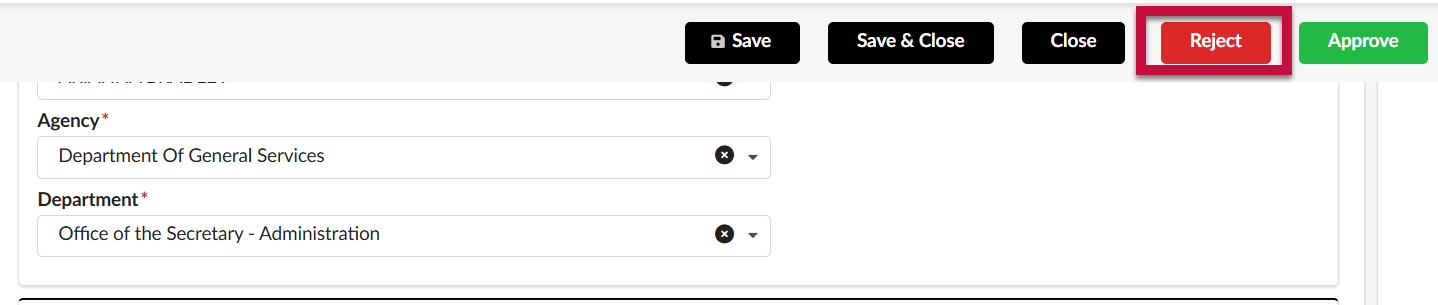 IMPORTANT!! If you reject, you will be required to enter a reason for the rejection in the pop-up that appears. These comments are open-ended and should include as much detail as possible, including instructions to the Procurement Officer on what to correct and how to proceed, or an explanation why the procurement request is being denied. After entering the reason, click Confirm.
If you approve the intake request, it will be routed to the DGS OSP Queue for review
DGS OSP Queue
- Access eMMA at https://emma.maryland.gov and log in with your credentials.
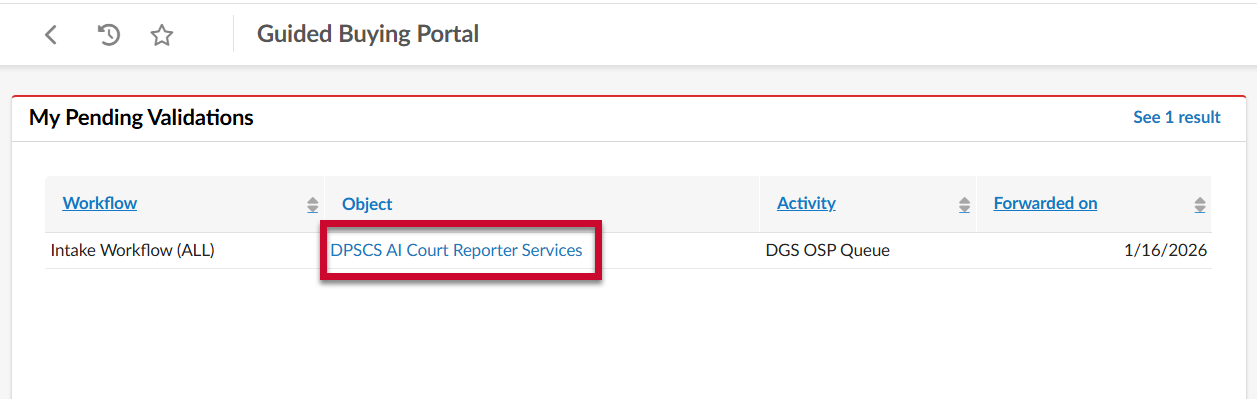
- You will receive an email notification whenever an Intake Request requires your review. The Intake Request will also appear in the My Pending Validations section of your homepage with an Activity of DGS OSP Queue. From the homepage, click on the Object hyperlink to open the Intake Request.
- Review the details of the Intake Request.
- The Request Information section at the top of the page will include basic information about the request.
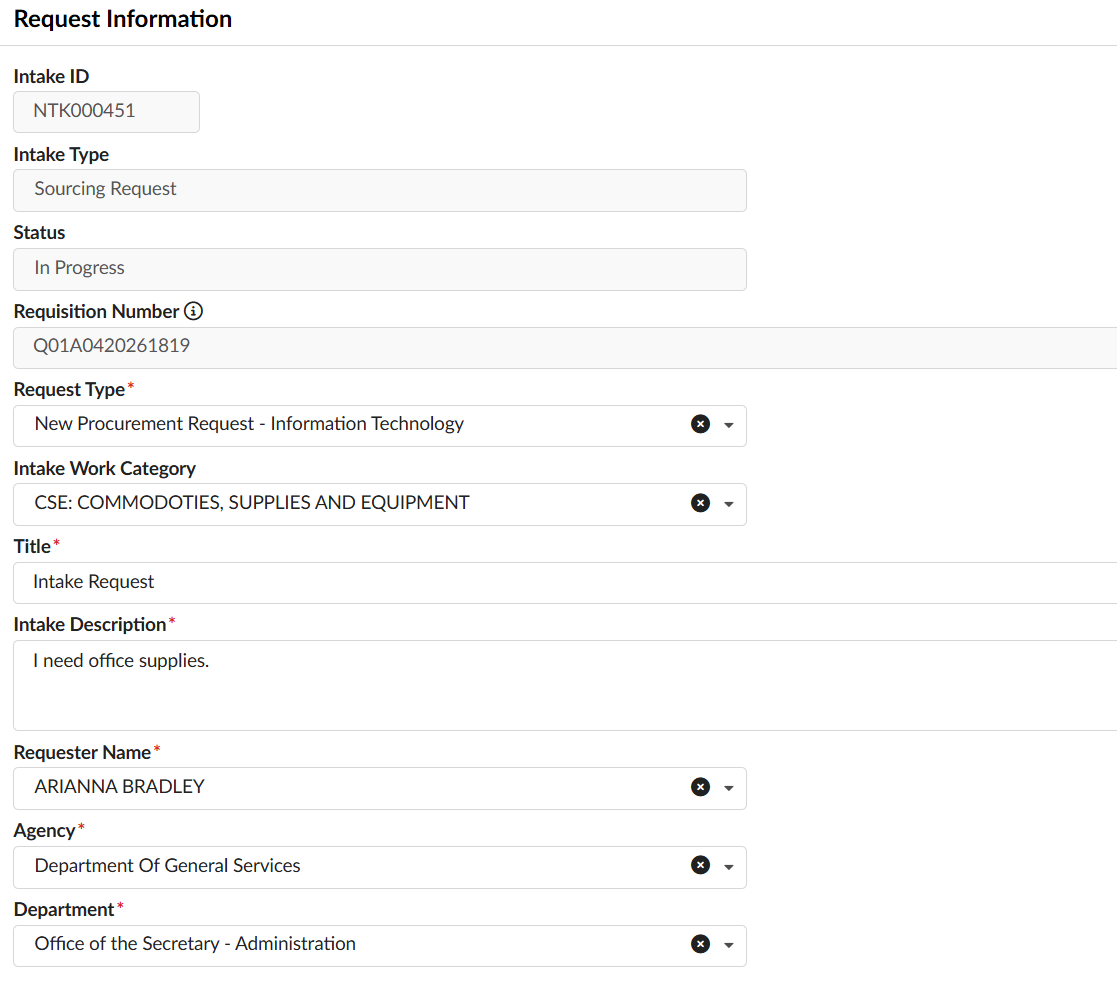
- IMPORTANT!! If the Request Type selected on the Intake request is incorrect, you must Reject it back to the Procurement Officer with instructions to reject it back to the Requester to make the updates.
- At the bottom of the page is the Request User Inputs section, where you can find the Estimated Budget, Fiscal Year (three different fields for uploading attachments) and various fields that will be completed during the review process.
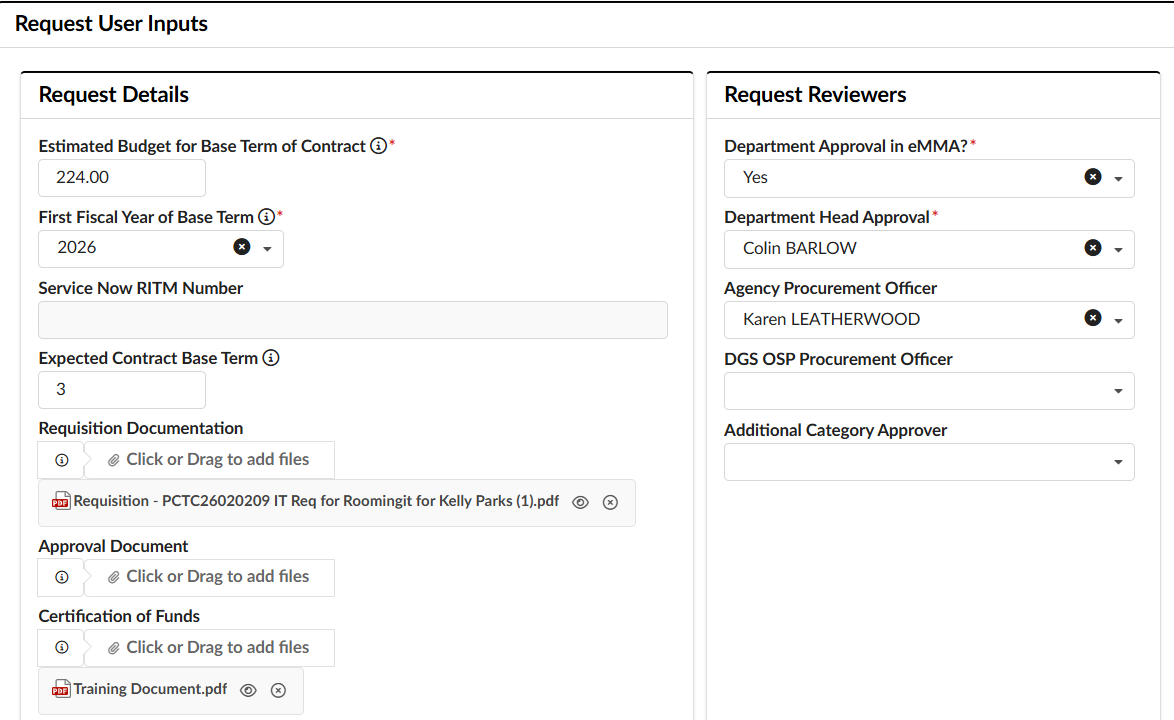
- Attachment fields include:
- Requisition Documentation: A catchall where users can upload other kinds of supporting documentation
- Approval Document: Mandatory if the user selected 'No, just upload the offline approval document' in the Department Approval in eMMA field.
- Certification of Funds: Where either the Financial Approver, or the Requester will upload the Fund Certification. Note that this field is not visible to the Requester when first creating the Intake request.
- Attachment fields include:
- The Request Information section at the top of the page will include basic information about the request.
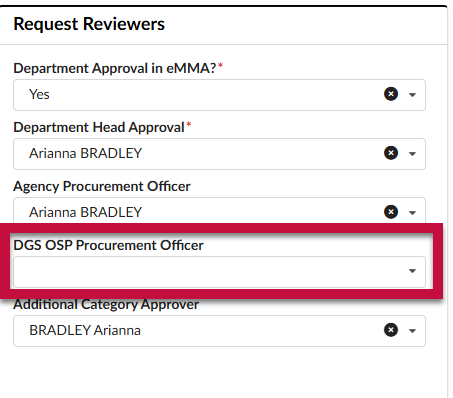
- In the Request Reviewers section, click on the DGS OSP Procurement Officer field, and begin typing in the name of the Procurement Officer that will be assigned to this Intake Request. Click to select them from the drop-down menu when they appear.
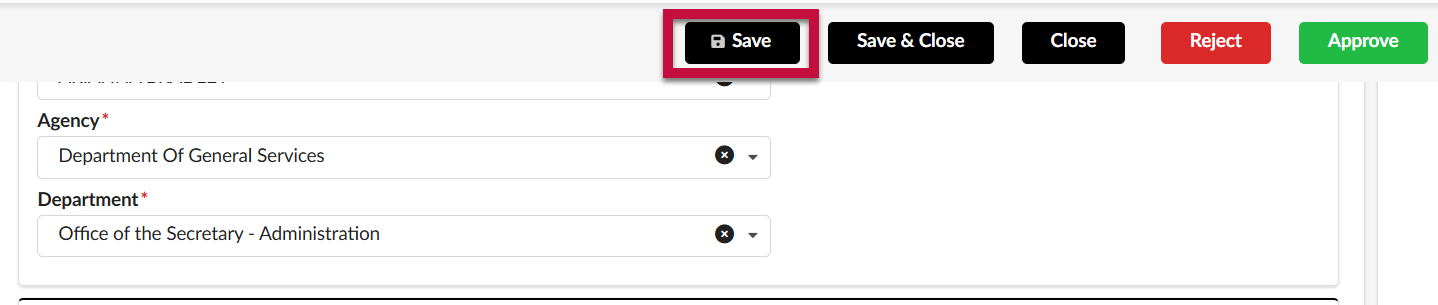
- Click Save.
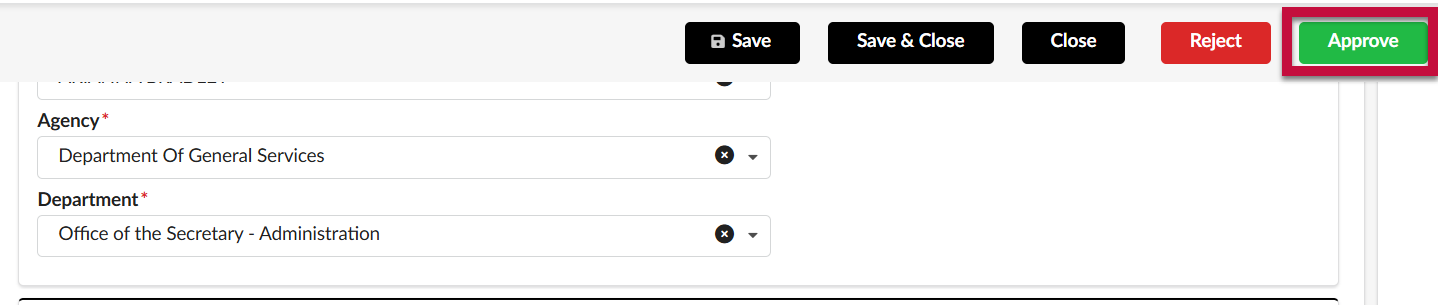
- To approve the Intake Request, and send it to the next step in the workflow, click Approve.
- To reject the intake request and send it back to the Procurement Officer, click Reject. The Procurement Officer will receive an email notification informing them of the rejection.
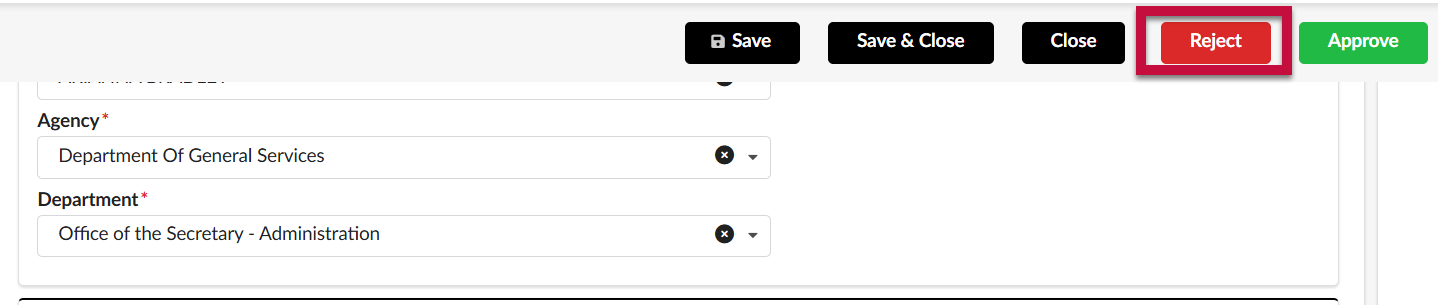 IMPORTANT!! If you reject, you will be required to enter a reason for the rejection in the pop-up that appears. These comments are open-ended and should include as much detail as possible, including instructions to the Procurement Officer on what to correct and how to proceed, or an explanation why the procurement request is being denied. After entering the reason, click Confirm.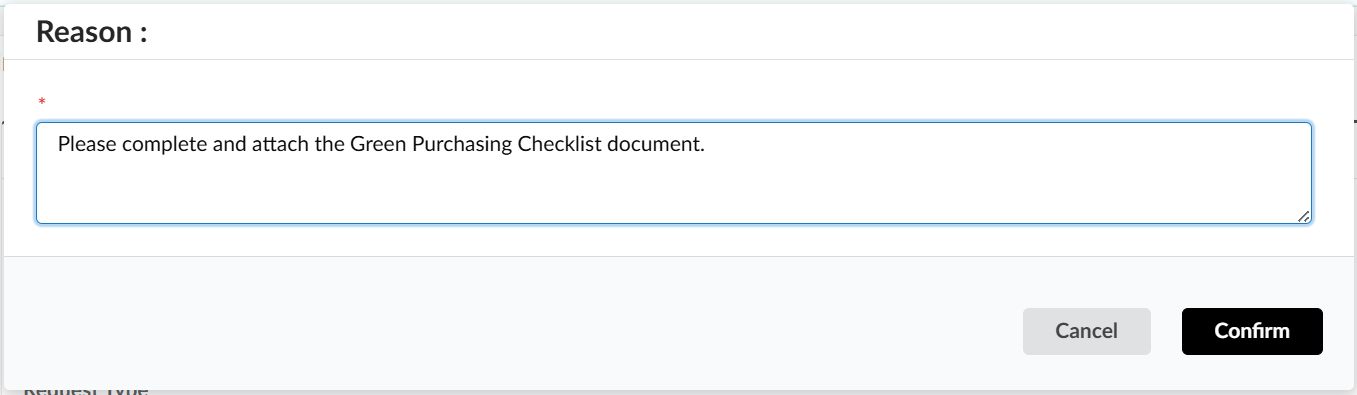
If you approve the intake request, it will be routed to the assigned DGS OSP Procurement Officer for review
DGS OSP Procurement Officer Review
- Access eMMA at https://emma.maryland.gov and log in with your credentials.
- You will receive an email notification whenever an Intake Request requires your review. The Intake Request will also appear in the My Pending Validations section of your homepage with an Activity of DGS OSP Procurement Officer Review. From the homepage, click on the Object hyperlink to open the Intake Request.
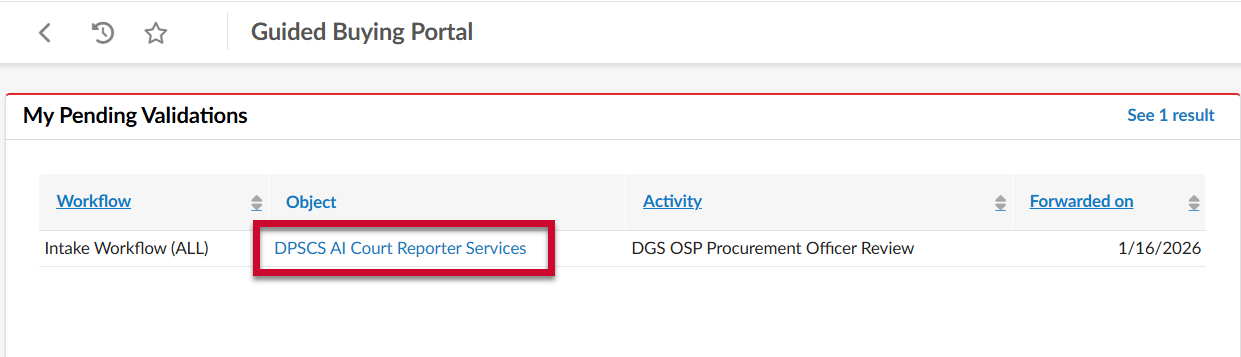
- Review the details of the Intake Request.
- The Request Information section at the top of the page will include basic information about the request.
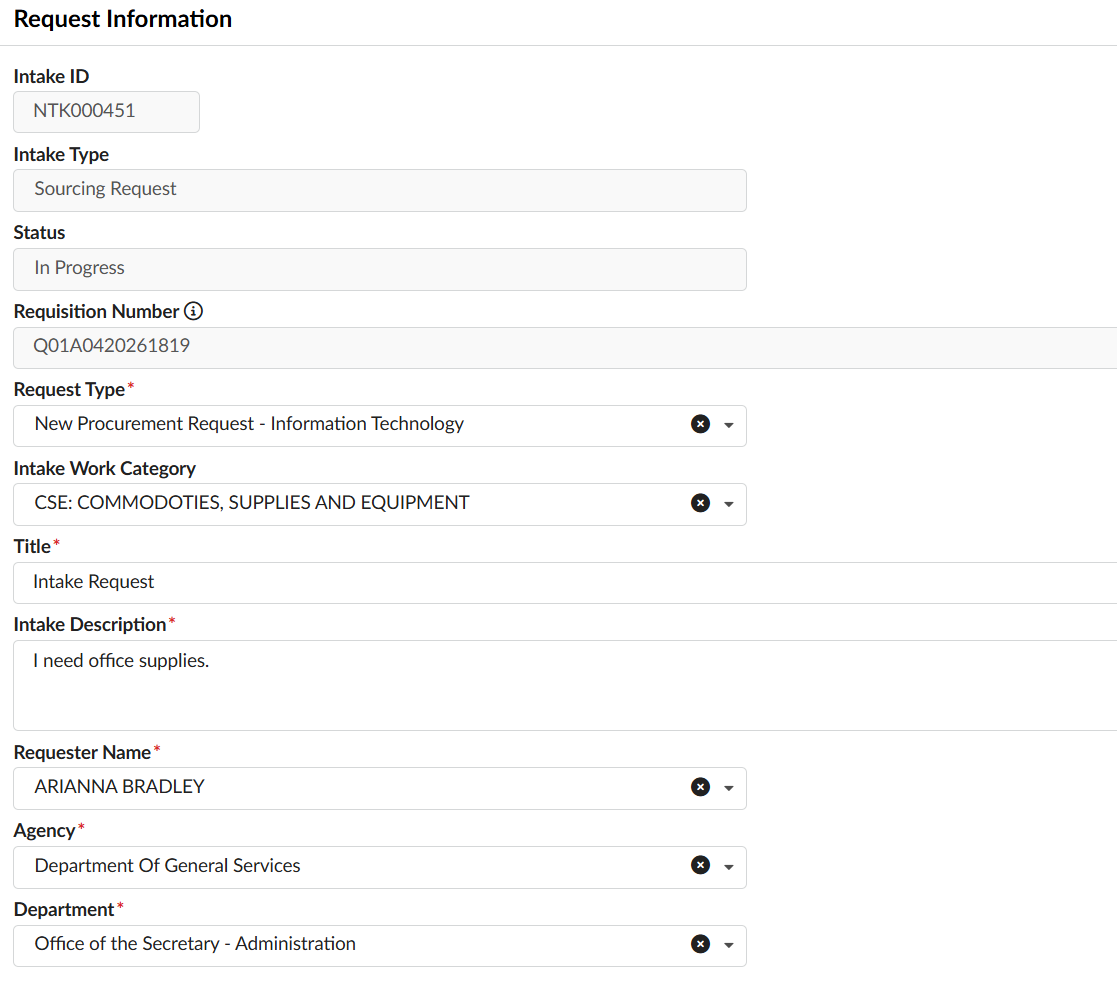
- IMPORTANT!! If the Request Type selected on the Intake request is incorrect, you must Reject it back to the Procurement Officer with instructions to reject it back to the Requester to make the updates.
- At the bottom of the page is the Request User Inputs section, where you can find the Estimated Budget, Fiscal Year (three different fields for uploading attachments) and various fields that will be completed during the review process.
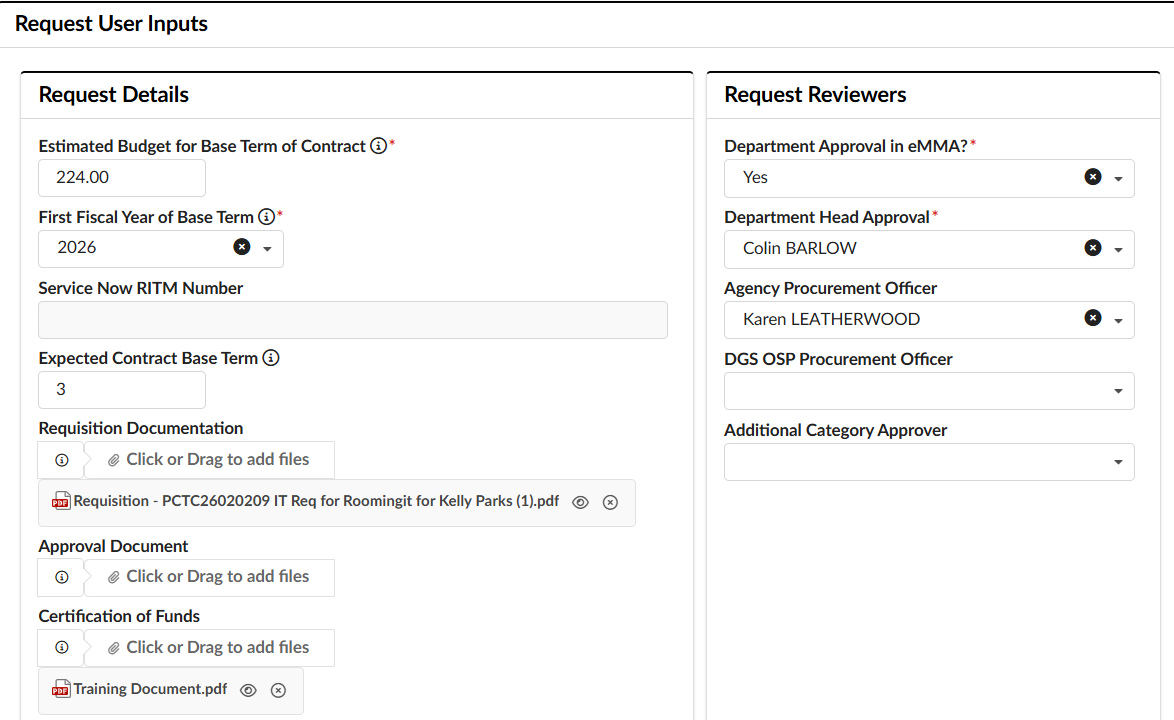
- Attachment fields include:
- Requisition Documentation: A catchall where users can upload other kinds of supporting documentation
- Approval Document: Mandatory if the user selected 'No, just upload the offline approval document' in the Department Approval in eMMA field.
- Certification of Funds: Where either the Financial Approver, or the Requester will upload the Fund Certification. Note that this field is not visible to the Requester when first creating the Intake request.
- Attachment fields include:
- The Request Information section at the top of the page will include basic information about the request.
- (optional) If appropriate, update the remaining fields in the Request Decisions section.
- If there are State Resources available that can meet the needs outlined in the Intake Request, update the State Resources available? field to Yes.
- If there is an existing contract that the user should purchase off of that is different from the one suggested in the eMMA AI Recommendation section to the right, update the Search and select an existing Statewide or Agency contract field with the name of the contract.
- Under the eMMA AI Recommendation section, click Recommend an Existing Contract button. The AI chat window will appear.eMMA AI will recommend the best contract based on the Request Details provided. Note: Only one contract will be recommended.
- eMMA AI can also provide a short-list of multiple contracts suitable for the request. Click the Search using AI button next to this field. The AI chat window will appear and provide a list of contracts to choose from.
If one of the recommended contracts can be used, click the name and it will appear in the field.
- Under the eMMA AI Recommendation section, click Recommend an Existing Contract button. The AI chat window will appear.
- If you disagree with the Procurement Officer's assessment regarding whether a solicitation should be performed:
- Because there are existing State IT contracts or resources that meet the Requester's needs, update the Should a New Solicitation Be Performed field to No.
- Because there are no existing State IT contracts or resources that meet the Requester's needs, update the Should a New Solicitation Be Performed field to Yes. If you select Yes, a new Solicitation Inputs section will appear directly below the Intake Inputs section. Complete the mandatory and optional fields in this section as appropriate.
- Do you know the Sourcing Type needed?*: Indicate the type of solicitation that needs to be conducted.
- Do you know the Rfx Type needed?: If known, select the corresponding RFx type to go along with the type of solicitation selected above.
- Primary Commodity*: Indicate the primary commodity code that should be used on the header of the solicitation.
- To process the intake request and make a final determination whether a new procurement will be conducted or the user should leverage existing State contracts or resources, click Approve. Both the Agency Procurement Officer that worked on the Intake Request and the Requester will be notified.
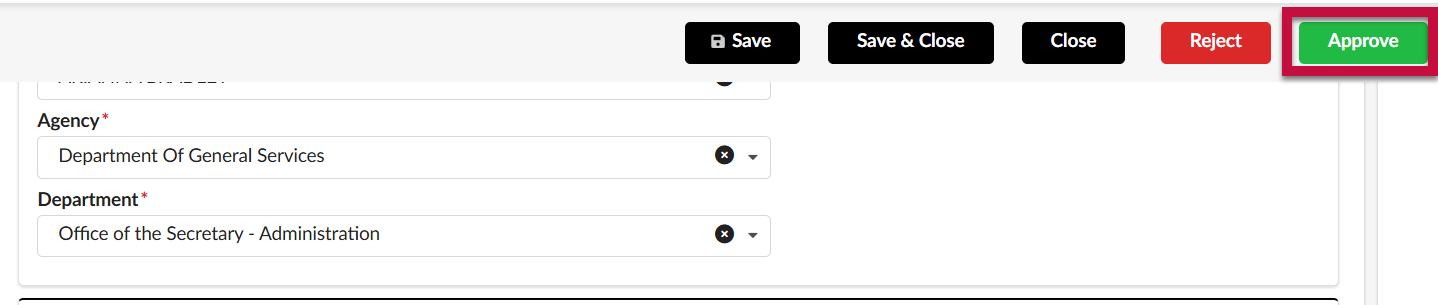 To reject the intake request and send it back to the Procurement Officer, click Reject. The Procurement Officer will receive an email notification informing them of the rejection.
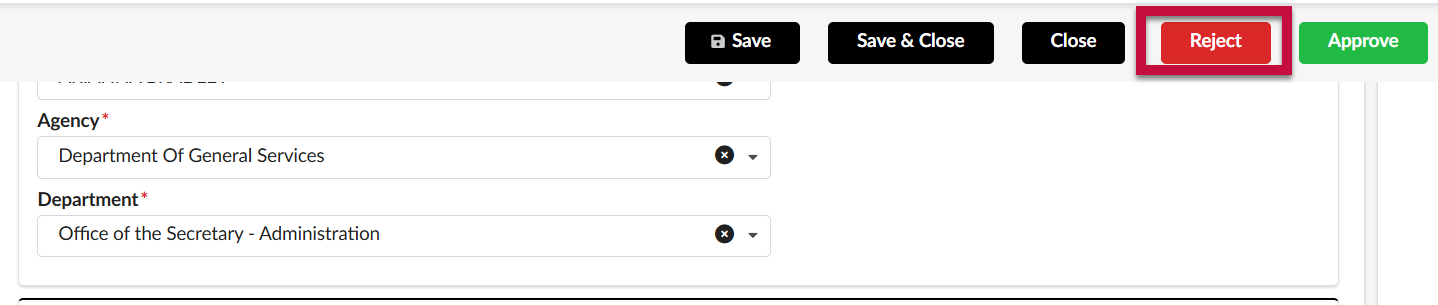 IMPORTANT!! If you reject, you will be required to enter a reason for the rejection in the pop-up that appears. These comments are open-ended and should include as much detail as possible, including instructions to the Procurement Officer on what to correct and how to proceed, or an explanation why the procurement request is being denied. After entering the reason, click Confirm.