
Overview
This guide is intended to show users with the Procurement Officer profile in eMaryland Marketplace Advantage (eMMA) how to add and approve subcontractors to applicable contract records, and users with the Contract Compliance Officer profile how to review payment records submitted by Prime Vendors and Subcontractors.
NOTE: For best results, use the Google Chrome browser to access eMMA.
If you need help at any time, please reach out to the eMMA helpdesk at emma.helpdesk@maryland.gov.
This QRG is broken into specific sections covering the different approvers that are present in the Intake approval workflow. Use the Table of Contents below to access the workflow step relevant to your role.
TABLE OF CONTENTS
- Adding Subcontractors (Procurement Officer)
- Approving Subcontractors (Procurement Officer)
- Reviewing Errors in Payment Records (Contract Compliance Officer)
NOTE: This QRG uses diagrams with specific callouts to show required and optional fields in forms.
- A yellow callout with a red border
 indicates a required field.
 - A yellow callout with a black border
 indicates an optional field.
 - A red callout
 highlights a specific section of a page.
Letters and numbers within the callouts correspond to the explanations below the diagram. A red asterisk (*) indicates a required field in the eMMA interface.
Step-by-Step Instructions
Adding Subcontractors (Procurement Officer)
- Log into eMMA by navigating to emma.maryland.gov.
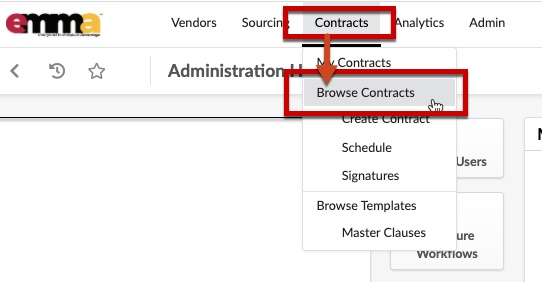
- Click the Contracts tab at the top of the screen and select Browse Contracts from the drop-down menu that opens. A list of contracts displays.
- Use the Search fields and filters to find the desired contract in the list displayed and click the Edit (pencil) icon to the left of the Control ID column header to view the contract.
NOTE: You can also click the blue links in the Contract ID, or Contract Title columns.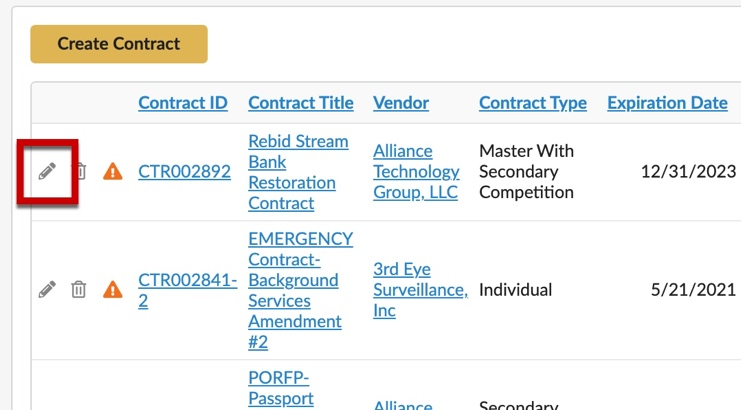
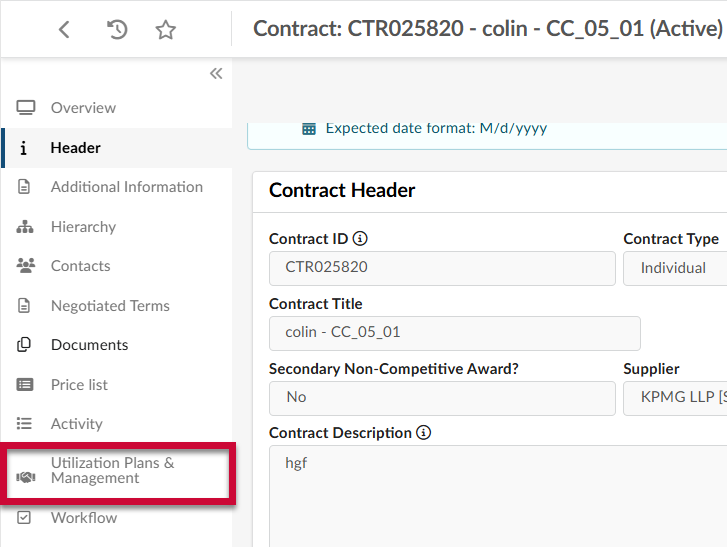
- Navigate to the Utilization Plans & Management tab.
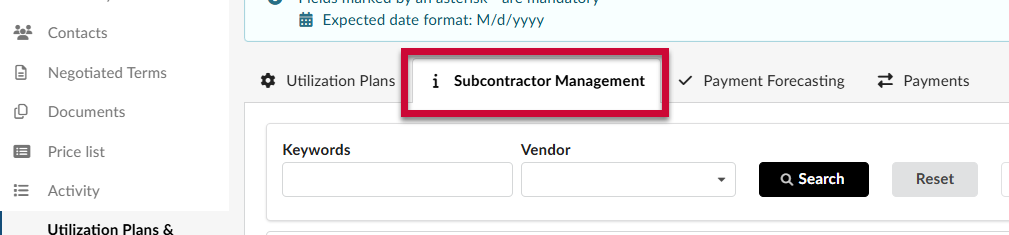
- Navigate to the Subcontractor Management sub-tab.
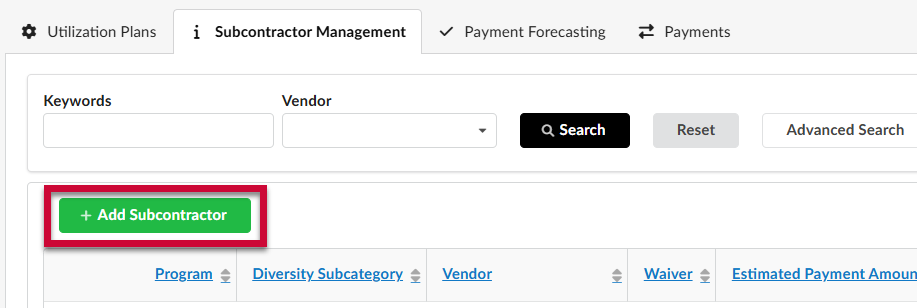
- Click +Add Subcontractor.
- Complete the fields in the Subcontractor & Services section.
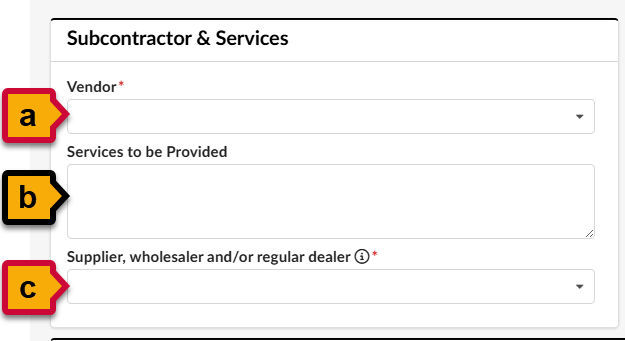
- Vendor (*): Type in the name of the subcontractor and select it from the drop-down menu when it appears.
- Services to be Provided: Enter a brief description of the services that the subcontractor will complete as part of the contract
- Supplier (*) wholesaler, and/or regular dealer: Indicate whether the selected supplier meets one of these categories or not.
- Complete the fields in the Information section.
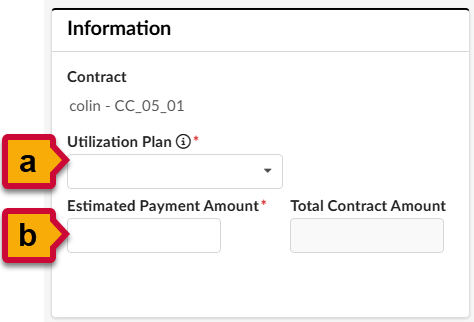
- Utilization Plan (*): Click and select one of the Utilization Plans associated with the contract from the drop-down menu.
- Estimated Payment Amount (*): Enter the amount, in dollars, that the subcontractor is supposed to receive under the associated Utilization Plan.
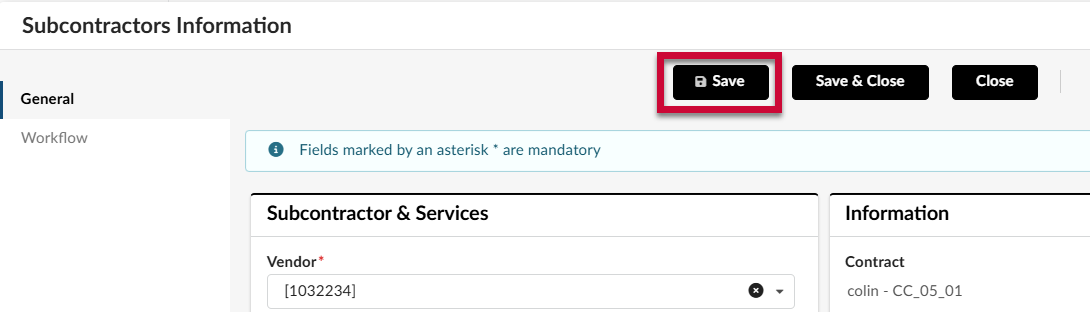
- Click Save.
- Click Submit.

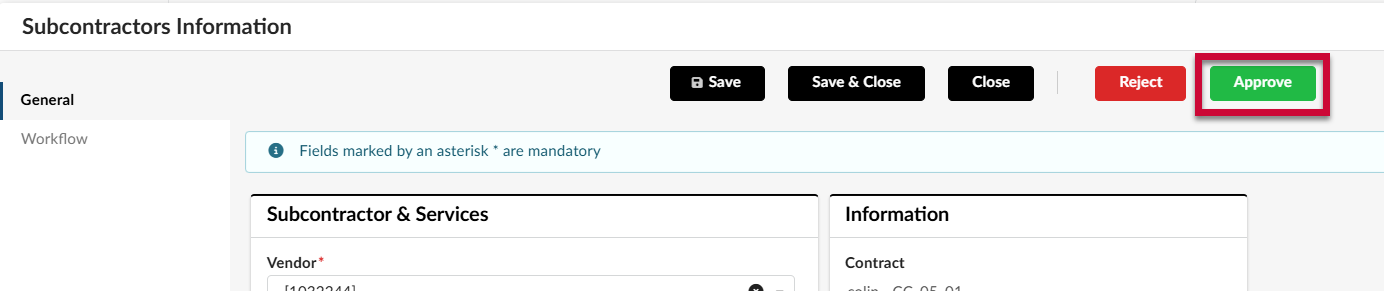
- Click Approve.
Approving Subcontractors (Procurement Officer)
- Log into eMMA by navigating to emma.maryland.gov.
- When an added subcontractor requires your review, you will receive an email notification, as well as a notification in the My Pending Validations section of the homepage. From the My Pending Validations section, click the Pencil icon next to the submission with an Activity of Procurement Officer Review.

- Review the details of the subcontractor request.
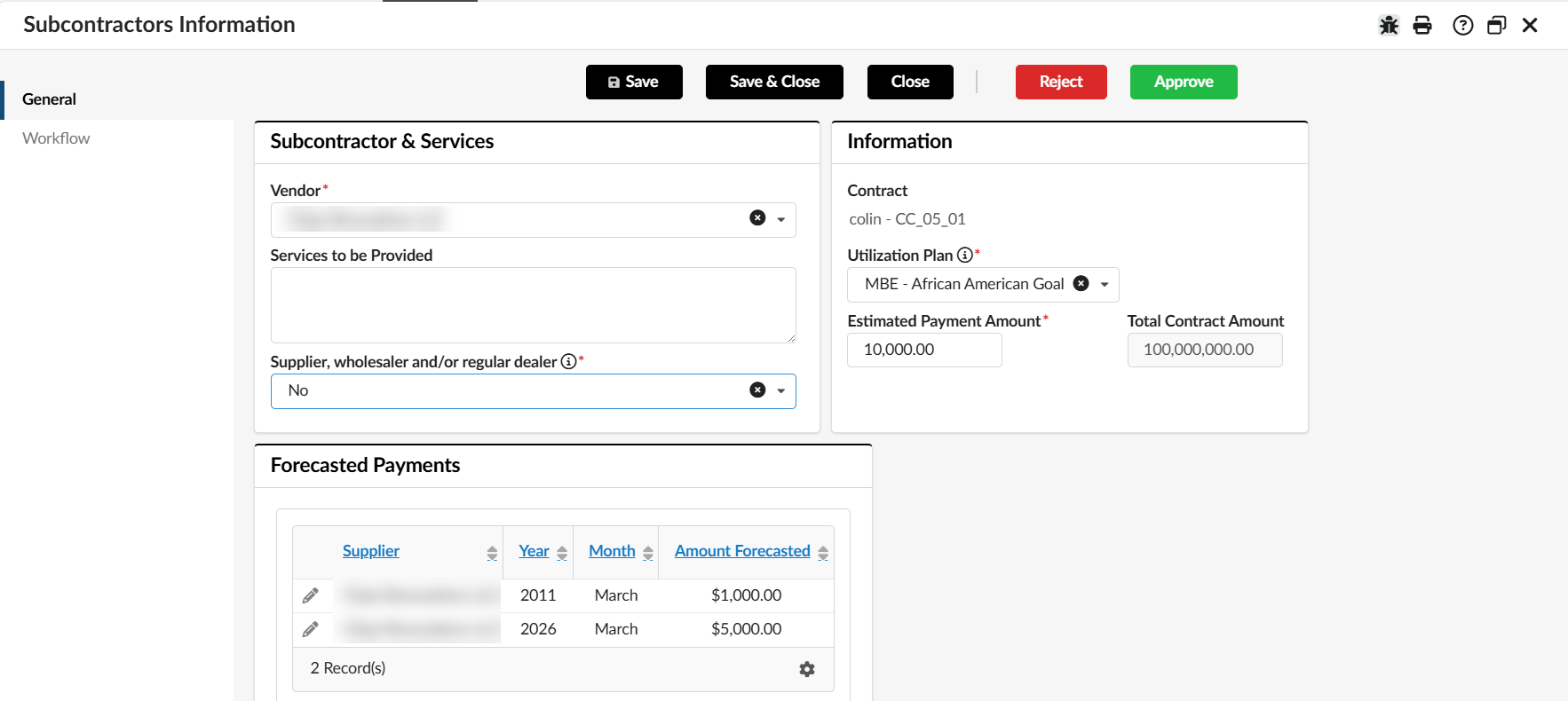
- For most subcontractor requests, the Subcontractor & Services section and the Information section will be completed with the same information described in the previous section of this QRG. You will also see the Forecasted Payments entered by the vendor at the bottom of the page.
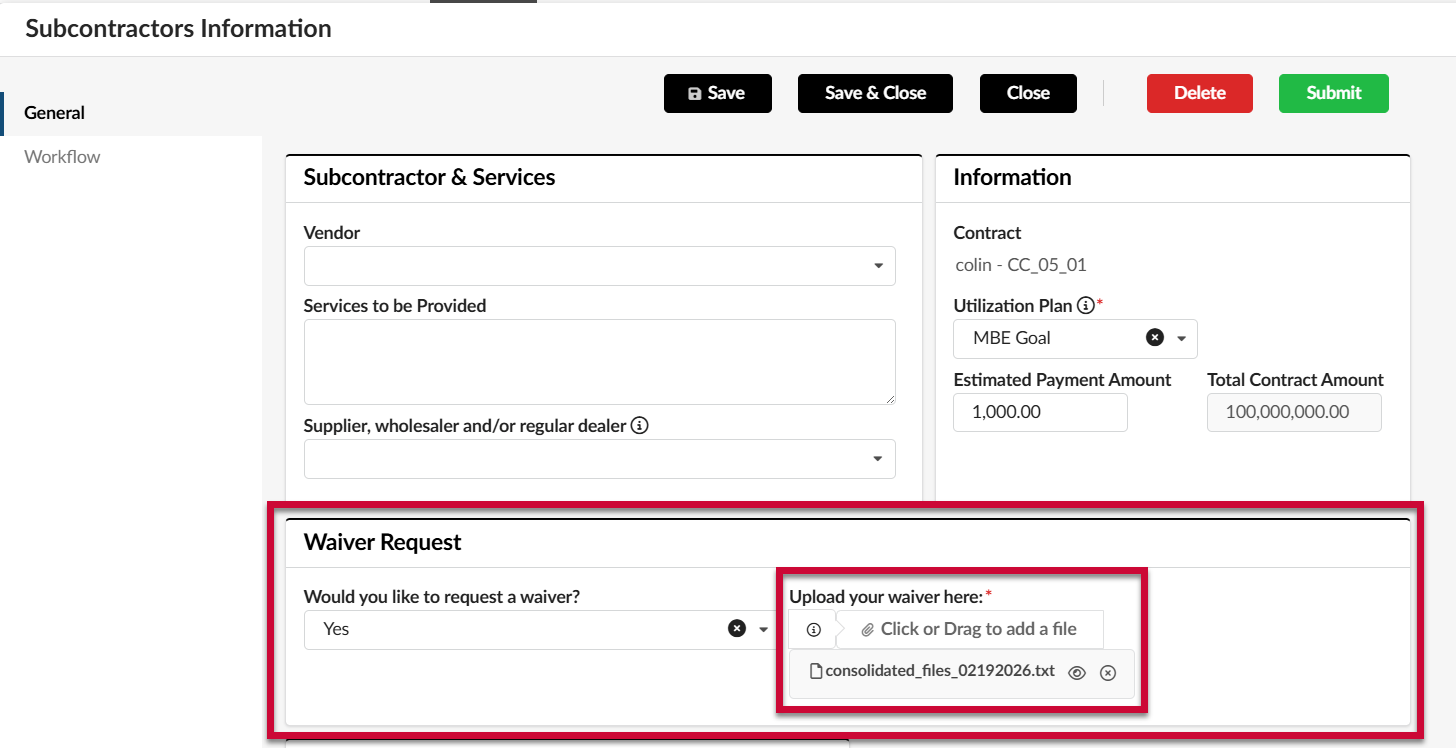
- If the vendor has requested a waiver for a particular Utilization Plan, the Waiver Request section will be visible at the bottom of the page. The completed waiver request form will be attached in the Upload your waiver here field.
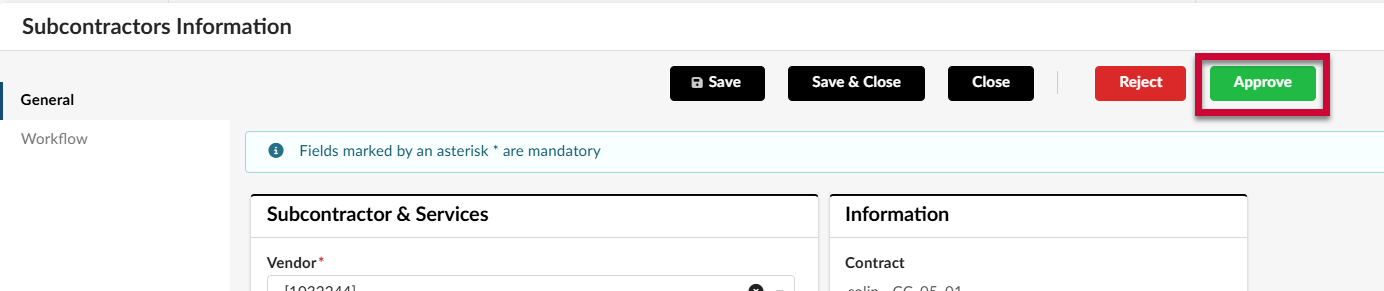
- After reviewing the information entered by the vendor, click Approve to add the subcontractor to the contract record.
If there is an issue with the vendor's submission, or you need to otherwise reject the submission, click Reject.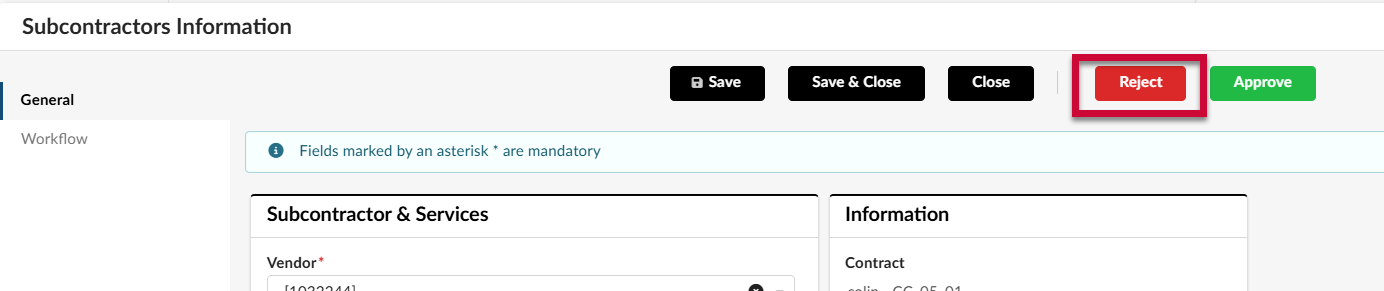
You will be required to explain the reason for your rejection. The subcontractor submission will be sent back to the Prime Contractor.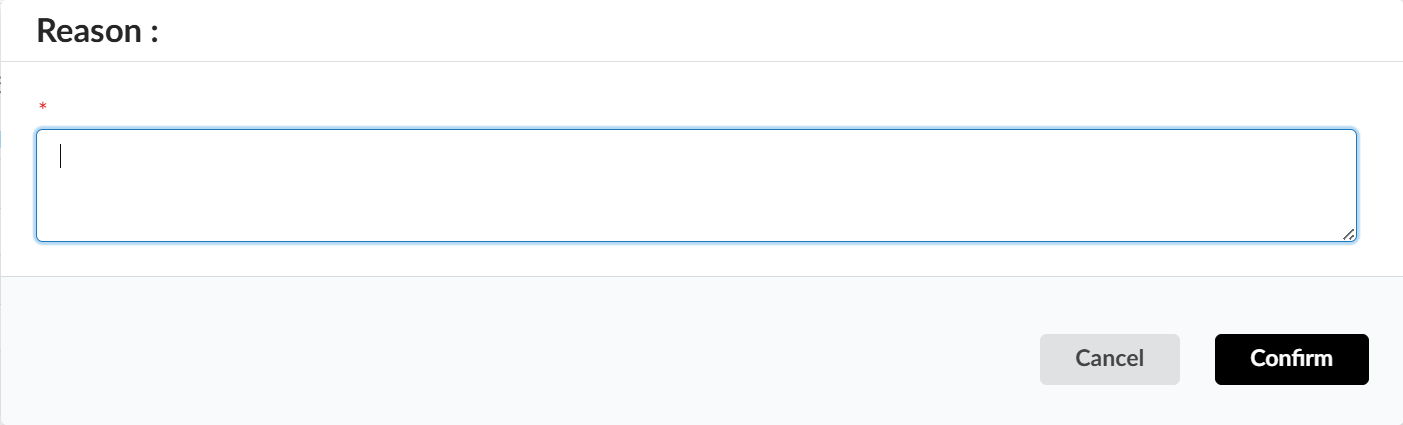
Reviewing Errors in Payment Records (Contract Compliance Officer)
Compliance Officers will only be required to review payment record submissions if errors occur.
To review a payment submission:
- Log into eMMA by navigating to emma.maryland.gov.
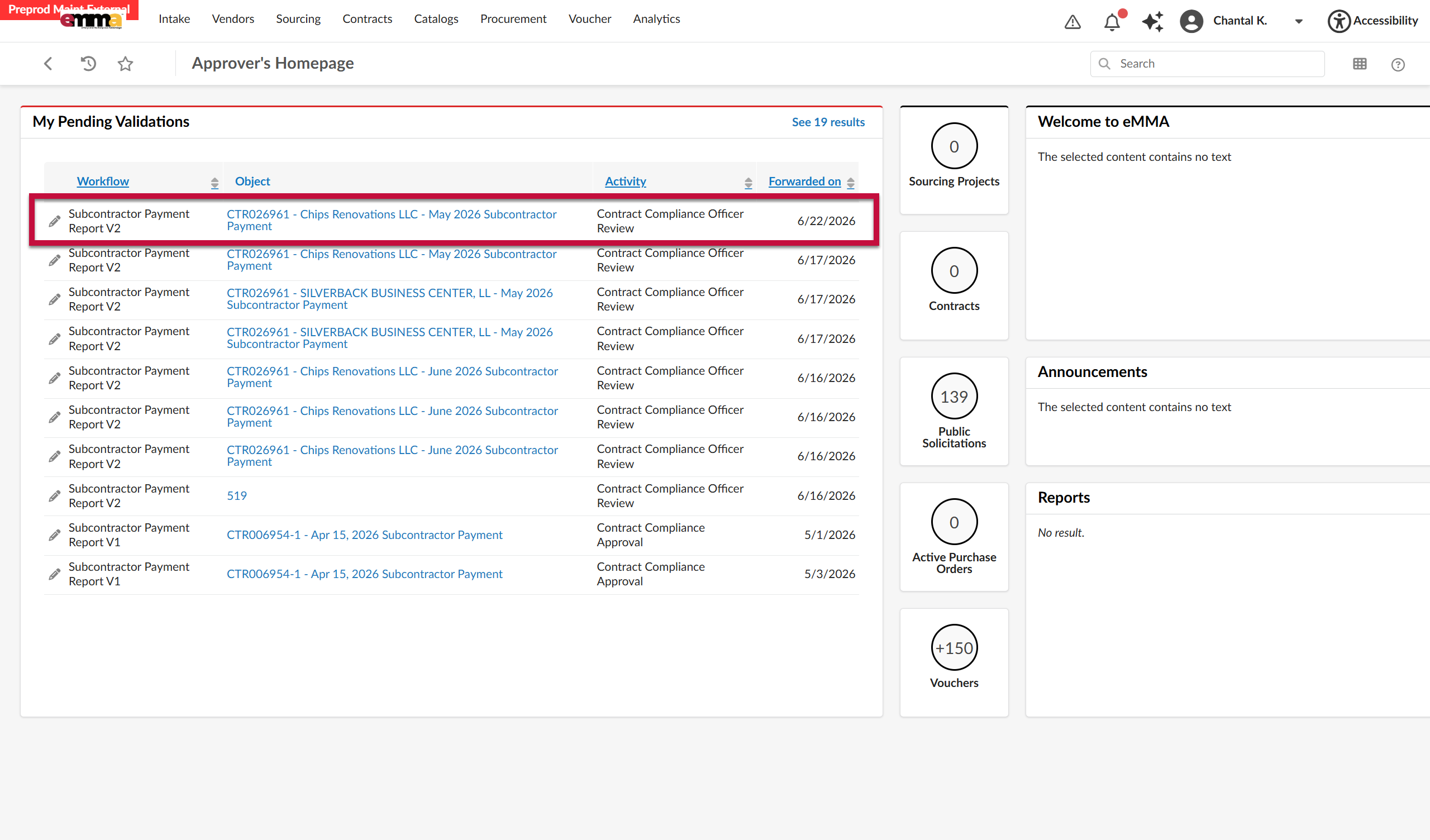
- When a payment record requires your review, you will receive an email notification, as well as a notification in the My Pending Validations section of the homepage. Click the Pencil icon.
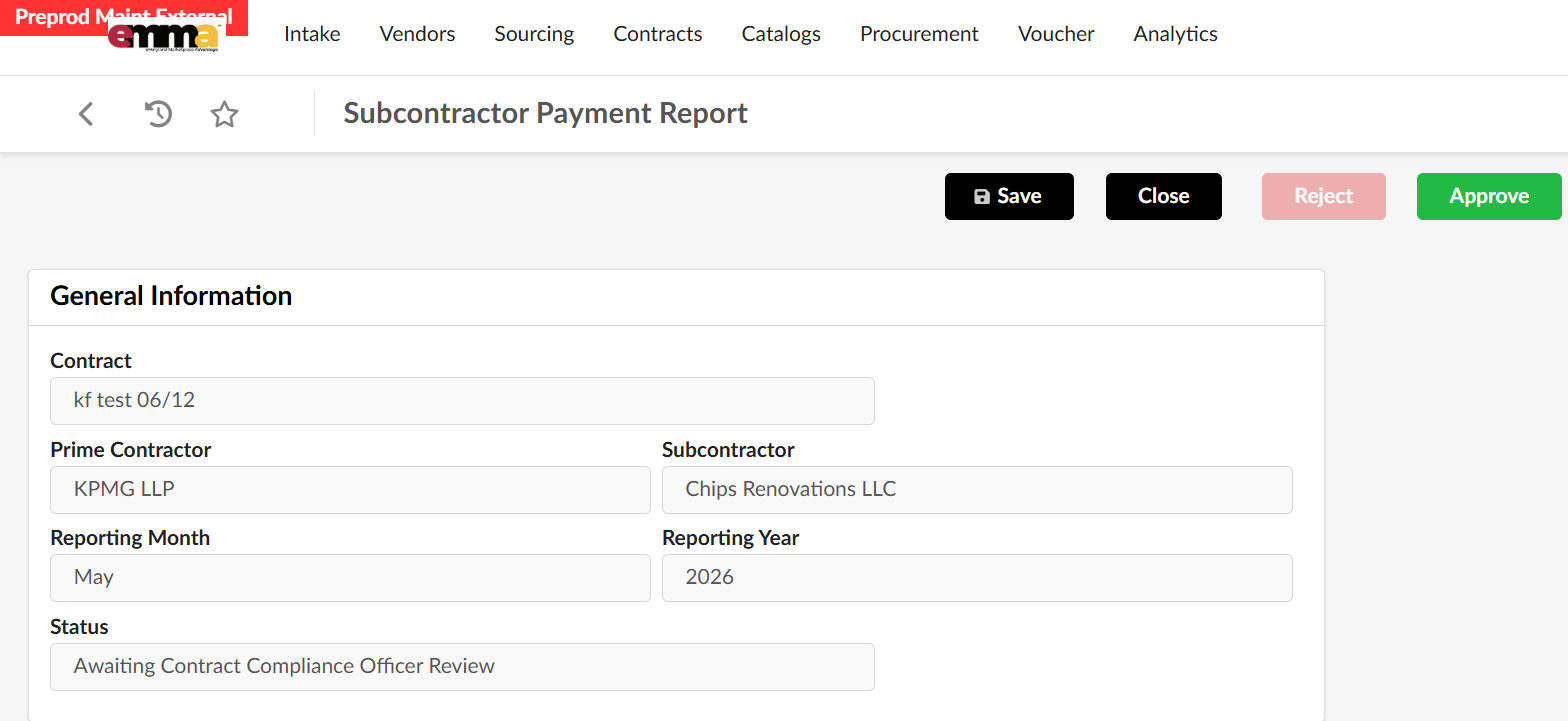
- The General Information will be pre-filled.
- Contract: The contract name as it appears in eMMA.
- Prime Contractor: The name of the Prime Vendor.
- Subcontractor: The name of the Subcontractor.
- Reporting Month: The payment month related to this record.
- Reporting Year: The payment year related to this record.
- Status: The workflow status of the payment report.
- Review the error listed in the System-Detected Discrepancy field. Note: If there are multiple errors, only the first error detected will appear. To avoid additional review, conduct a thorough check of all payment information submitted.
 Potential errors include:
- Invoice count mismatch: The number of invoices submitted by the prime contractor and subcontractor do not match.
- Invoice amount mismatch: One or more invoice amounts entered by the prime contractor and subcontractor do not match.
- Payment amount mismatch: One or more payment amounts entered by the prime contractor and subcontractor do not match.
- Invoice number mismatch: One or more invoice numbers entered by the prime contractor and subcontractor do not match.
- Subcontractor reported an issue with the prime: The subcontractor has reported an issue with the prime contractor.
- Invoice and payment information will be listed in the Invoice Reporting section.
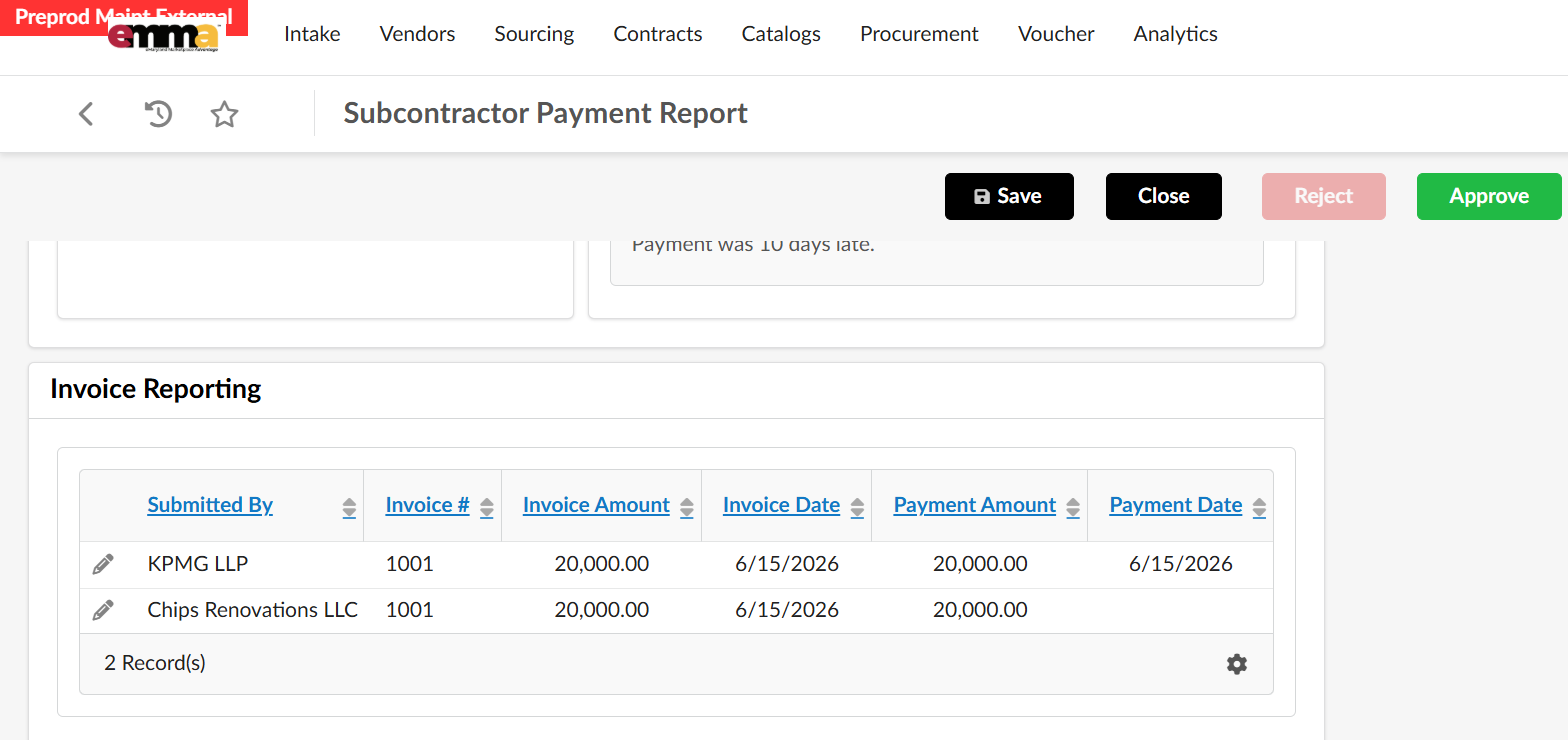 Each line item within the table will show:
- Submitted by: Indicates if the information was submitted by the Prime or Sub.
- Invoice #: The invoice number that appears on the document submitted to the Prime Vendor.
- Invoice Amount: The total amount listed on the invoice.
- Invoice Date: The submission date of the invoice provided to the Prime Vendor.
- Payment Amount: The amount paid by the Prime Vendor. This may differ from the Invoice Amount if it is a partial payment.
- Payment Date: The date of the payment. Note: Only Primes are required to enter a payment date.
- If the discrepancy is resolved, then click Approve.
If action is required by the Prime or Sub, enter a reason for the rejection.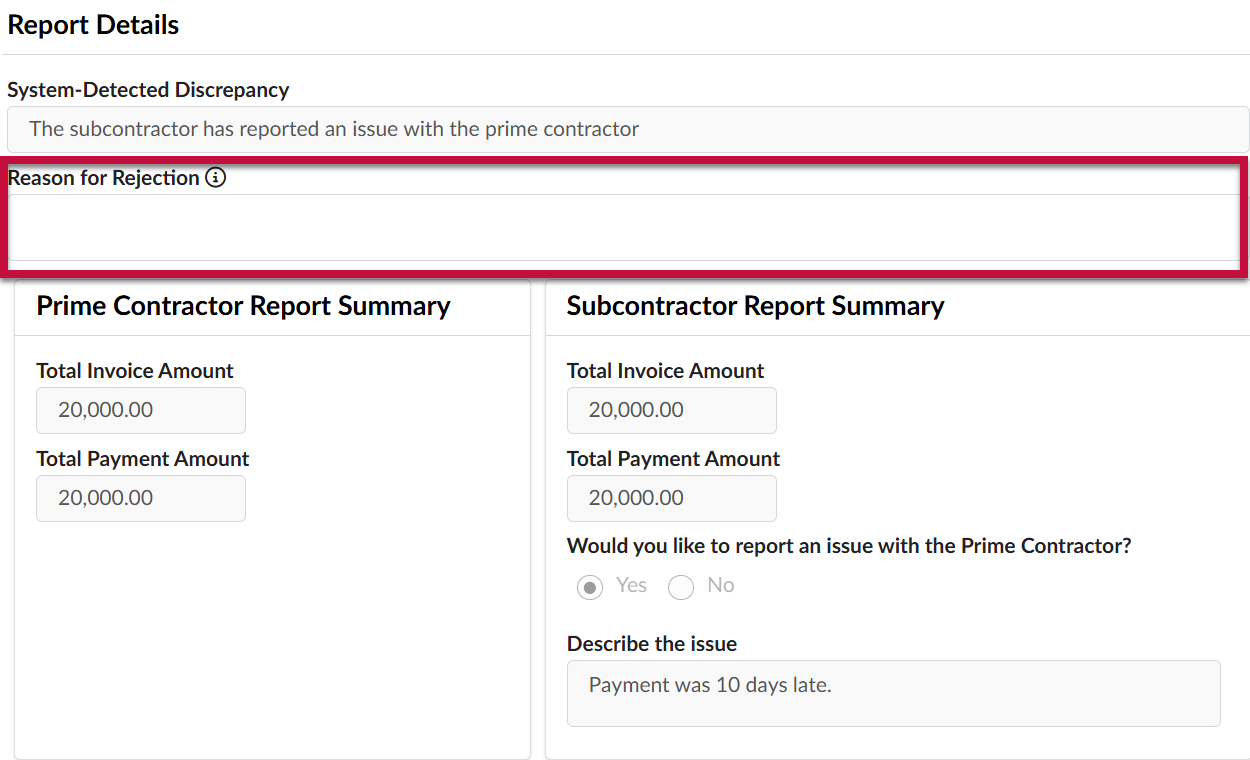 Then click Reject at the top of the page to return the submission. You will be required to provide details in the Reason for Rejection field in the Report Details section. The payment record will be sent back to the Prime Contractor and Subcontractor for review.