Overview
This QRG is for eMMA users with the ability to create Intake Requests, called “Intake Requesters” in eMMA. Intake Requesters can now initiate intake requests, guided by eMMA's intelligent AI assistant, for both IT and non-IT procurement needs in the eMaryland Marketplace Advantage (eMMA). This allows an intake request to be routed for the appropriate approvals in eMMA, including necessary approvals from the Department of General Services (DGS) and/or the Department of Information Technology (DoIT). eMMA will also connect intake requests to subsequent solicitations when one is created.
This QRG is broken into three sections covering the creation of an intake request, completion of the Requester Upload Fund Certificate step, and how to browse existing intake requests. Use the Table of Contents below to quickly navigate to the section that you need to review.
TABLE OF CONTENTS
- Create an Intake Request in eMMA
- Requester Upload Fund Certificate
- If Your Request is Rejected
- Browse Intake Requests in eMMA
NOTE: Depending on your role in eMMA, your screen may vary slightly from the images shown in this QRG.
NOTE: For best results, use the Google Chrome browser to access eMMA.
If you need help at any time, please reach out to the eMMA helpdesk at emma.helpdesk@maryland.gov.
Step-by-Step Instructions
Create an Intake Request in eMMA
NOTE: This QRG uses diagrams with specific callouts to show required and optional fields in forms. A yellow callout with a red border  indicates a required field, while yellow callouts with a black border
  indicate optional fields. Letters within the callouts correspond to the explanations below the diagram.
- Access eMMA at https://emma.maryland.gov and log in with your credentials.
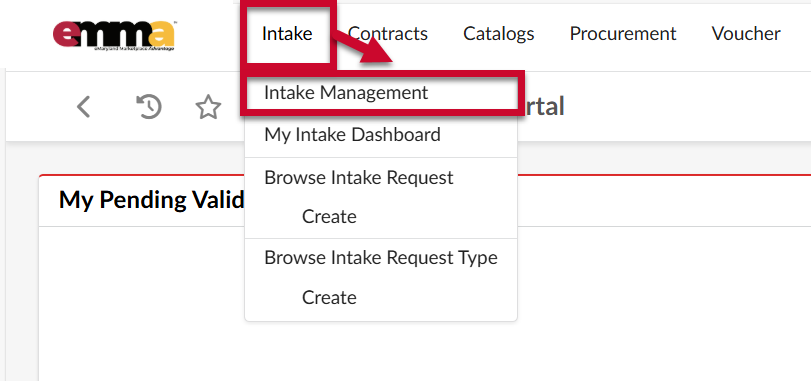
NOTE: Depending on your agency, you may only need to click the State SSO Login (Secure Auth) button or the MDOT SSO Login (MSAzure) button and log in with your credentials. - Click the Intake tab at the top of the web page to open a drop-down menu and select the Intake Management option.
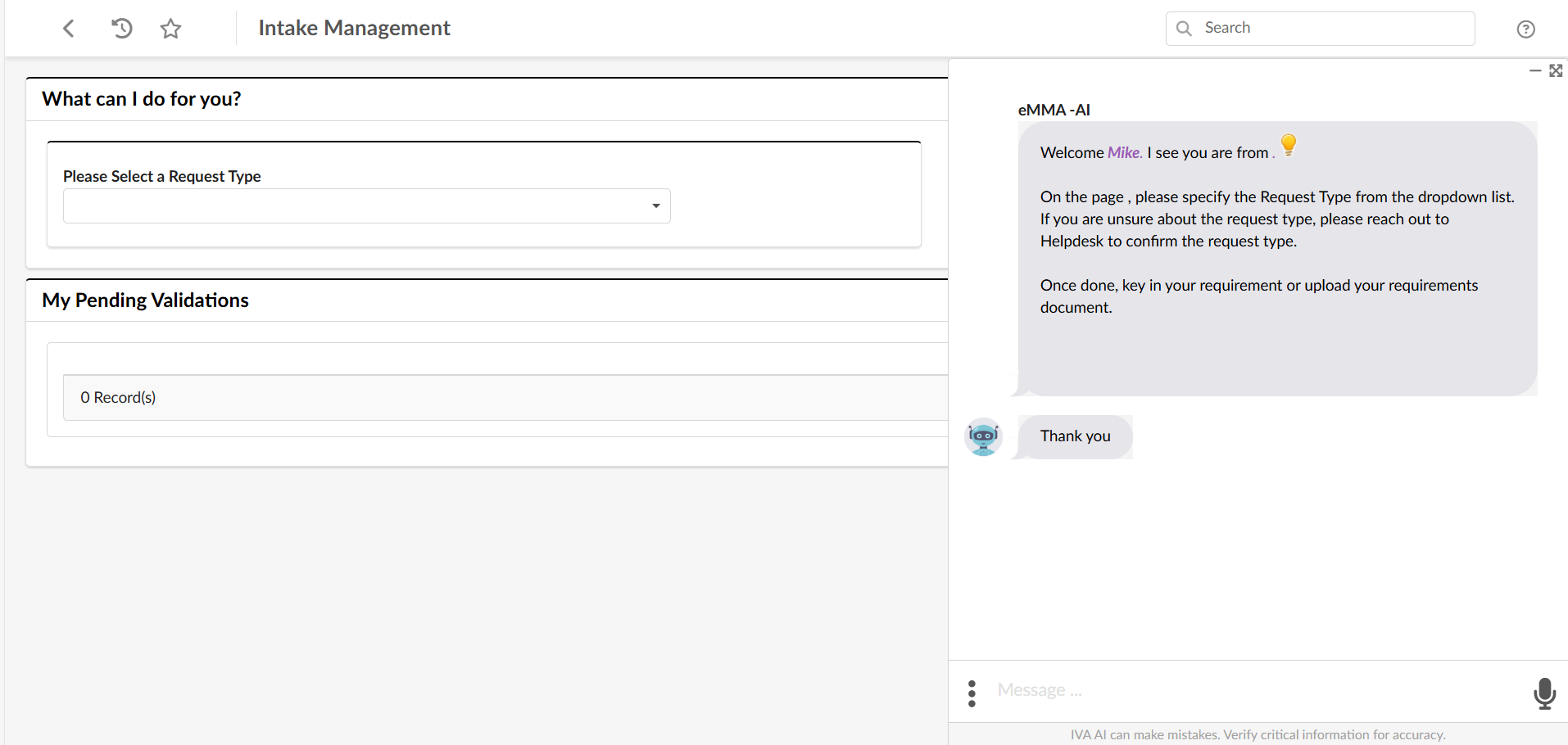
- The Intake Management page will open. On the left side of the screen, you will see the What can I do for you? section, where you will initiate the intake process. On the right side of the screen you will see a chat window that automatically opens with eMMA AI. This is eMMA's AI assistant who will provide guidance to crate the intake request.
To initiate the intake process, click on the Please Select a Request Type field in the What can I do for you? section and select the Request Type from the drop-down menu.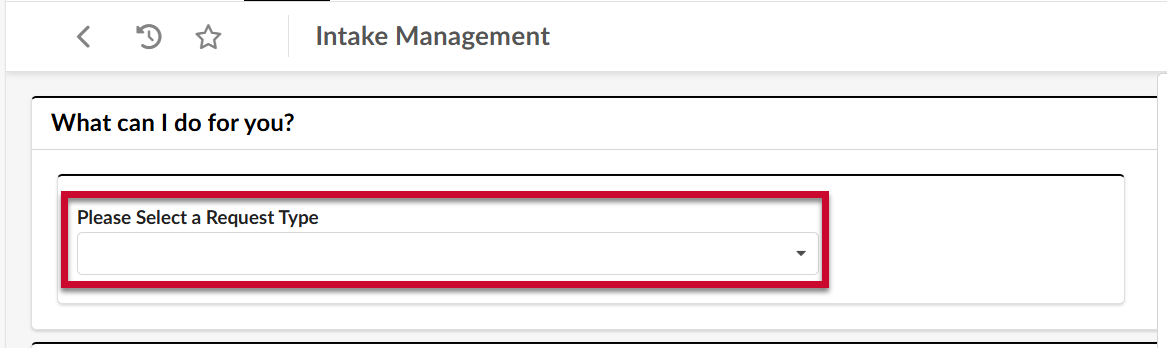
Available Request Types include:
*indicates that this request type is not available as part of the initial intake release.Request Type Used for Requesting... Information Technology - Hardware requests (computer, monitors, projectors, cables, docking stations, etc.)
For desktops, laptops, monitors, tablets, peripherals, installation services, manufacturer's extended warranties, hardware, associated equipment and services, and mobile devices including cellular phones, data equipment, radio telephones, air cards and accessories. Information Technology - Infrastructure (cabling, site survey, etc.)
For infrastructure work, including installations, maintenance, and repairs for data, voice, radio systems, cabling, wiring, and emergency generator support. Information Technology - Network work orders: SNMS, NMS, and AWS
For network work orders, state network management, AWS cloud hosting, database services, and private network or AWS public cloud infrastructure services. Information Technology - New/Upgrade Server, More Storage, MoveIt, Tierpoint
Information technology support for a new or improved server, as well as server infrastructure Information Technology - Radio PORFP, New radios request
For broadband digital data services, statewide public safety wireless communication systems, two-way radios, consoles, microwave equipment, including their installation, repair, and maintenance services. Information Technology - Staff Aug (Agile Teams, DPMO, IWFS)
For procuring IT consulting and technical services, obtain IT staff via task orders under CATS+ functional areas, and supplement teams with temporary IT resources or specialized consulting services. Information Technology- Audit Requests
Technology and cybersecurity audits to evaluate organizational infrastructure, systems, policies, etc. Information Technology- New software request
For new software licenses, subscriptions, or SaaS products, including maintenance, support, and necessary plugins or extensions for desktops, servers, or mobile devices. Information Technology- Nic eGov
Not available at this time. Information Technology- One Stop
Not available at this time. Information Technology- Security task, Pen Testing, GRC, etc
Not available at this time. Information Technology- SSO, Multi Factor Authentication, Okta
Not available at this time. New Procurement Request - Architectural and Engineering (A&E)*
For experienced architectural and engineering firms for concept development, detailed design, project documentation, and construction administration, requiring relevant licenses, a strong track record, and a commitment to sustainable practices. This Request Type will not be available in the Initial Release New Procurement Request - Commodity Purchase (CE)
For standardized, off-the-shelf goods or materials that are readily available from multiple vendors. This category covers items such as office supplies, standard hardware (e.g., desktop computers, monitors), basic software licenses, and common operational consumables. New Procurement Request - Construction Request* (100%)
For submitting new procurement requests for projects that consist entirely (100%) of construction services, with no other bundled components. This Request Type will not be available in the Initial Release New Procurement Request - Construction Request (95%)*
For submitting new procurement requests where the project scope is 95% or more focused on construction services. This Request Type will not be available in the Initial Release New Procurement Request - Facilities Maintenance (FM)
For services and materials specifically for the maintenance, repair, and upkeep of Maryland's facilities and infrastructure. This includes routine building maintenance (e.g., HVAC, plumbing, electrical), groundskeeping, cleaning services, minor repairs, and preventative maintenance contracts. New Procurement Request - Professional Services (PS)
For initiating the procurement of specialized professional services from external vendors, individual consultants, or advisory firms.
NOTE: If you are unsure of what Request Type should be selected for your intake, please reach out to the Helpdesk for assistance. - Indicate how you will enter the requirements for your intake by selecting "Yes" or "No" using the buttons that appear.
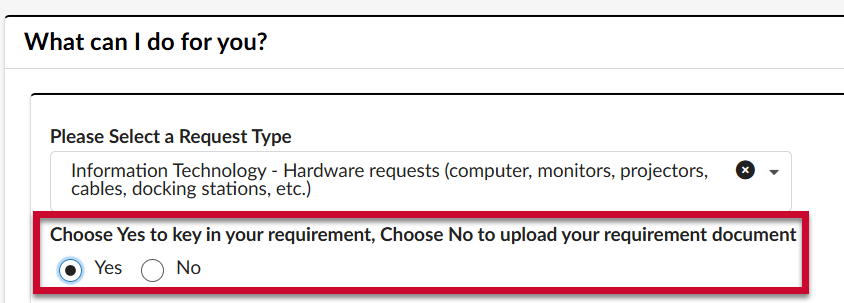
- If you select Yes, you will be asked to manually enter details about your intake in the Describe your requirement field that appears. After entering in a description of your needs, click Next.

- If you select No, click the Next button to proceed.
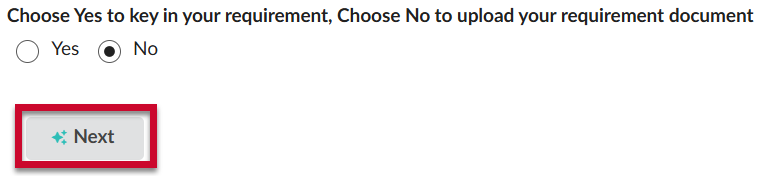
In the chat window on the right, eMMA AI will request that you upload your requirements document. Click on the Paperclip icon, then select the requirements document from your file explorer.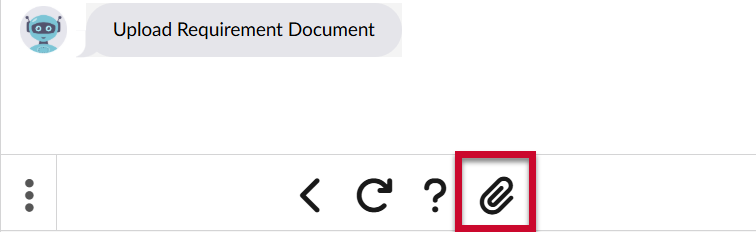
- If you select Yes, you will be asked to manually enter details about your intake in the Describe your requirement field that appears. After entering in a description of your needs, click Next.
- The next step will depend on your Request Type
- If you selected a Non-IT Request Type: eMMA AI will process your input. Based on either your description, or the contents of the requirements document that you uploaded, eMMA AI will recommend a Category for your intake request.
- Indicate whether or not the recommended purchasing category is appropriate by clicking Yes or No.
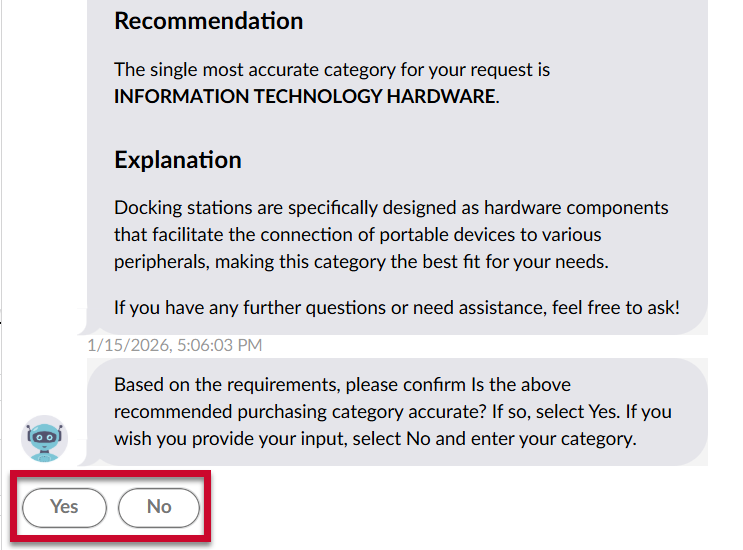 If you select No, eMMA AI will ask you to click to make a selection from the list of provided categories.
 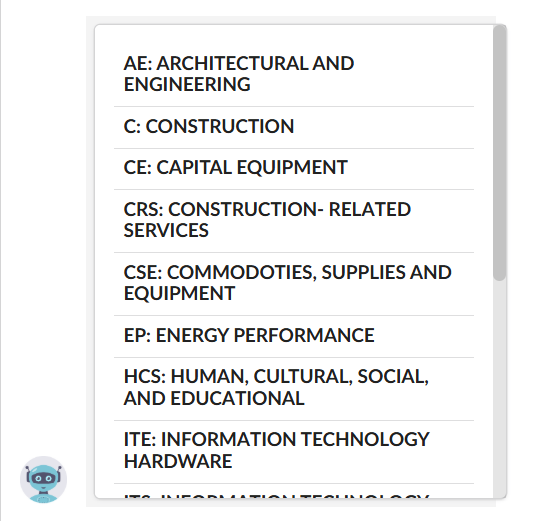 Options include:
- AE: ARCHITECTURAL AND ENGINEERING
- C: CONSTRUCTION
- CE: CAPITAL EQUIPMENT
- CRS: CONSTRUCTION- RELATED SERVICES
- CSE: COMMODITIES, SUPPLIES AND EQUIPMENT
- EP: ENERGY PERFORMANCE
- HCS: HUMAN, CULTURAL, SOCIAL, AND EDUCATIONAL
- ITE: INFORMATION TECHNOLOGY HARDWARE
- ITS: INFORMATION TECHNOLOGY SERVICES
- ITW: INFORMATION TECHNOLOGY SOFTWARE
- L: LEASES (OTHER THAN REAL PROPERTY)
- M: MAINTENANCE
- RPL: REAL PROPERTY LEASES
- RPP: REAL PROPERTY PURCHASE
- RV: REVENUE (CONCESSIONS, ETC.)
- S: SERVICES
- Depending on your entries up to this point, eMMA AI may ask additional clarifying questions. Respond by clicking the options that appear in the chat. Once you have answered all of its questions, eMMA AI will provide you with a list of recommended contracts from your agency based on the needs of your procurement.
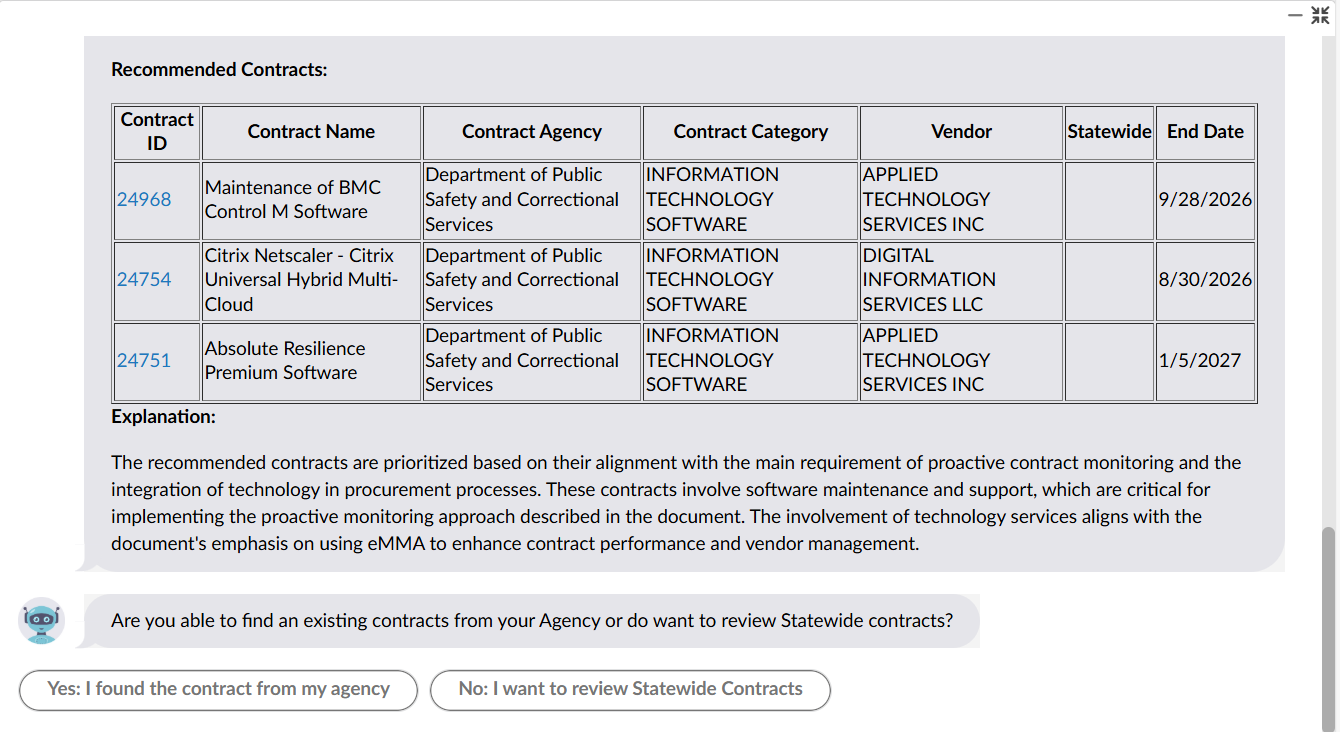
eMMA AI will then provide a second list of Statewide contracts for you to review and select from.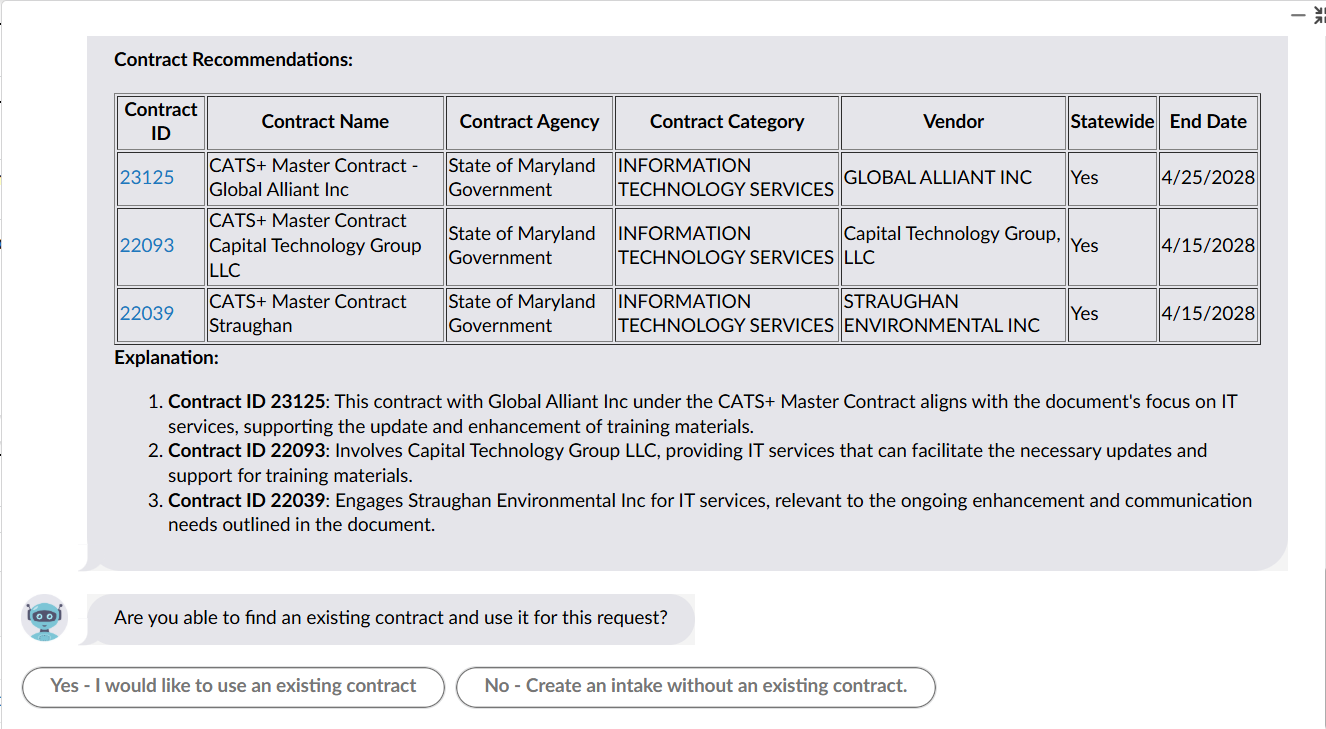
To review any specific contract in more detail, click the blue hyperlink associated with its contract ID.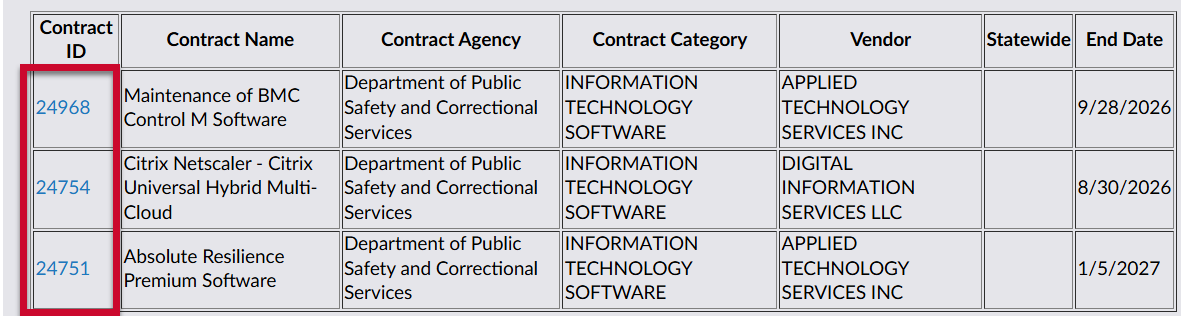
- Once you have finished your review, indicate whether you can find an existing contract and use it for this request.
 If you select Yes - I would like to use an existing contract, eMMA AI will prompt you to select the contract from a list by clicking on it.
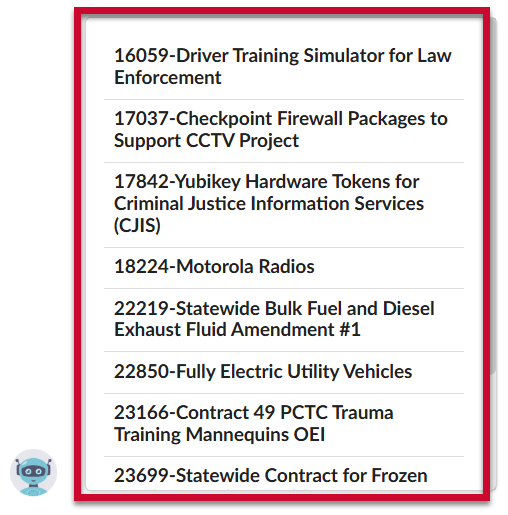 If you select No - Create an intake without an existing contract, proceed to the next step.
- Indicate whether or not the recommended purchasing category is appropriate by clicking Yes or No.
- If you selected an IT Request Type: eMMA AI will process your input. Based on either your description, or the contents of the requirements document that you uploaded, eMMA AI will recommend a selection of IT Contracts (BPOs).
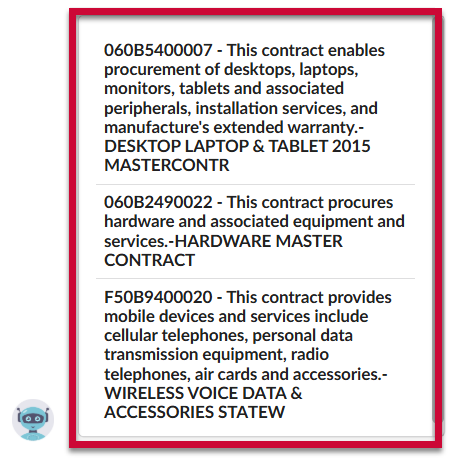 Select a contract from the list by clicking on it.
- If you selected a Non-IT Request Type: eMMA AI will process your input. Based on either your description, or the contents of the requirements document that you uploaded, eMMA AI will recommend a Category for your intake request.
- eMMA AI will automatically create a draft Intake Request for you based on the information you have entered so far.
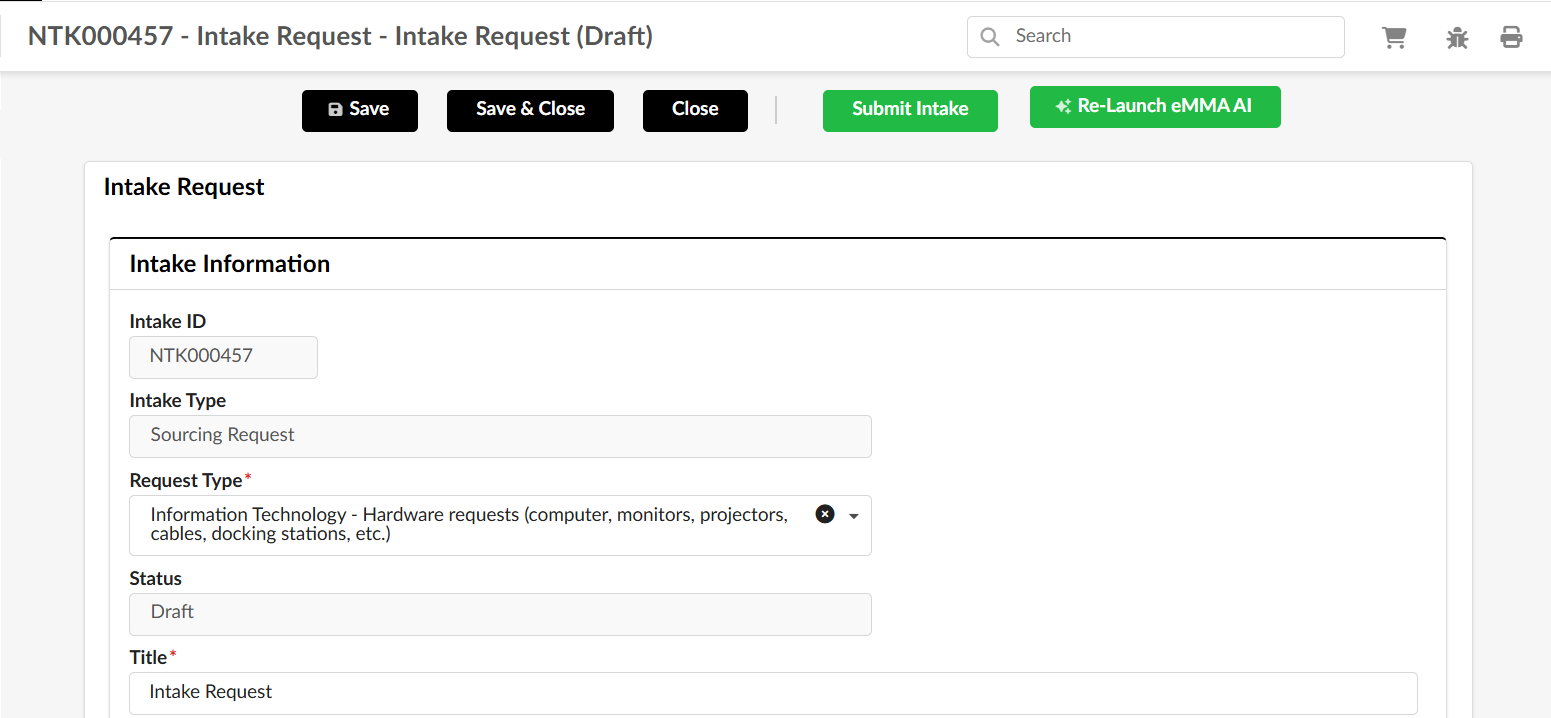 Complete the remaining mandatory fields in the Intake Information section.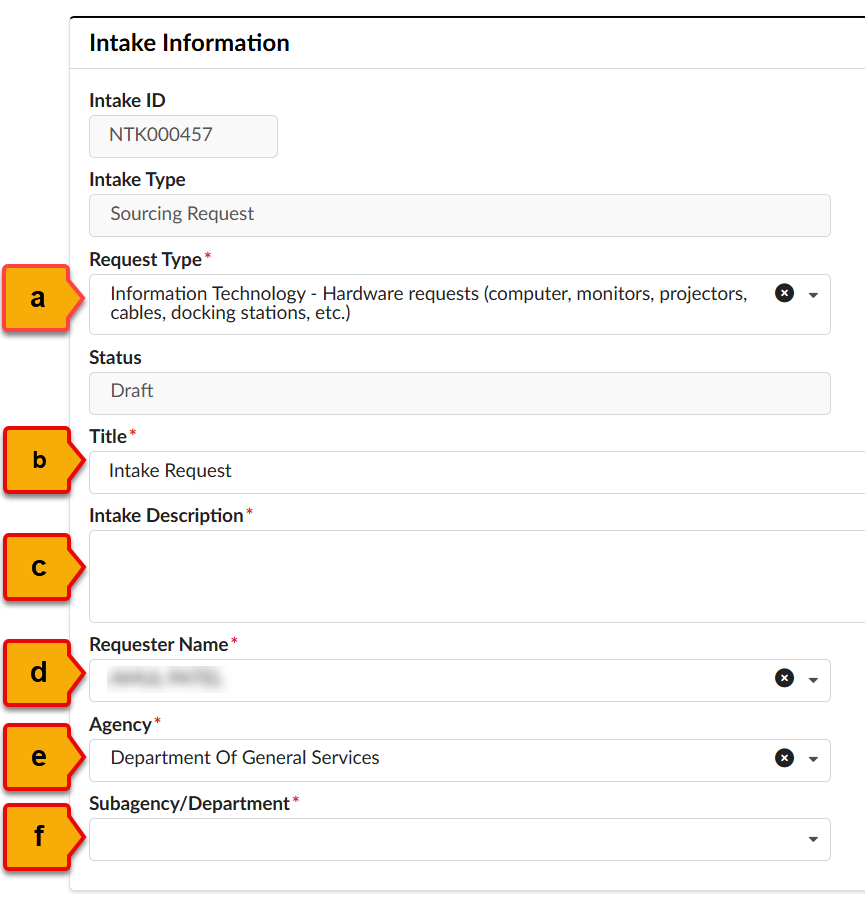
- Request Type (*): The type of procurement request that you require. (auto-populated by eMMA AI)
- Title (*): Defaults to "Intake Request" but should be updated with information specific to your procurement.
- Intake Description (*): Write a short description of the nature of your intake request
- Requester Name (*): Defaults to your name (not editable)
- Agency (*): Your primary agency (auto-populated by eMMA AI)
- Subagency/Department (*): Your specific subagency, department, or subdivision that the procurement need is for
- Review the information in the eMMA AI Recommendation section. (Note: if you did not select a contract before generating the intake request, this section will remain empty)
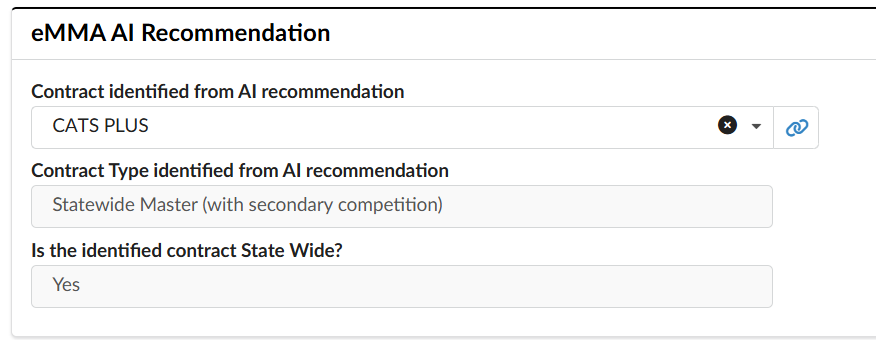
NOTE: For IT Requests, the Contract identified from AI recommendation field will be replaced by the BPO selected field.
- Review and complete the information in the Intake Inputs section as appropriate.
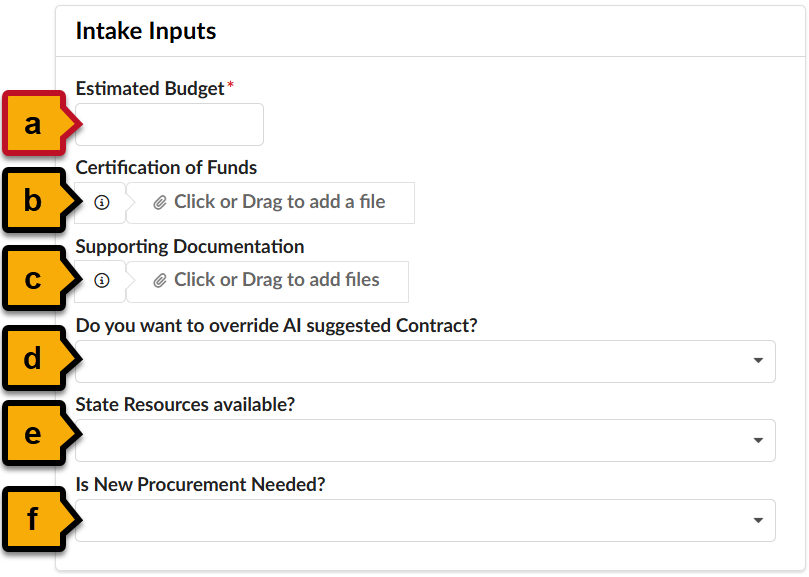
- Estimated Budget (*): Enter an estimation in dollars of the budget for the procurement need captured in the intake request
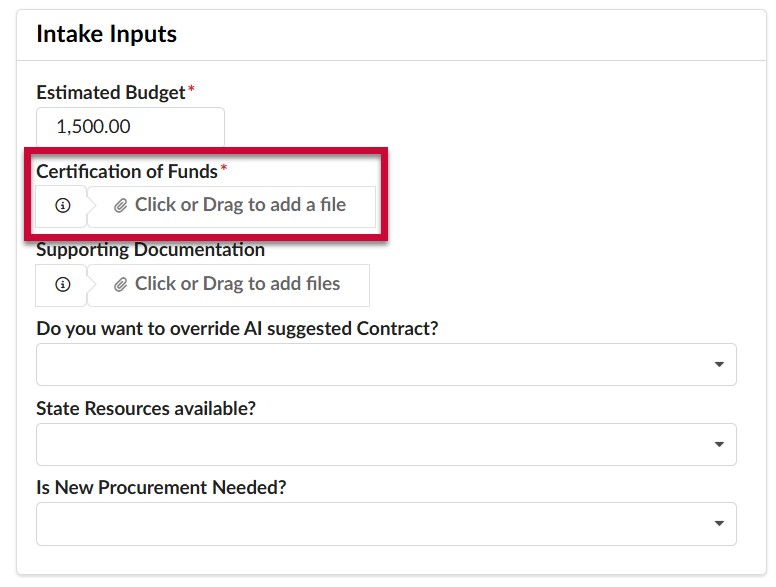
- Certification of Funds: If you have already obtained a Certification of Funds, you can attach it to the intake request here by using the Click or Drag to add a file button and uploading the file from your desktop
- If you do not have Certification of Funds at this time, the Intake Request will be routed back to you following approval from the Financial Approver. You will receive an email notification and an activity in the My Pending Validations section of your homepage at this time. For more information, see the end of this QRG.
- Supporting Documentation: Use the Click or Drag to add files button to upload and attach any supporting documentation to the request. (e.g., written approvals from a supervisor, spec sheets, etc.)
- Do you want to override AI suggested Contract?: Indicate with a Yes or No whether you would like to suggest an alternative contract to the one recommended by eMMA AI.
- If you select Yes, an additional User Selected Contract field will appear where you can begin typing in the name of the contract, and select it from the drop-down menu once it appears.
- State Resources available?: Indicate whether or not existing State resources are available to fulfill the needs outlined in the Intake Request
- Is New Procurement Needed?: Indicate whether or not the intake should result in a new solicitation for a new contract
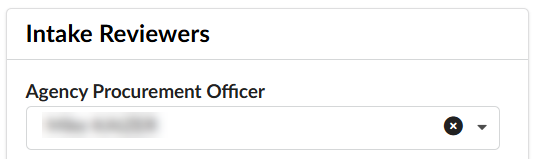
- (optional) In the Intake Reviewers section, type the name of the Agency Procurement Officer who will be supporting the procurement in the Agency Procurement Officer field, then select them from the drop-down menu when they appear.
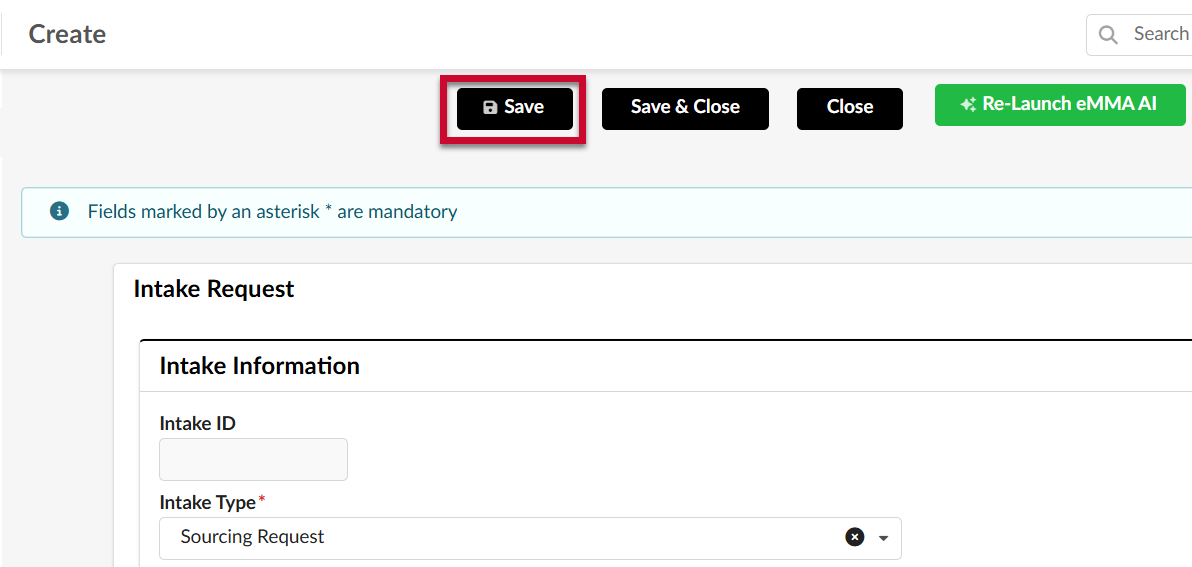
- Click Save.
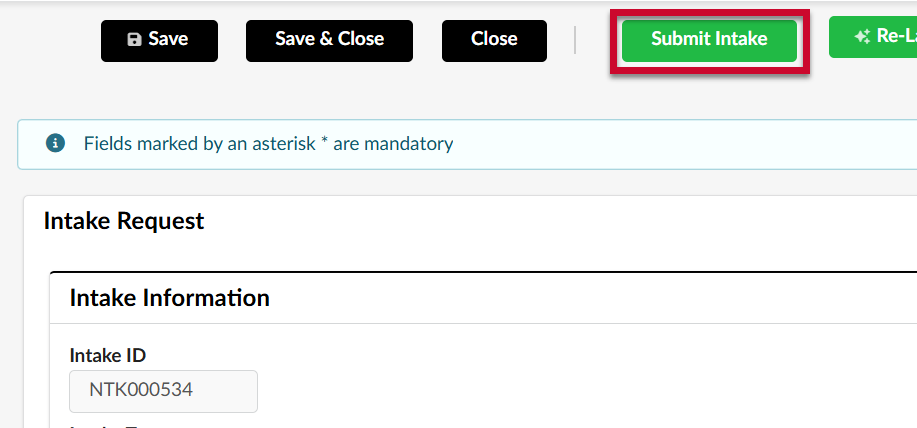
- Click Submit Intake.
Requester Upload Fund Certificate
Your Intake Request will first be reviewed by the Financial Approver. After the Financial Approver approves your Intake Request, it will be routed back to you at the Requester Upload Fund Certificate step of the workflow. At this time you will receive an email notification, and the task will appear on your homepage in the My Pending Validations section. Follow the steps below to advance your Intake Request.
NOTE: You will receive a workflow activity at the Requester Upload Fund Certificate step regardless of whether or not you previously attached the fund certificate.
- From the homepage, you can access the intake request with the activity of Requester Upload Fund Certificate directly from the My Pending Validations section. Click on the Object hyperlink to open your intake request
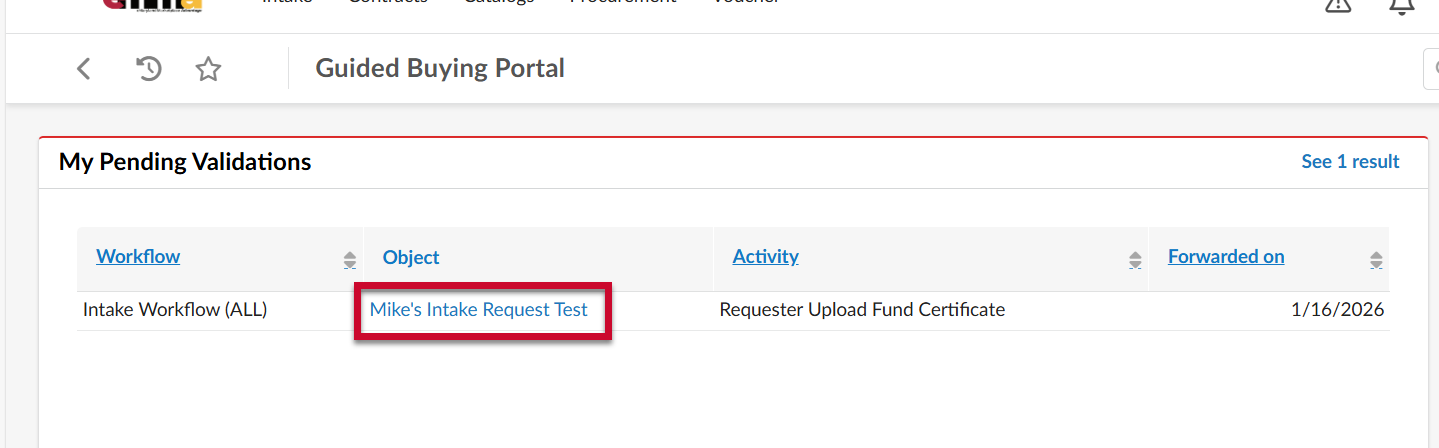
NOTE: You can also open your Intake Request directly from the email notification you receive by following the included link.
NOTE 2: If you uploaded the Fund Certificate when creating the intake request, proceed directly to Step 4.
- Scroll down to the Intake Inputs section. In the Certification of Funds field, use the Click or Drag to add a file button to select the fund certification document from your desktop and upload it.
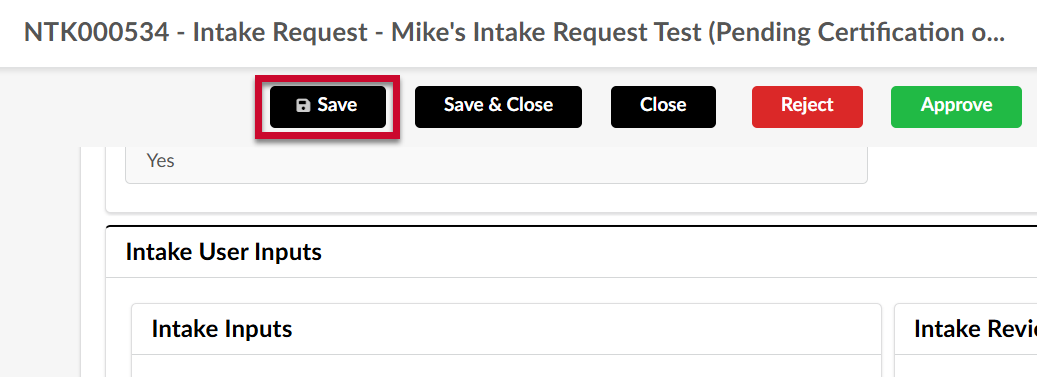
- Click Save.
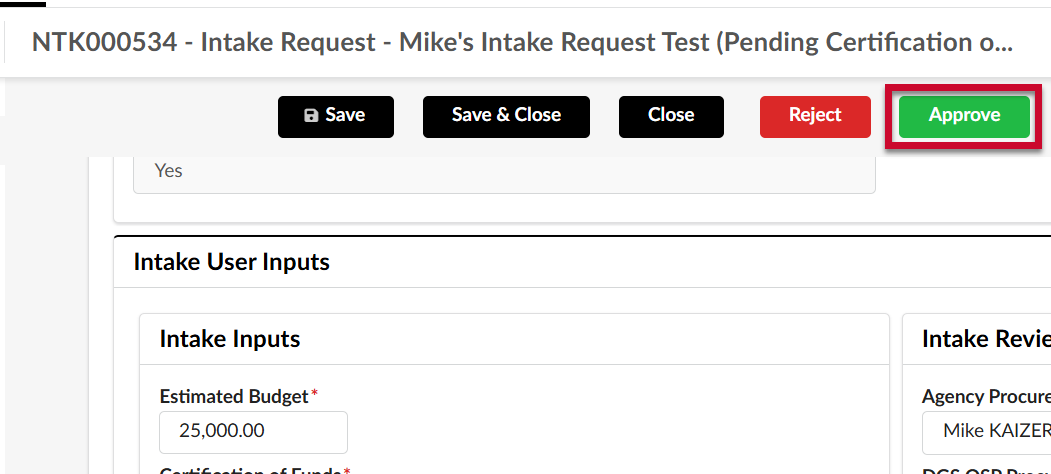
- Click Approve.
If Your Request is Rejected
In some cases, a reviewer might choose to reject your intake request back to you rather than advance it to the next step in the workflow. (e.g., if you were missing an attached document required by your agency) In this scenario, you will receive an email notification informing of you of the rejection with a link to the intake request in eMMA. To view the comments:
- Navigate to the intake request from either the link in your email or using the instructions for the Browse Intake Requests section of this QRG.
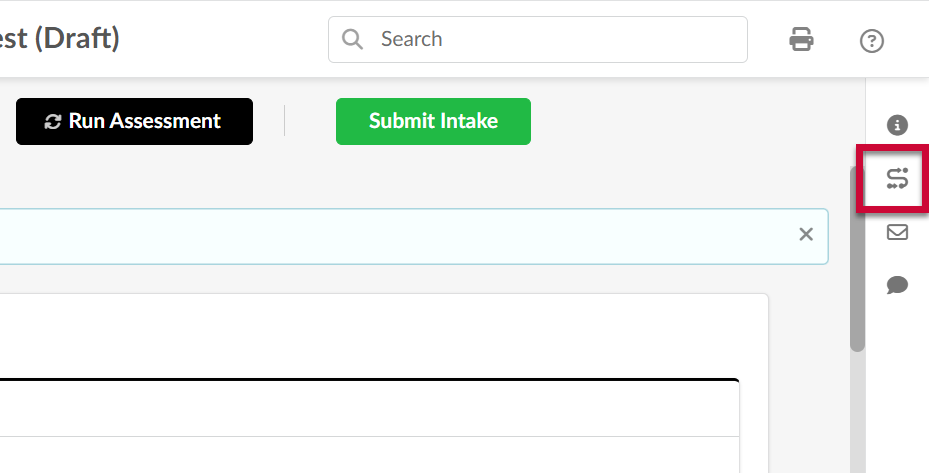
- Click to expand the Workflow follow-up panel in the right-hand navigation bar.
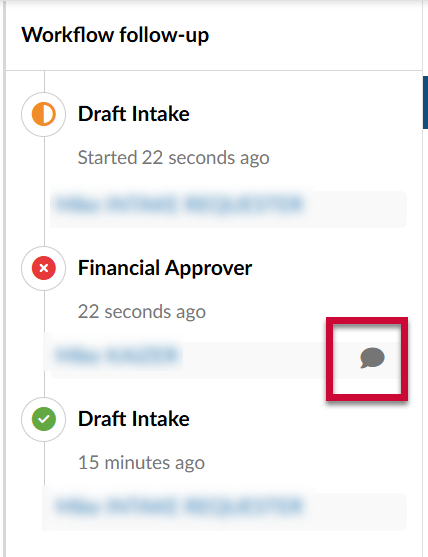
- The Workflow follow-up panel is displayed. Locate the step with a red X next to it and click on the comment icon to expand the comment and read the approver's reason for rejecting the intake request.
- Update and resubmit the intake request as appropriate based on the approver's instructions.
Browse Intake Requests in eMMA
This section shows how to access the Browse Intake Requests page in eMMA and search for requests using the available filters. This page lets you search through existing Intake Requests.
- Access eMMA at https://emma.maryland.gov and log in with your credentials.
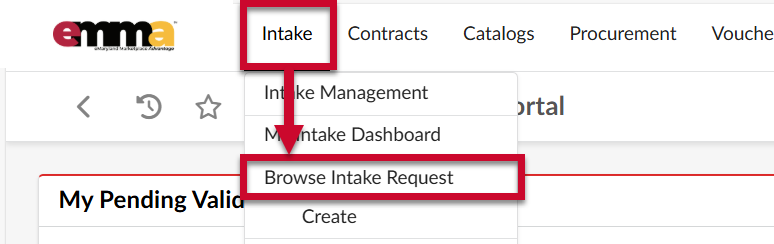
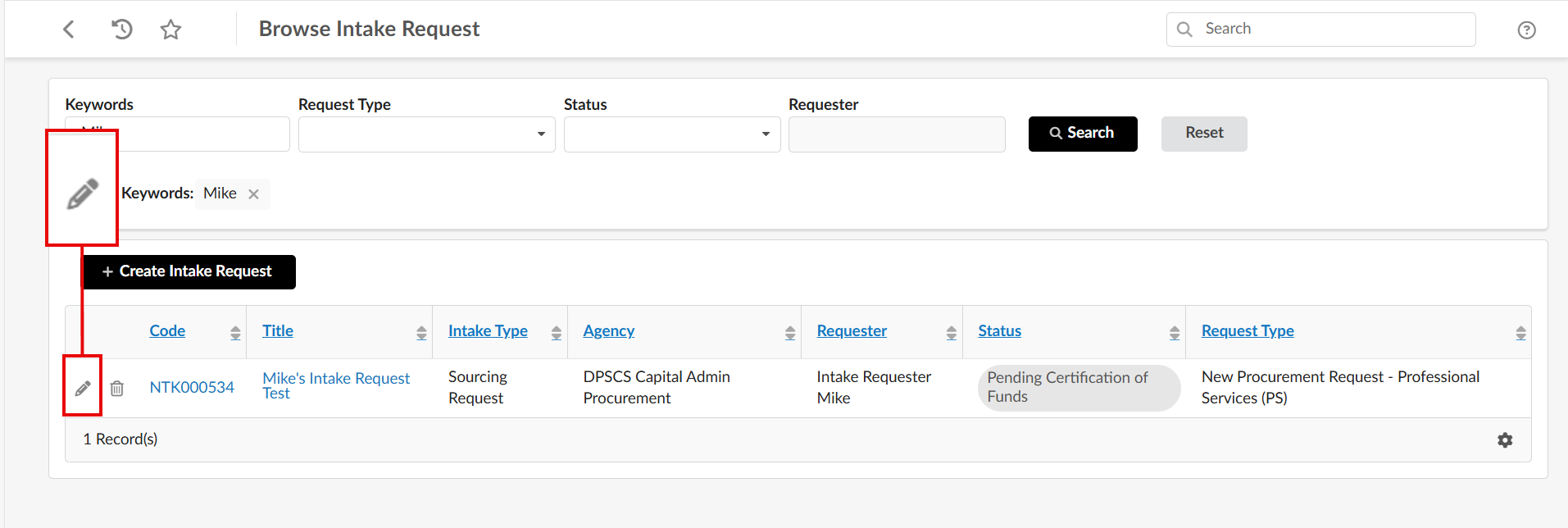
NOTE: Depending on your agency, you may only need to click the State SSO Login (Secure Auth) button or the MDOT SSO Login (MSAzure) button and log in with your credentials. - Click the Intake tab at the top of the web page to open the drop-down menu and select the Browse Intake Requests option. This shows a list of Intake Requests, both approved, and in progress.
- From here you can click the Edit (pencil) icon to the left of your Intake Request to view and edit project specifications.
Browse Intake Requests Using the Keyword Filter
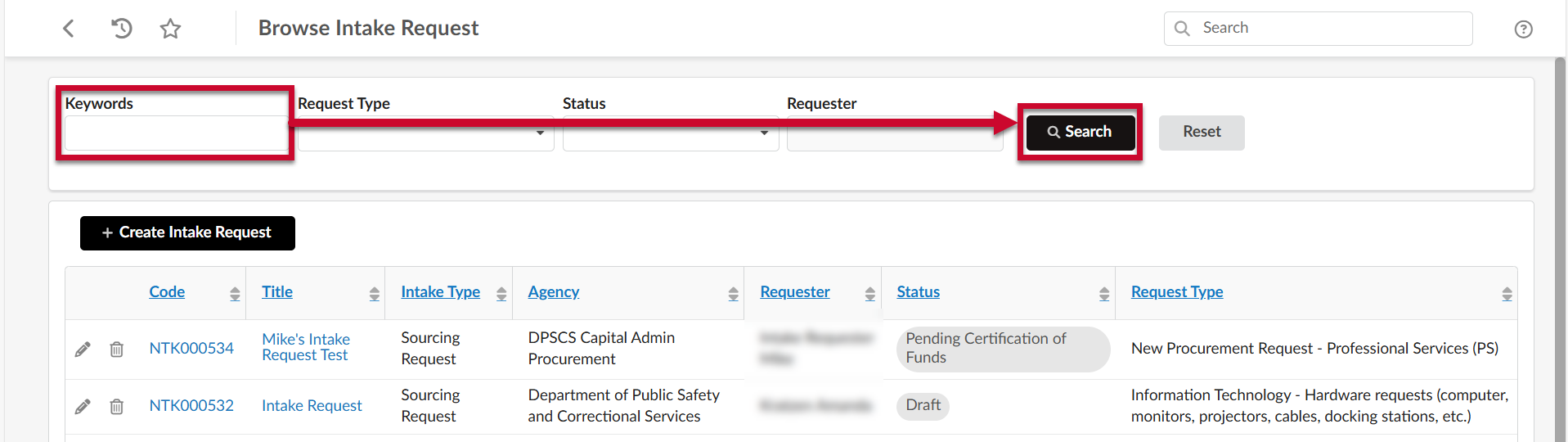
The Keyword field displays Intake Requests based on a keyword or term you enter. The best way to find an Intake Request is to have the NTK number handy and enter it in the Keywords field.
The NTK number is listed under the Code column on the Browse page. You can also find it on your Intake Request.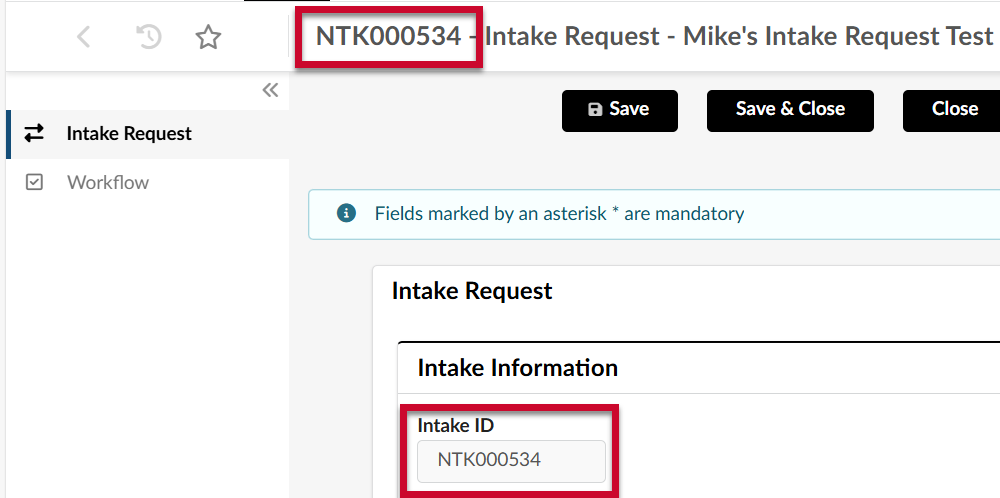
- Click the Keyword field and enter a term to narrow the list of Intake Requests.
- Click the Search button to display results.
Browse Intake Requests Using the Status Filter
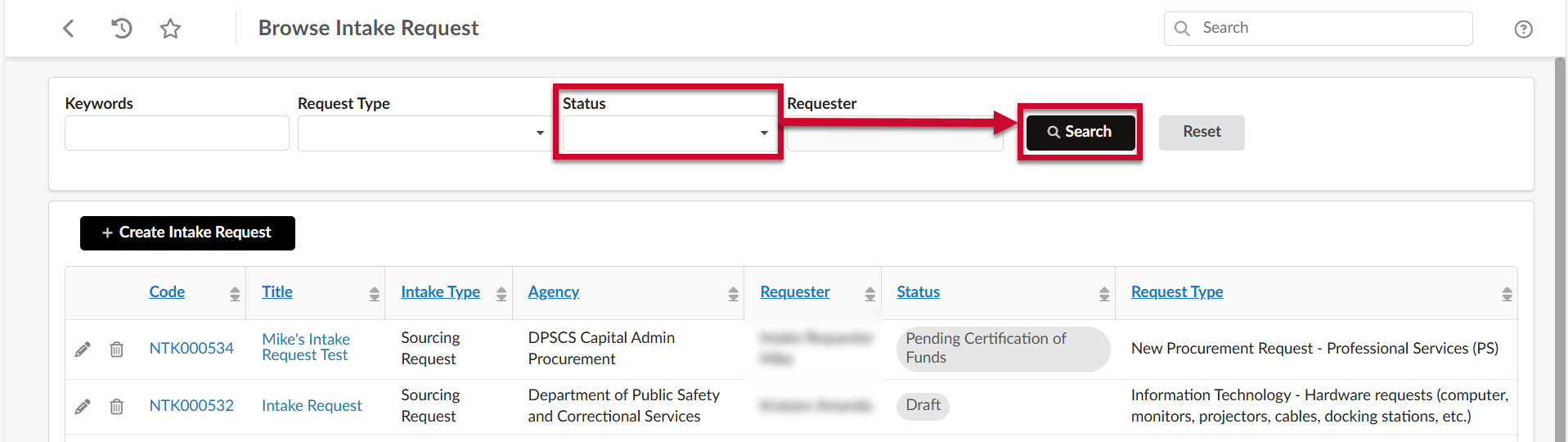
The Status field displays Intake Requests based on their current status in the Intake Approval Workflow.
- Click the Status field to open the drop-down menu and select the option you wish to view.
- Click the Search button to display results.
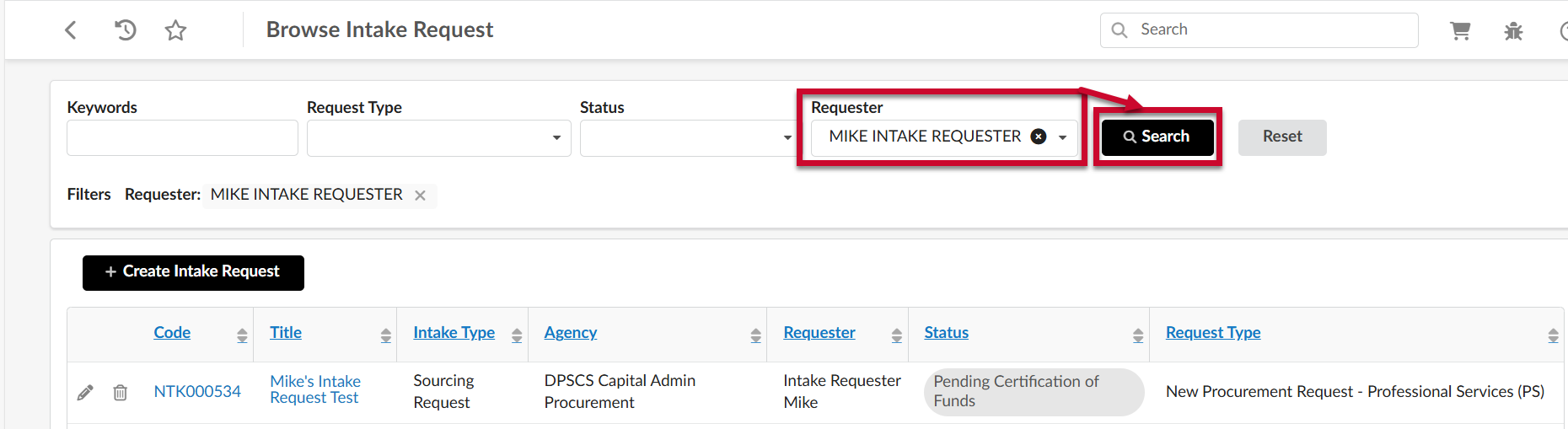
Browse Intake Requests Using the Requester Filter
The Requester filter displays Intake Requests based on the user who initiated the request.
NOTE: Not all users have access to the Requester filter.
- Click the Requester field to open the drop-down menu and select the option you wish to view.
- Click the Search button to display results.