
Overview
This Quick Reference Guide (QRG) is designed to help Procurement Officers and Buyers learn how to browse and filter existing contracts in eMaryland Marketplace Advantage (eMMA). It includes training videos and instructions so you can choose to learn at your own pace.
Highlights
- For best results, use the Google Chrome browser to access eMMA.
- If you need help at any time, please reach out to the eMMA helpdesk at emma.helpdesk@maryland.gov.
- IMPORTANT: Statewide and Master Contracts should be prioritized when selecting a contract to use for a purchase order or other activity (e.g. reviewing and approving intake requests). For more information on locating Statewide and Master Contracts, review the section titled "Locate Statewide and Master Contracts".
Step-by-Step Instructions
Browse Contracts
This procedure lets you view contract information in eMMA.
- Access eMMA at https://emma.maryland.gov and log in with your credentials.
NOTE: Depending on your agency, you may only need to click the State SSO Login (Secure Auth) button or the MDOT SSO Login (MSAzure) button and log in with your credentials. - Click the Contracts tab at the top of the screen and select the Browse Contracts option from the drop-down menu that opens. Search results display a list of contracts in eMMA.

- Click the Edit (pencil) icon to the left of the contract to view the information. You can also click either link for the Contract ID or Contract Title to view the information.
NOTE: Only the Responsible team member can edit Contract information.
Filter Contracts
Once you’re on the Browse Contracts webpage (Step 2 above), you will see a list of Contracts in eMMA. Some users may want to narrow the list to make it easier to find what they want. This section shows the different filters for this page and how they can quickly help you find what you’re looking for. You can use one filter or a combination of several. PRO TIP: Applied filters display below the filter fields. Click the X to the right of a filter to remove it.
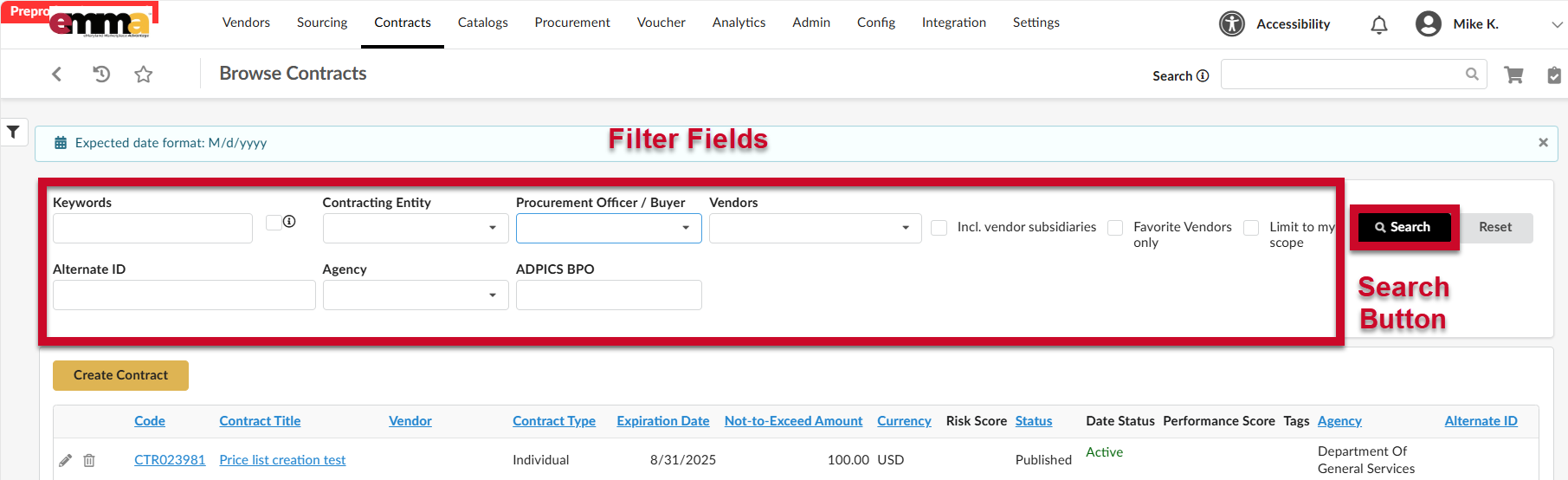 Filter Contracts by Keyword
The Keywords field displays contracts based on a key word or term you enter.
- Click the Keywords field and enter a term to narrow the list of contracts.
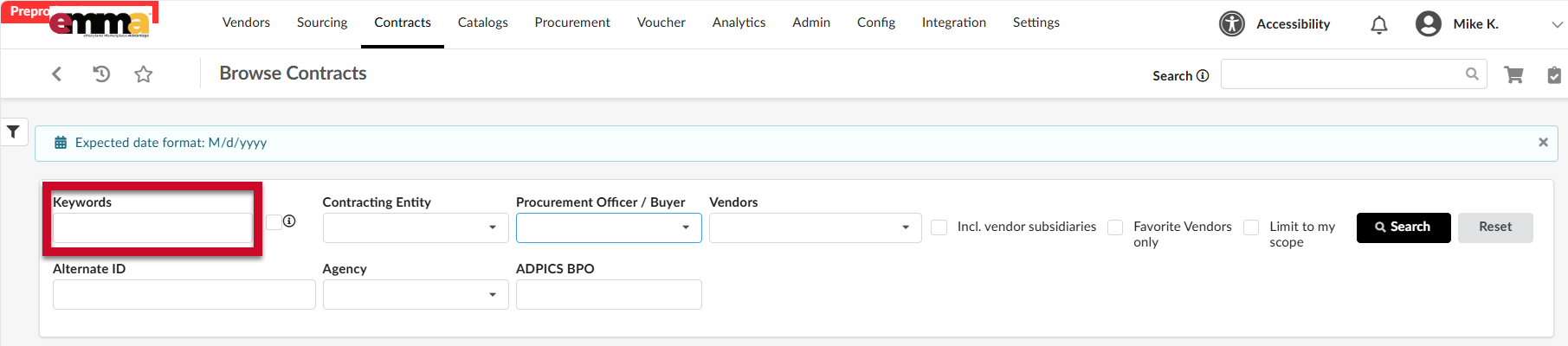
- Click the Search button to display results.
 PRO TIP: Write down the eMMA CTR number. When you want to return quickly to the same contract, type the CTR number in the Keywords field.
Filter Contracts by Contracting Entity
The Contracting Entity field lets you display contracts based on the entity who created the contract.
- Click the Contracting Entity field to open the drop-down menu and select a contract entity or click See All at the bottom of the menu.
NOTE: Clicking See All opens a window which lists all contracting entities. Click the checkbox for a contract entity in this list and close the window. The contract entity populates in the field.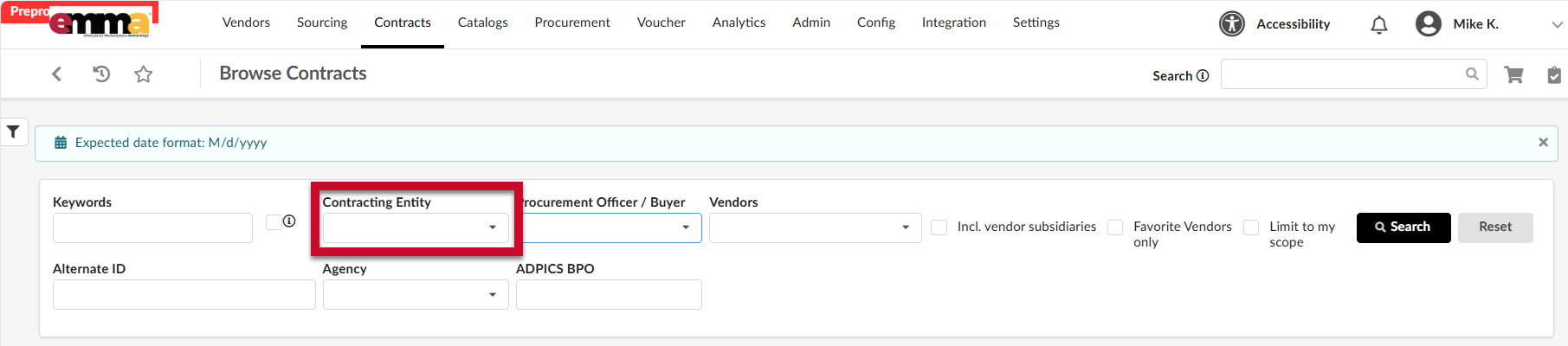
- Click the Search button to display results.
Filter Contracts by Procurement Officer/Buyer
The Procurement Officer/Buyer field lets you display contracts based on the procurement officer or buyer responsible for the contract.
- Click the Procurement Officer/Buyer field to open the drop-down menu and select a procurement officer or buyer from the list. You can also click See All at the bottom of the menu.
NOTE: Clicking See All opens a window which lists all procurement officers or buyers in eMMA. Click the checkbox for a Procurement Officer or Buyer from this list and close the window. The procurement officer or buyer auto-populates in the field.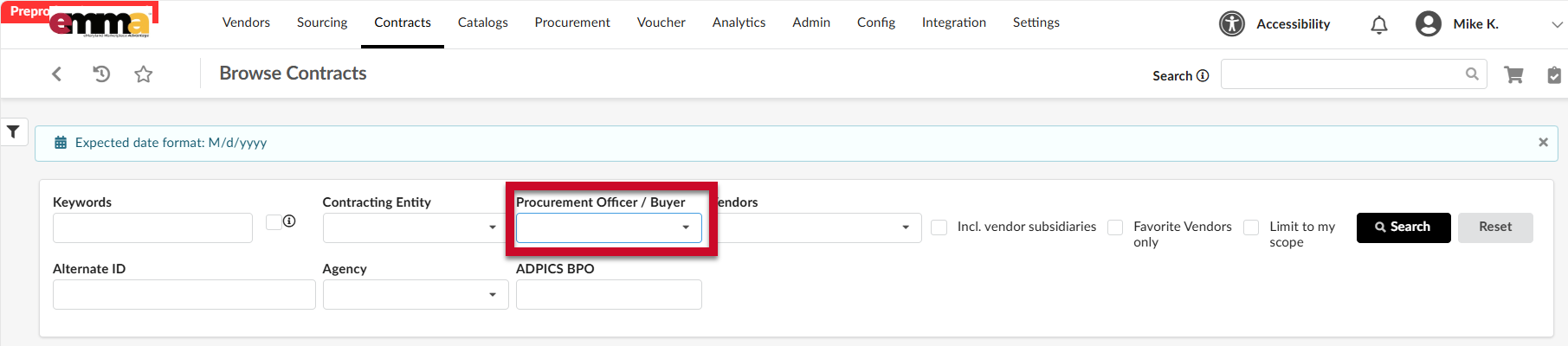
- Click the Search button to display results.
Filter Contracts by Vendors
The Vendors field lets you display contracts based on the vendors involved in the contract.
- Click the Vendors field to open the drop-down menu and select a vendor from the list or click See All at the bottom of the menu.
NOTE: Clicking See All opens a window which lists all vendors in eMMA. Click the checkbox for one or more vendors from the list and close the window. The vendor(s) auto-populate in the field.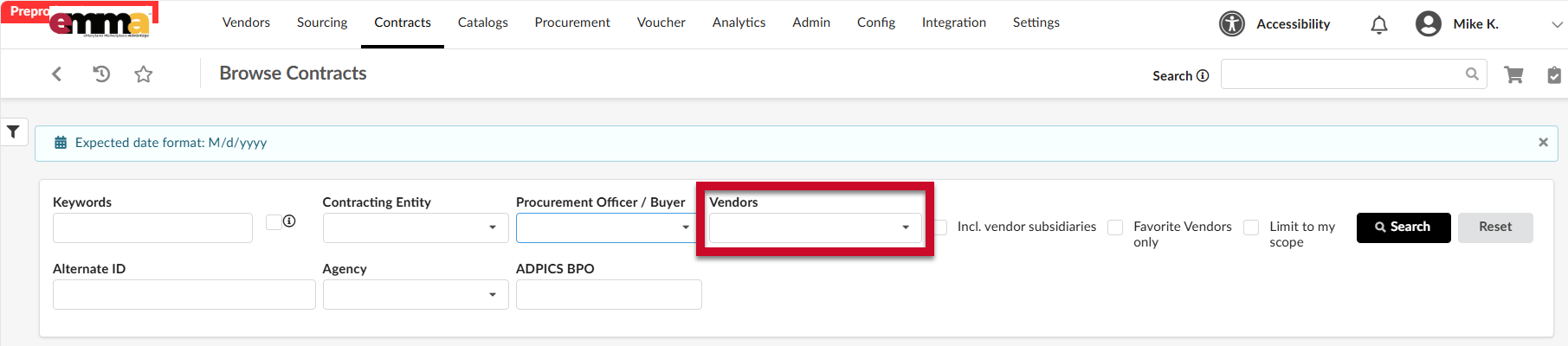
- Click the Search button to display results.
Other Filters Options in the Filter (Funnel) Icon Menu
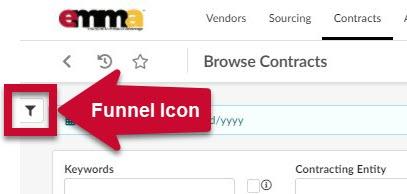
Click the filter (funnel) icon in the upper left corner of the page to open the side-panel. This section describes a couple of the more helpful filters in this side-panel. Find each of the fields described below by clicking the funnel icon. Click outside the side-panel to collapse it.
NOTE: If you want to keep this side-panel open, click the pushpin icon in the upper right corner of the side-panel. Click it again to unpin this panel.
NOTE: Any filters selected from this side-panel display above the results. Click the X to the right of a filter to remove it from your search.
Filter Contracts by Dates Status
The Dates Status field lets you display contracts based on six contract statuses: Draft, Active, Reviewable, Renewal Pending, Expiring Soon, Expired.
- Click the filter (funnel) icon in the upper left corner of the page to open the side-panel.
- Click the Dates Status field to open the drop-down menu and select one or more options from the menu.

- Click the Search button at the top of the side-panel to display results.
Filter Contracts by Contract Scope
The Contract Scope field allows you to filter by what and who the contract covers (i.e. organizations and commodities).
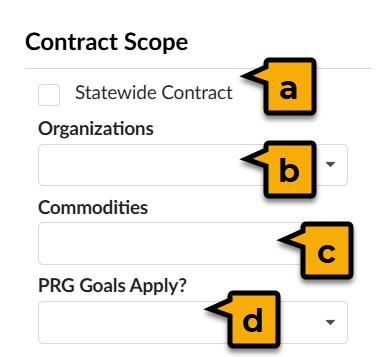
- Statewide Contract: This indicates that any agency within the State of Maryland can purchase from this contract.
- Organizations: Shows contracts that only apply to specific agencies, departments, or other State entities. This is helpful when searching for contracts that are not Statewide contracts.
- Commodities: Shows contracts that cover specific goods and/or services.
- PRG Goals Apply? Shows contracts that have PRG goals tied to them.
Filter Contracts by Contract Type
The Contract Type field lets you display contracts based on 4 contract types: Master Without Secondary Competition, Master with Secondary Competition, Individual, Secondary Level Agreement.
- Click the filter (funnel) icon in the upper left corner of the page to open the side-panel.
- Click the Contract Type field to open the drop-down menu and select a Contract Type from the list.
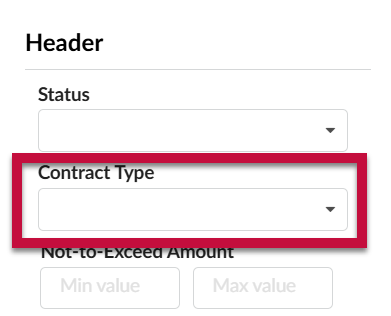
- Click the Search button at the top of the side-panel to display results.
Locate Statewide and Master Contracts
Procurement Officers should search for and review Statewide and Master Contracts prior to issuing a solicitation and creating new agreements. All Statewide contracts in eMMA will be marked as Statewide via a checkbox. Master Contracts will have the phrase "Master Contract" in the title.
Search for a Statewide Contract
- Access eMMA at https://emma.maryland.gov and log in with your credentials.
NOTE: Depending on your agency, you may only need to click the State SSO Login (Secure Auth) button or the MDOT SSO Login (MSAzure) button and log in with your credentials. - Click the Contracts tab at the top of the screen and select the Browse Contracts option from the drop-down menu that opens. Search results display a list of contracts in eMMA.
- Click the filter (funnel) icon in the upper left corner of the page to open the side-panel.
- Under the Contract Scope section, click the checkbox next to Statewide Contract.
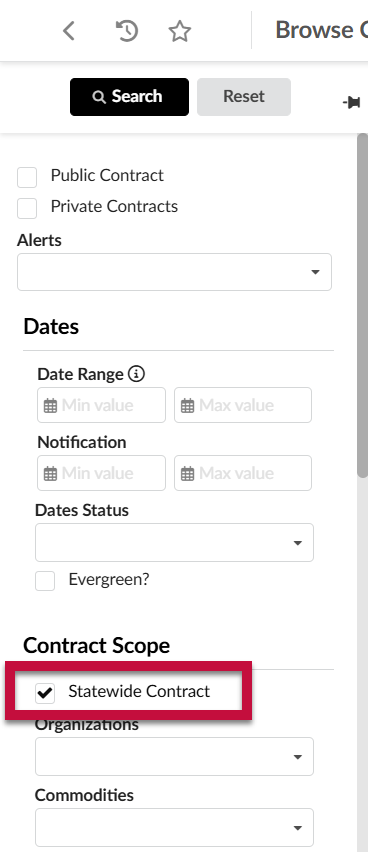
- Click the Search button.

- Click the Edit (pencil) icon to the left of the contract to view the information. You can also click either link for the Contract ID or Contract Title to view the information.
NOTE: Only the Responsible team member can edit Contract information.
Search for a Master Contract
- Access eMMA at https://emma.maryland.gov and log in with your credentials.
NOTE: Depending on your agency, you may only need to click the State SSO Login (Secure Auth) button or the MDOT SSO Login (MSAzure) button and log in with your credentials. - Click the Contracts tab at the top of the screen and select the Browse Contracts option from the drop-down menu that opens. Search results display a list of contracts in eMMA.
- Click the Keywords field and enter "master contract".

- Click the Search button.

- Click the Edit (pencil) icon to the left of the contract to view the information. You can also click either link for the Contract ID or Contract Title to view the information.
NOTE: Only the Responsible team member can edit Contract information.
Top Priority Master Contracts
Below is a list of contracts that should be used in various categories (valid as of May 2026)
CATEGORY | LINKED BUSINESS REQUEST | PARENT SOURCING PROJECT |
| Commercial Off the Shelf (COTS-2012) | PRJ000824 | BPM033356 |
| Hardware and Associated Equipment and Services 2012 Statewide Master Contract | PRJ000231 | BPM033291 |
| Desktop, Laptop, and Tablet - 2015 | PRJ000231 | BPM033099 |
| Consulting and Technical Services (CATS+) | PRJ000490 | BPM044412 |
| Audit Services | PRJ000177 | BPM017295 |
| PBX IV Telecommunications Equipment and Services Statewide Master Contract | PRJ001063 | BPM017541 |