
Overview
This Quick Reference Guide (QRG) is designed to help Vendors understand how to duplicate an existing bid for a solicitation or cancel a pending bid to a solicitation.
HIGHLIGHTS
- Bids can only be duplicated and submitted when the solicitation is open for bidding.
- Bids can only be cancelled prior to validating and submitted.
- If your organization is a Certified Small Business (CSB) you are eligible to respond to solicitations in the Small Business Reserve (SBR) and Small Business Preference (SBP) programs.
- For best results, use the Google Chrome browser to access eMMA.
- If you need help at any time, please reach out to the eMMA helpdesk at emma.helpdesk@maryland.gov.
Step-by-Step Instructions
NOTE: This QRG uses diagrams with specific callouts to show required and optional fields in forms. A yellow callout with a red border  indicates a required field, while yellow callouts with a black border
  indicate optional fields. Letters within the callouts respond to the explanations below the diagram. A red asterisk (*) indicates a mandatory field.
Duplicating a Solicitation Response
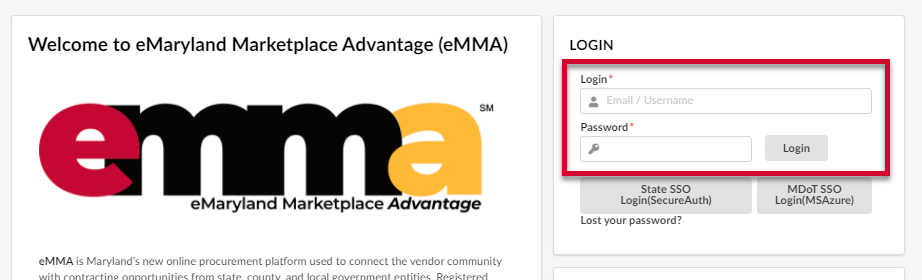
- Navigate to eMMA at https://emma.maryland.gov and log in with your credentials.
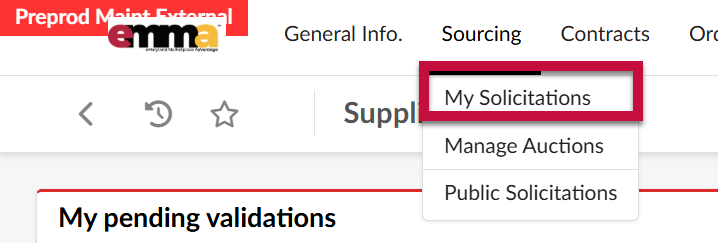
- Under the main menu, click Sourcing and select the My Solicitations page.
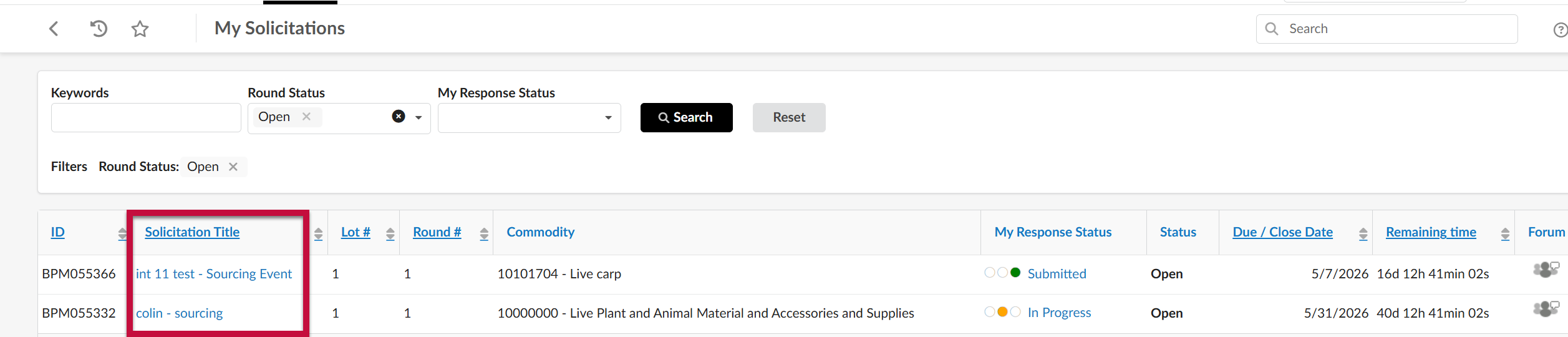
- Search for and select the solicitation by clicking the hyperlinked solicitation title.
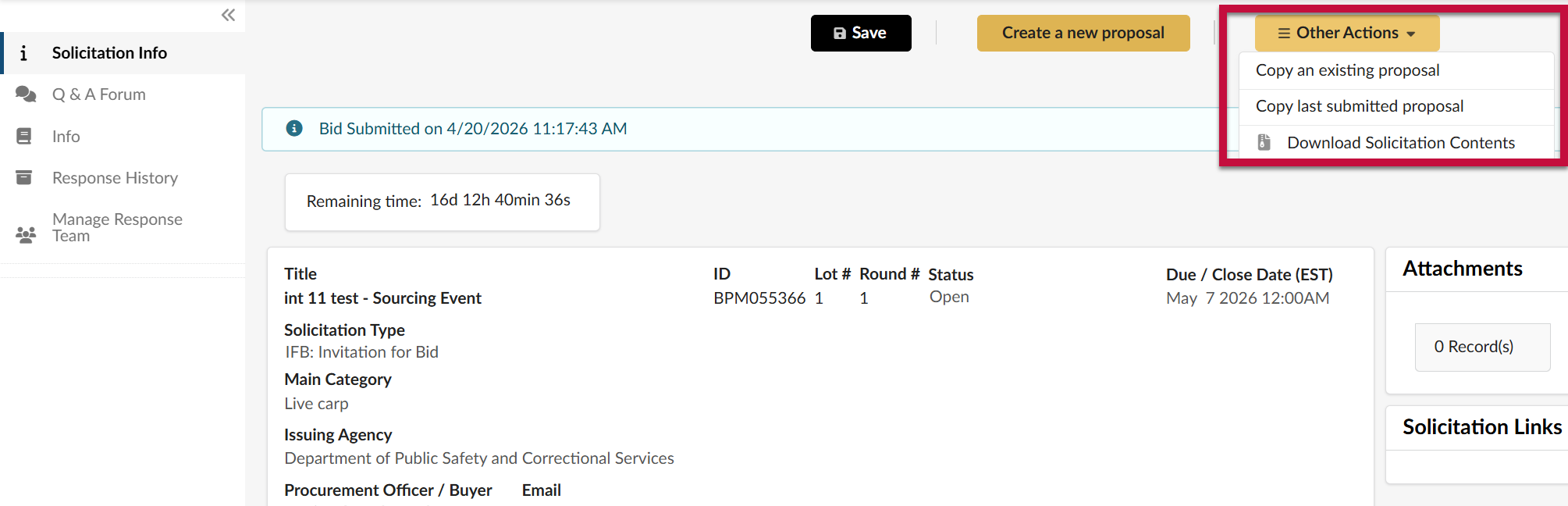
- Under the Other Actions menu, select Copy an existing proposal.
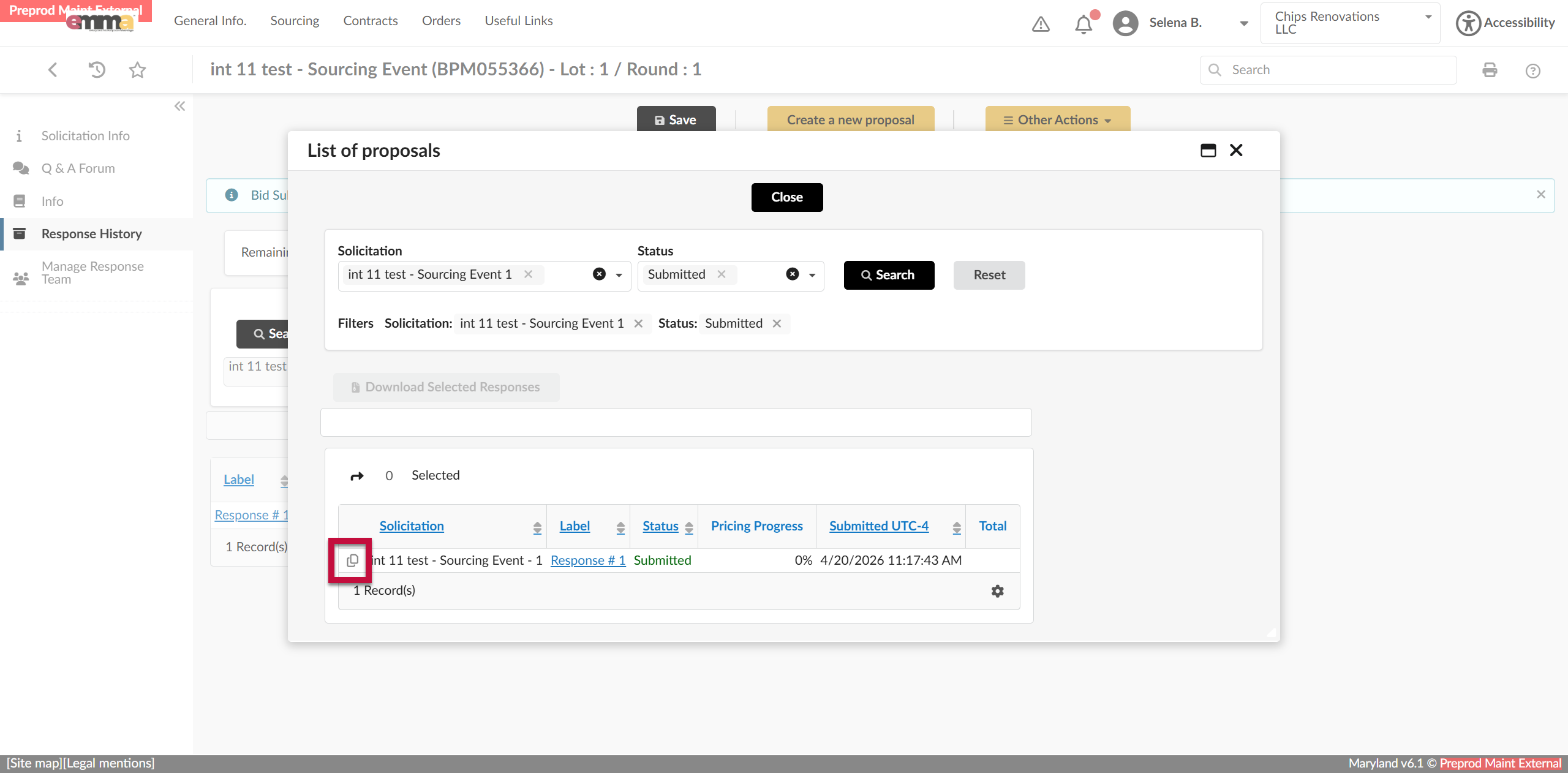
- Select the proposal you wish to copy by clicking the Copy icon next to it in the list.
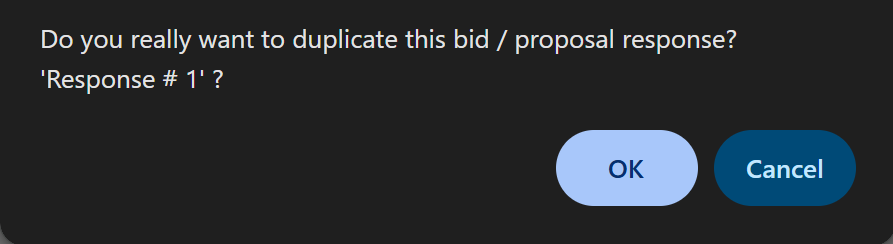
- Confirm that you would like to duplicate the selected solicitation response.
- Navigate to the Info tab and select whether the bid will be an alternate response or replace an existing response.
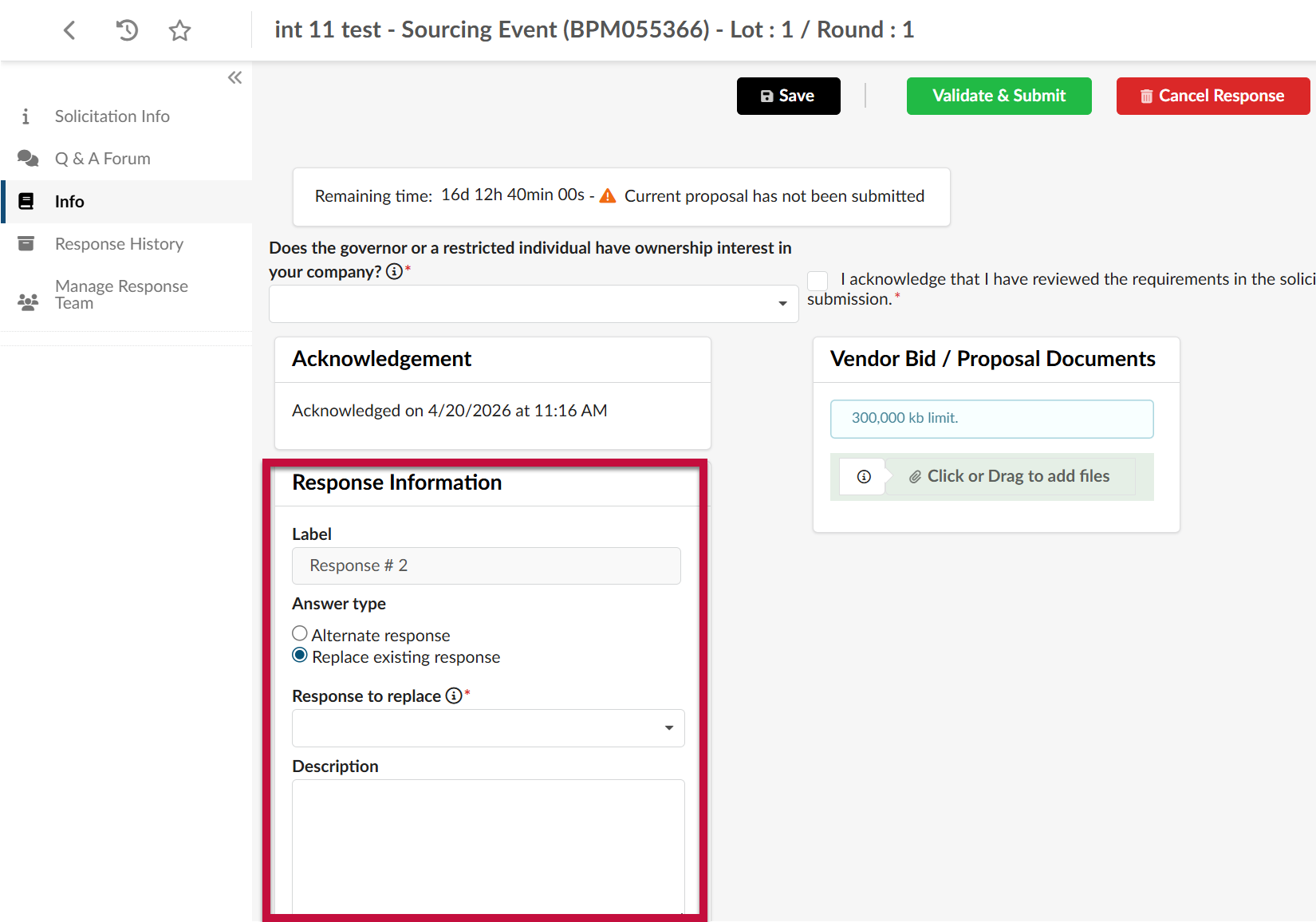
- Alternate Response: The new response will be viewable in addition to the response submitted prior to the current bid.
- Replace existing response: This will completely replace the current response so that it cannot be viewed or considered. This option requires you to select the response that should be inactivated/replaced.
- Click the Info tab on the left-hand side-panel.
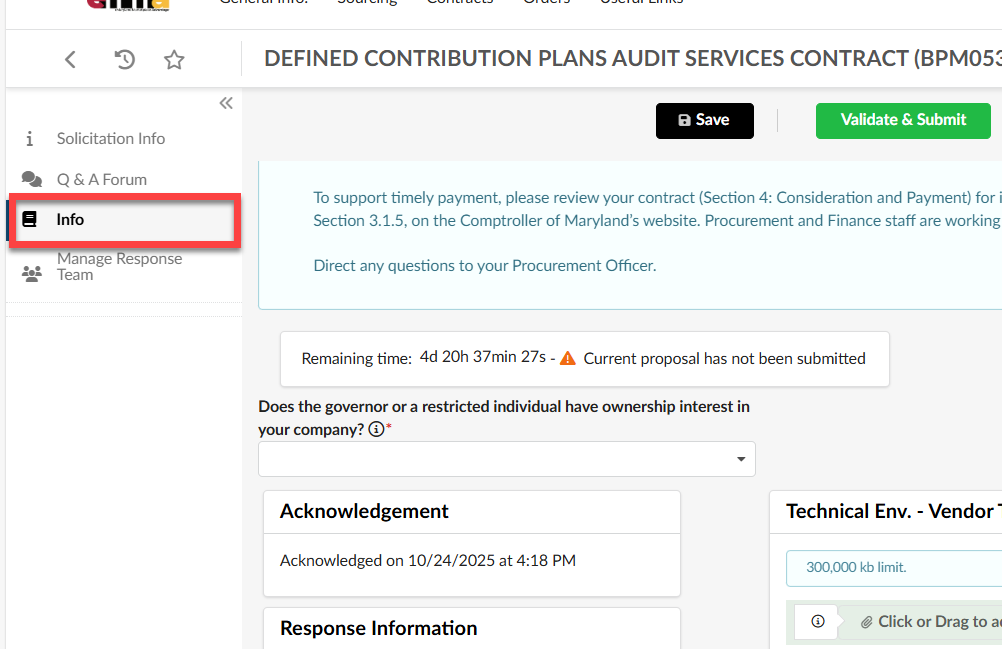
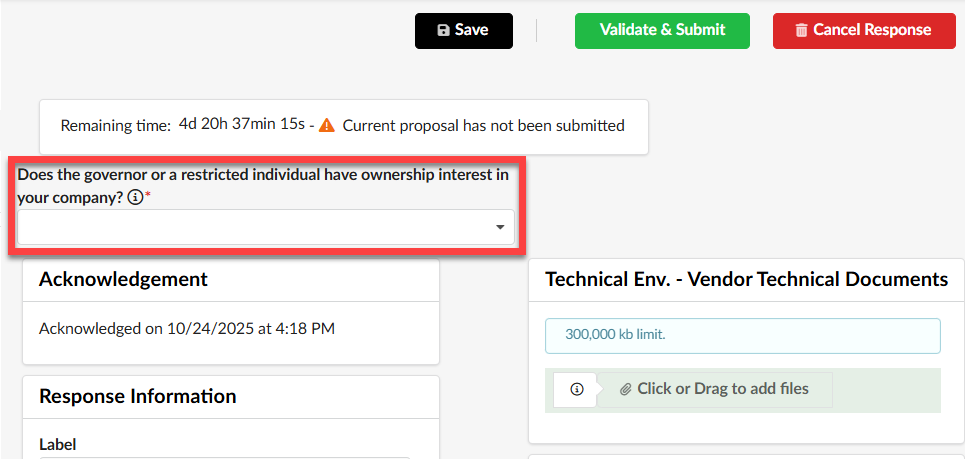
- Complete the Does the governor or a restricted individual have ownership interest in your company?(*) field by selecting Yes or No from the drop-down menu. (Response to this field is mandatory and required under HB0932; click here for additional information)
- Add a description in the Description field (optional).
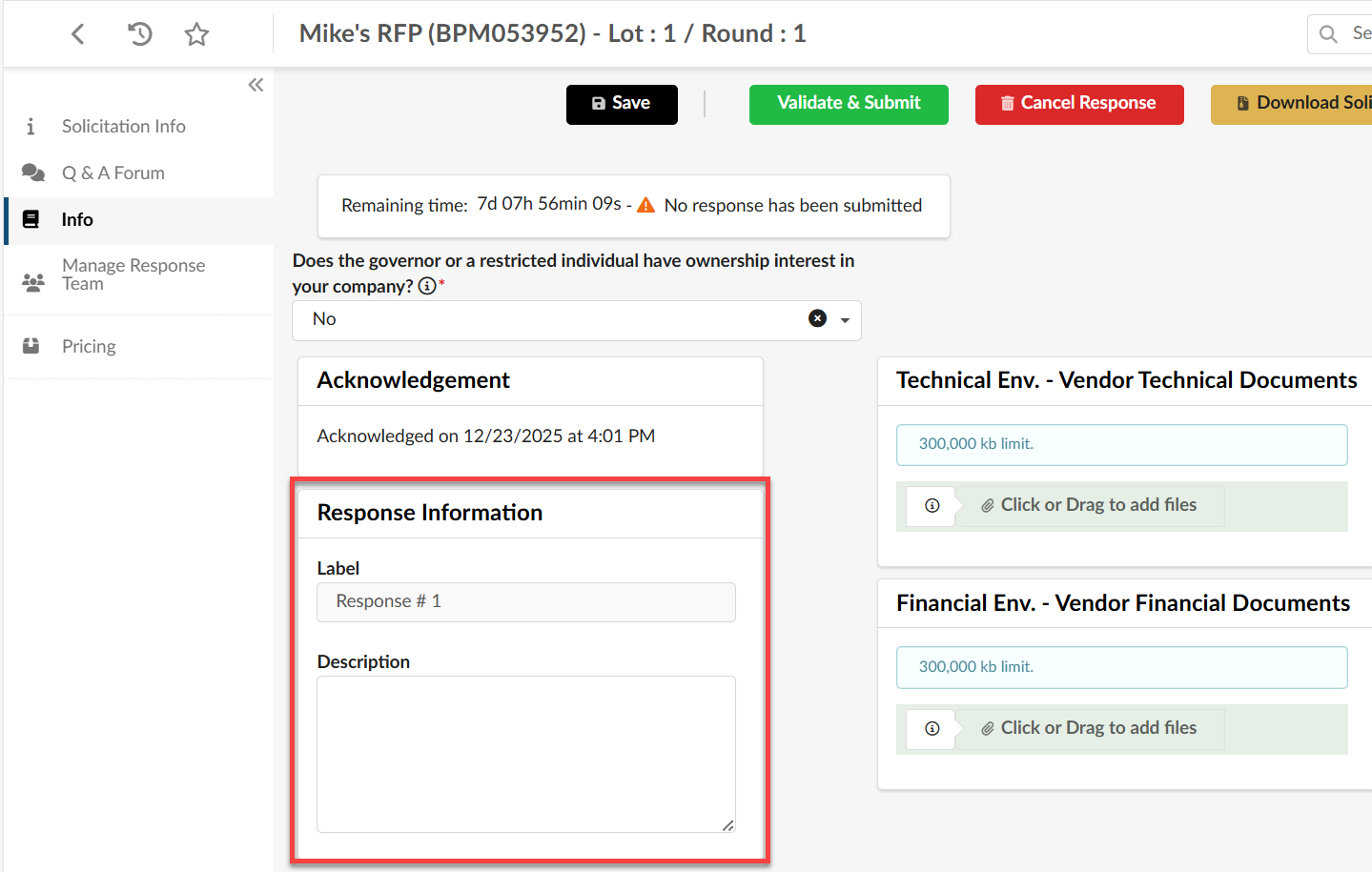
- Complete the Does the governor or a restricted individual have ownership interest in your company?(*) field by selecting Yes or No from the drop-down menu. (Response to this field is mandatory and required under HB0932; click here for additional information)
- Click the Pricing tab on the left-hand side-panel.
IMPORTANT!! Currently, the Q&A Forum tab and Questionnaire functionalities. If a questionnaire is required to bid on this solicitation, it will be in the attachments.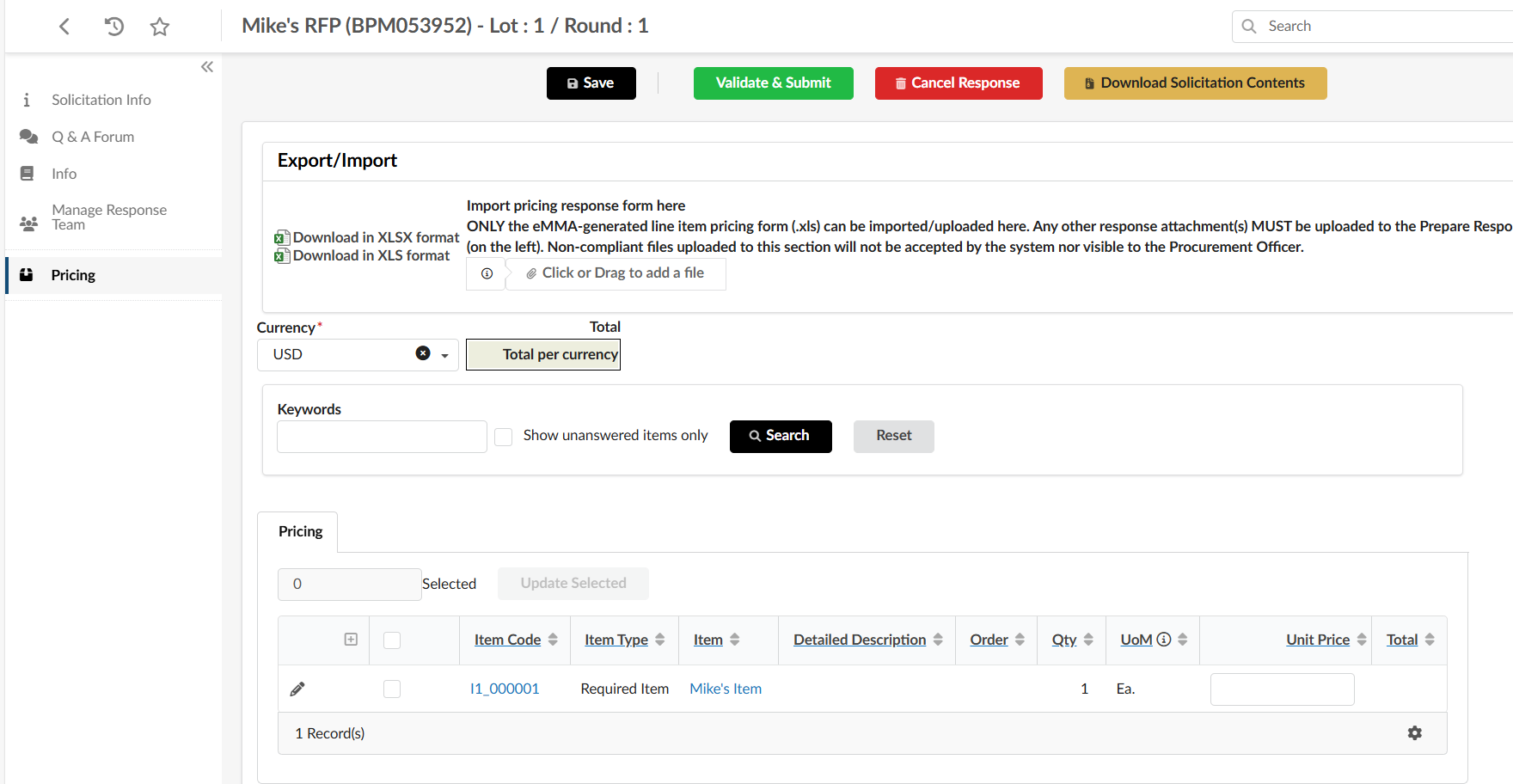
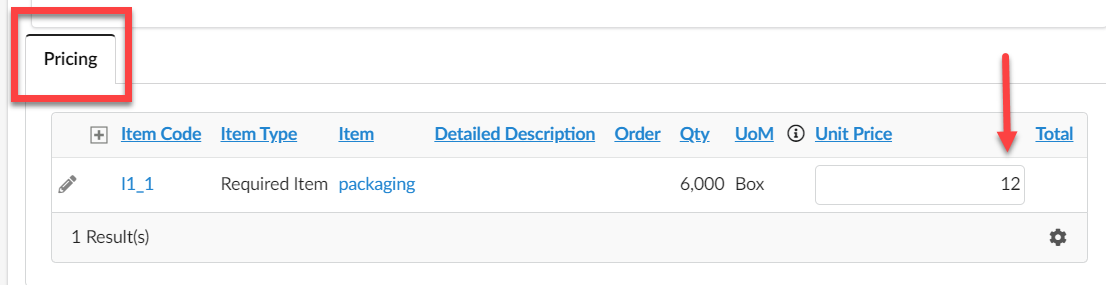
- Scroll down to the Pricing subtab and complete the blank field(s) under the Unit Price column. Repeat this step as many times as necessary to fill in the pricing grid.
- Click the Save button at the top of the page once you are finished.

- Click the Validate & Submit button after you have saved your progress.

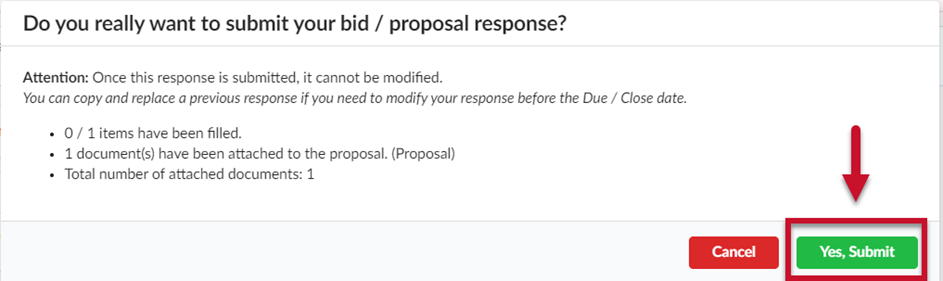
- Review the information displayed for accuracy and click the Yes, Submit button once you verify all the information is correct.
Cancelling a Solicitation Response
Prior to validating and submitting your solicitation response, you can still make edits and cancel the response as long as the solicitation is still open for bidding.
- Navigate to eMMA at https://emma.maryland.gov and log in with your credentials.
- Under the main menu, click Sourcing and select the My Solicitations page.
- Search for and select the solicitation by clicking the hyperlinked solicitation title.
- At the top of the page click Cancel Response.

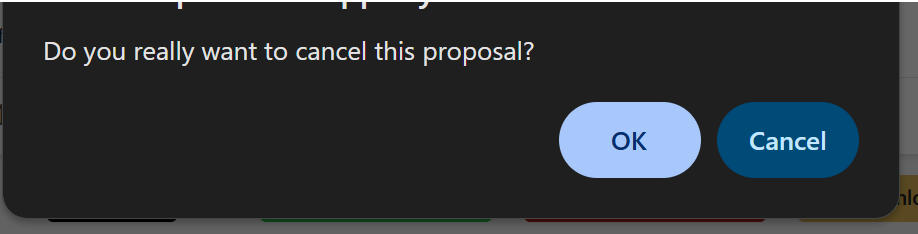
- Confirm that you would like to cancel the current solicitation response.
A new response can always be submitted if the solicitation is still open for bidding and the due date has not passed.