
Overview
This guide is intended to show vendors using eMaryland Marketplace Advantage (eMMA) how to manage payments related to contract compliance. Vendors serving as the primary vendor on a contract may need to add subcontractors to whom they will report payments under the terms of their contract. Vendors who have a contract with the State of Maryland and those that are subcontractors for State contracts may then be required to report on payments disbursed and payments received.
NOTE: For best results, use the Google Chrome browser to access eMMA.
TABLE OF CONTENTS
- Adding Subcontractors (Prime Vendor)
- Entering Forecasted Payments (Prime Vendor)
- Submitting Payment Records (Prime Vendor)
- Submitting Payment Records (Subcontractor)
If you need help at any time, please reach out to the eMMA helpdesk at emma.helpdesk@maryland.gov.
NOTE: This QRG uses diagrams with specific callouts to show required and optional fields in forms.
- A yellow callout with a red border
 indicates a required field.
 - A yellow callout with a black border
 indicates an optional field.
 - A red callout
 highlights a specific section of a page.
Letters and numbers within the callouts correspond to the explanations below the diagram. A red asterisk (*) indicates a required field in the eMMA interface.
Step-by-Step Instructions
Adding Subcontractors (Prime Vendor)
To add a subcontractor:
- Log into eMMA by navigating to emma.maryland.gov.
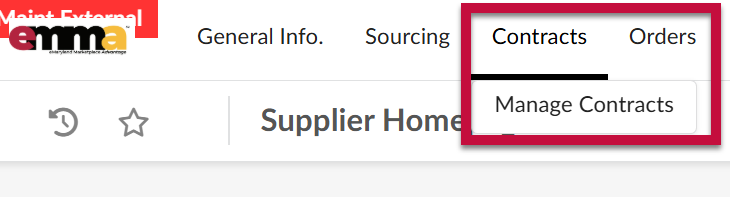
- Navigate to the Contracts module and select Manage Contracts towards the top of the page.
 A list of contracts between your organization and the State will appear.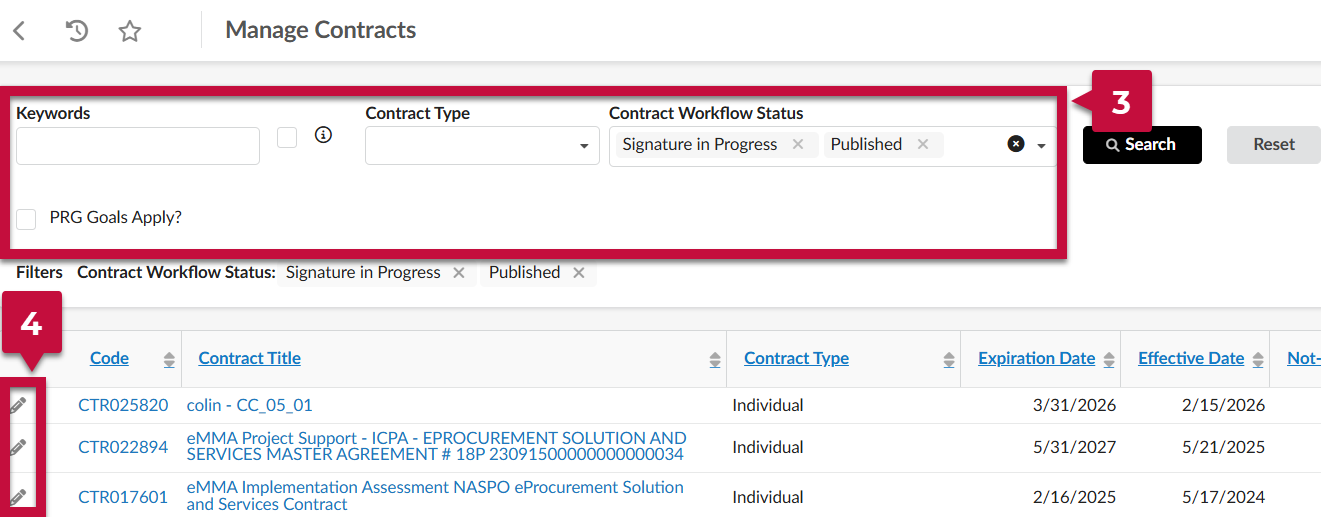
- Search for the contract using the Keywords field. Other fields are available towards the top of the page.
- Click the Pencil icon next to the contract you need to update.
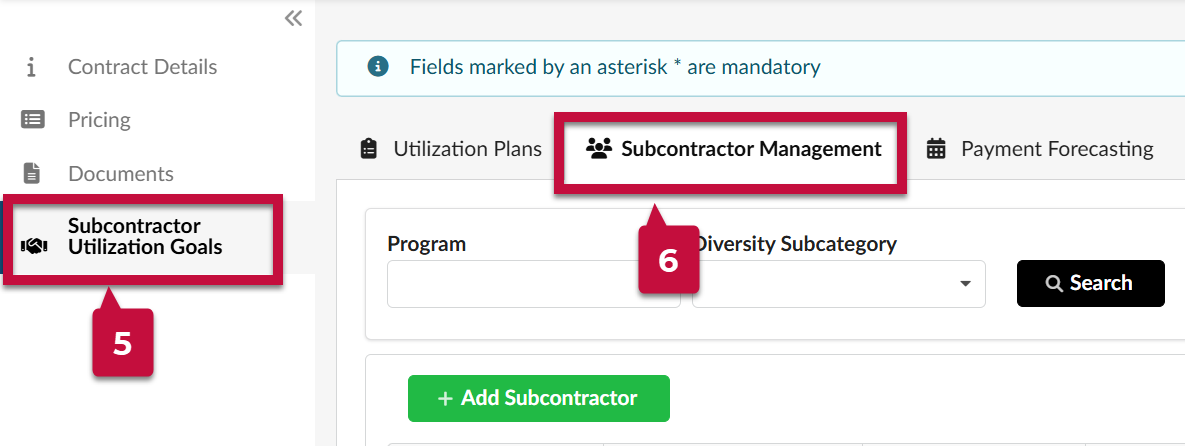
- Click on the Subcontractor Utilization Goals tab in the left-hand side-bar.
- Navigate to the Subcontractor Management sub-tab.
- Click +Add Subcontractor.
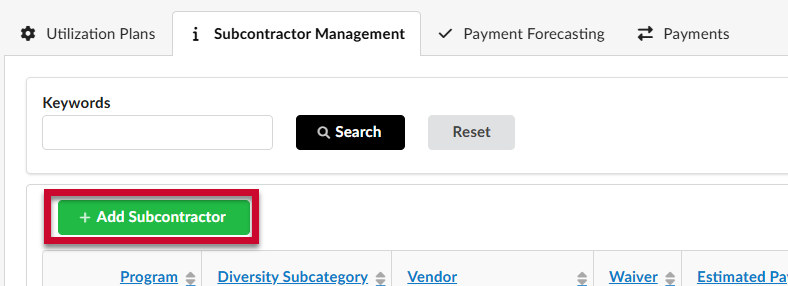
- Enter the required and optional information for either a subcontractor, or to request a Waiver.
- To add a subcontractor:
- Complete the fields in the General Information section.
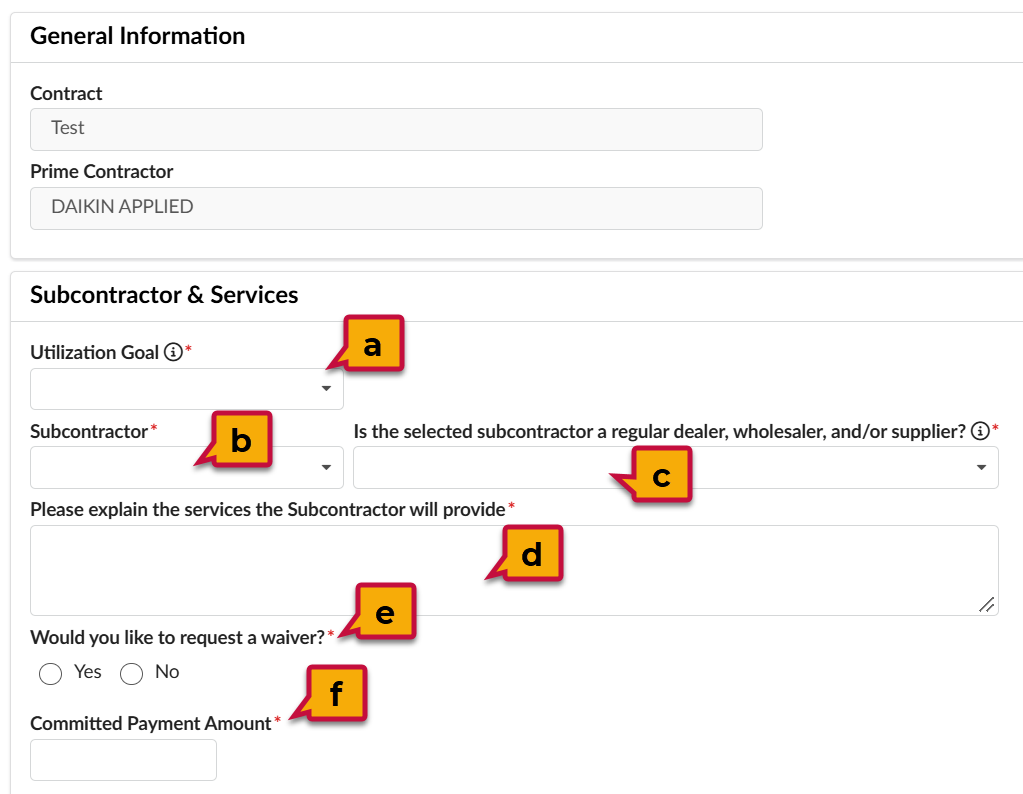
- Utilization Goal*: The designation for the Subcontractor (i.e. MBE, VSBE). Multiple goals can be selected.
- Subcontractor*: The Subcontractor's name. The Sub must have a profile in eMMA.
- Is the selected subcontractor a regular dealer, wholesaler, and/or supplier?*: Indicate "yes" or "no".
- Please explain the services the Subcontractor will provide*: A summary of the services that the Sub will provide.
- Would you like to request a waiver?*: Indicate "yes" or "no". If "yes", it will be required to upload a document outlining the waiver details.
- Committed Payment Amount*: The total dollar amount that will be paid to the Subcontractor.
- Complete the fields in the General Information section.
- To add a subcontractor:
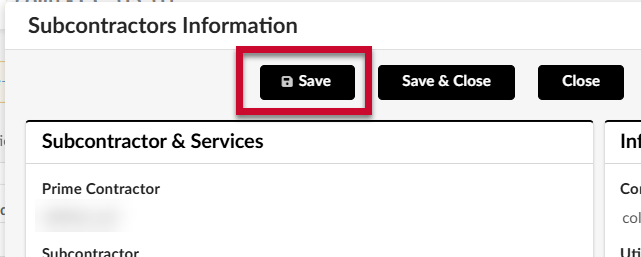
- Click Save.
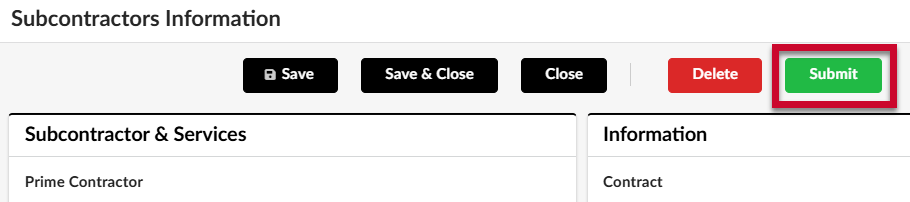
- Click Submit.
Entering Forecasted Payments (Prime Vendor)
Forecasted payments can be entered on the contract record to provide more detailed information to those responsible for managing the contract.
To enter a forecasted payment:
- Log into eMMA by navigating to emma.maryland.gov.
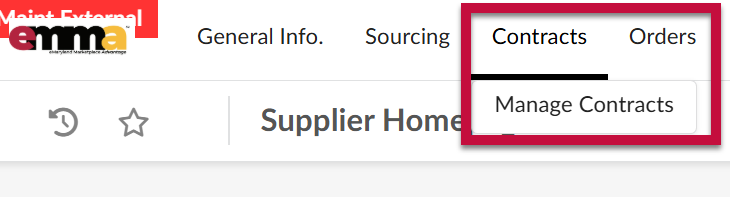
- Navigate to the Contracts module and select Manage Contracts towards the top of the page.
 A list of contracts between your organization and the State will appear.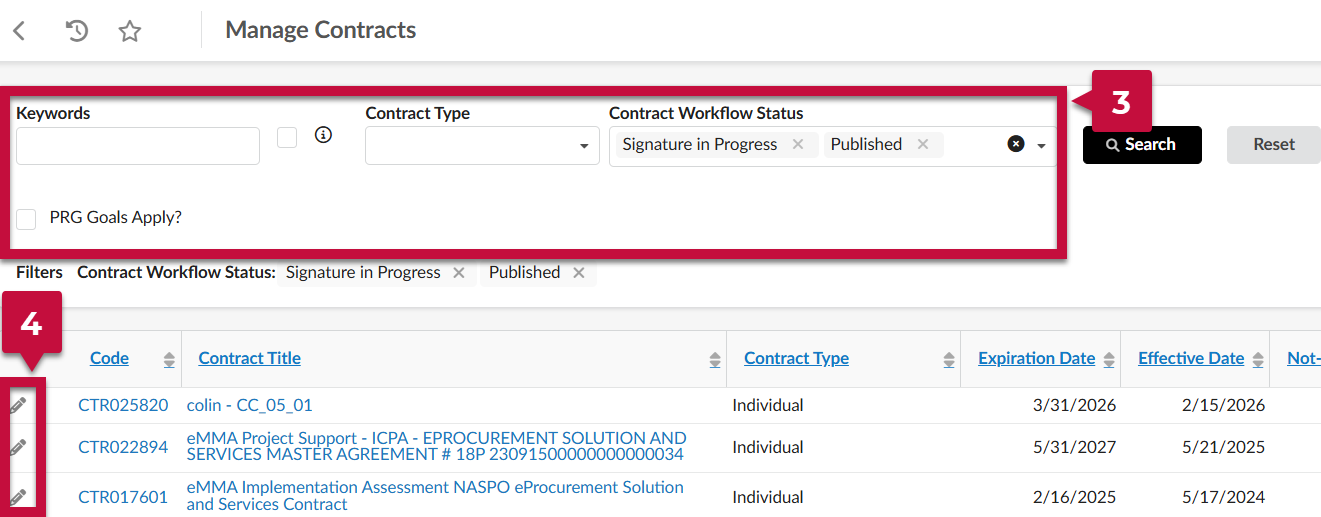
- Search for the contract using the Keywords field. Other fields are available towards the top of the page.
- Click the Pencil icon next to the contract you need to update.
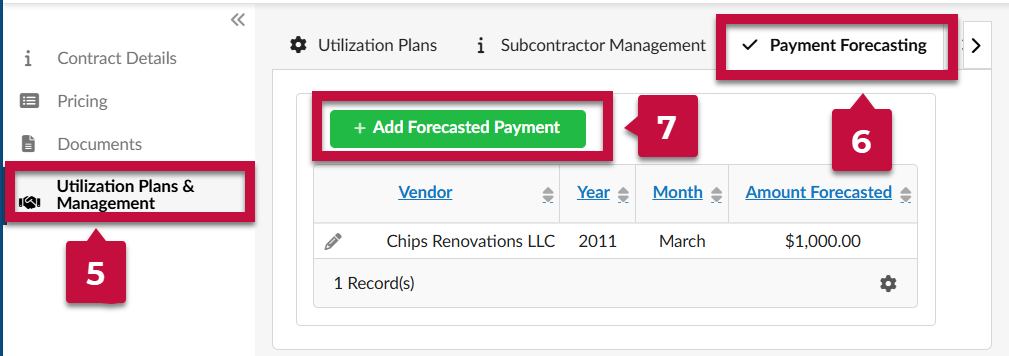
- Click the Utilization Plans & Management tab on the left-hand side of the screen.
- Click Payment Forecasting towards the top, middle of the screen. All existing forecasted payments will be visible.
- Click +Add Forecasted Payment to enter a new payment record.
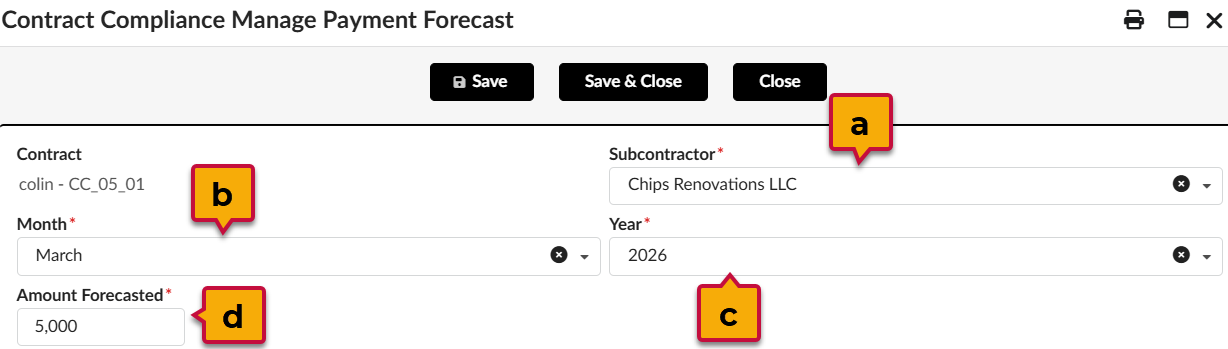
- Complete the mandatory fields.
- Subcontractor: Begin typing the Subcontractor's name in the field and select them in the list when they appear. Only Subcontractors that have registered in eMMA will be available.
- Month: Select the month that the payment is expected to be made.
- Year: Select the year that the payment is expected to be made.
- Amount Forecasted: Enter the anticipated payment amount in U.S. Dollars.
- Click Save & Close.
You will return to the list of forecasted payments.
To edit a forecasted payment: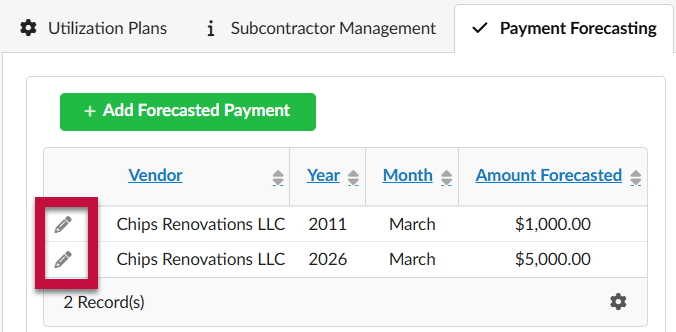
- Click the Pencil icon next to the payment.
- Update the fields accordingly.
- Click Save & Close.
To delete a forecasted payment:
- Click the Pencil icon next to the payment.
- Click Delete.
- Click Close.
The payment will disappear when the page is refreshed.
Submitting Payment Records (Prime Vendor)
When an actual payment is made from the prime vendor to a subcontractor, a payment record must be entered into eMMA. On the first of the month, a record will automatically be created for each subcontractor listed on the contract. The record will remain in Awaiting Report Submissions status until the Prime Vendor and Subcontractor enter the payment details.
To enter a payment record:
- Log into eMMA by navigating to emma.maryland.gov.
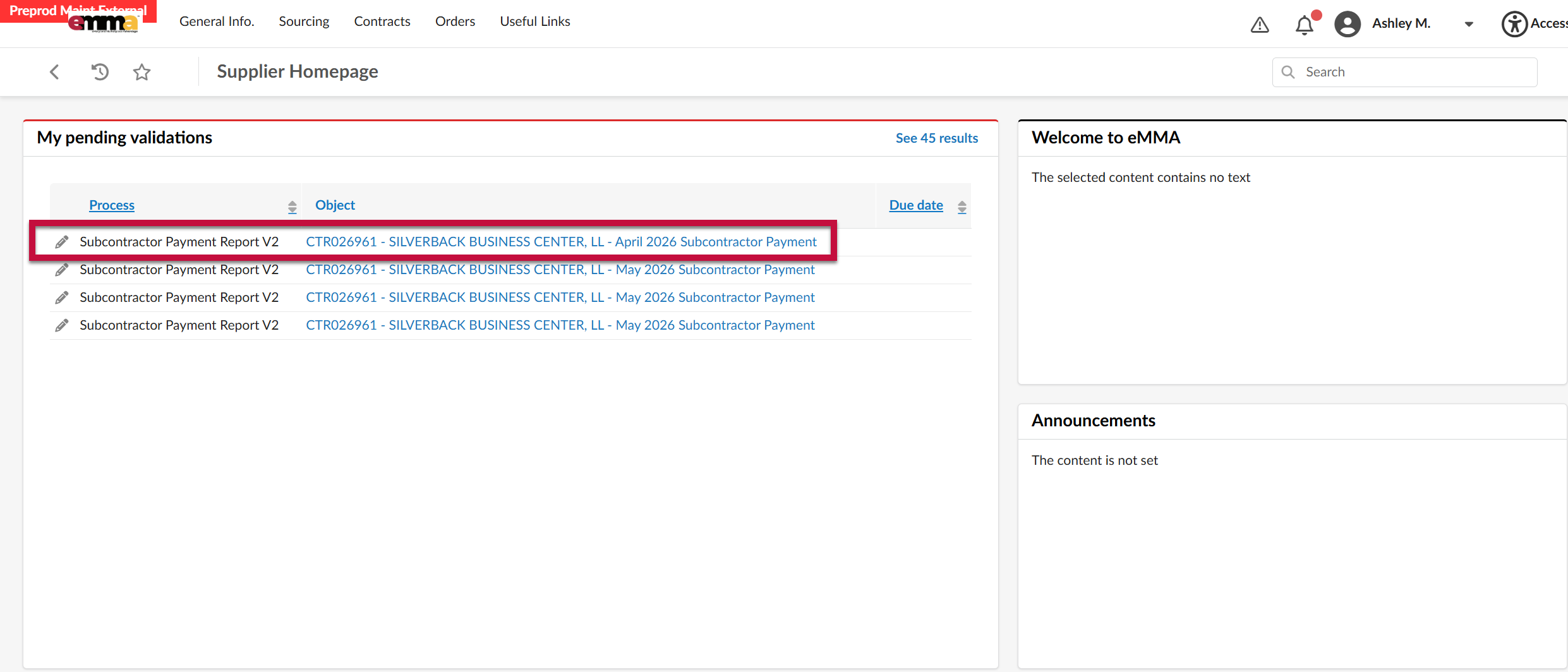
- The payment record for that month will be listed under My Pending Validations. Click the Pencil icon. If there are multiple Subcontractors on the contract, then they will be listed as separate action items in this section.
- Information related to the contract, your company, and the Subcontractor will be prefilled.
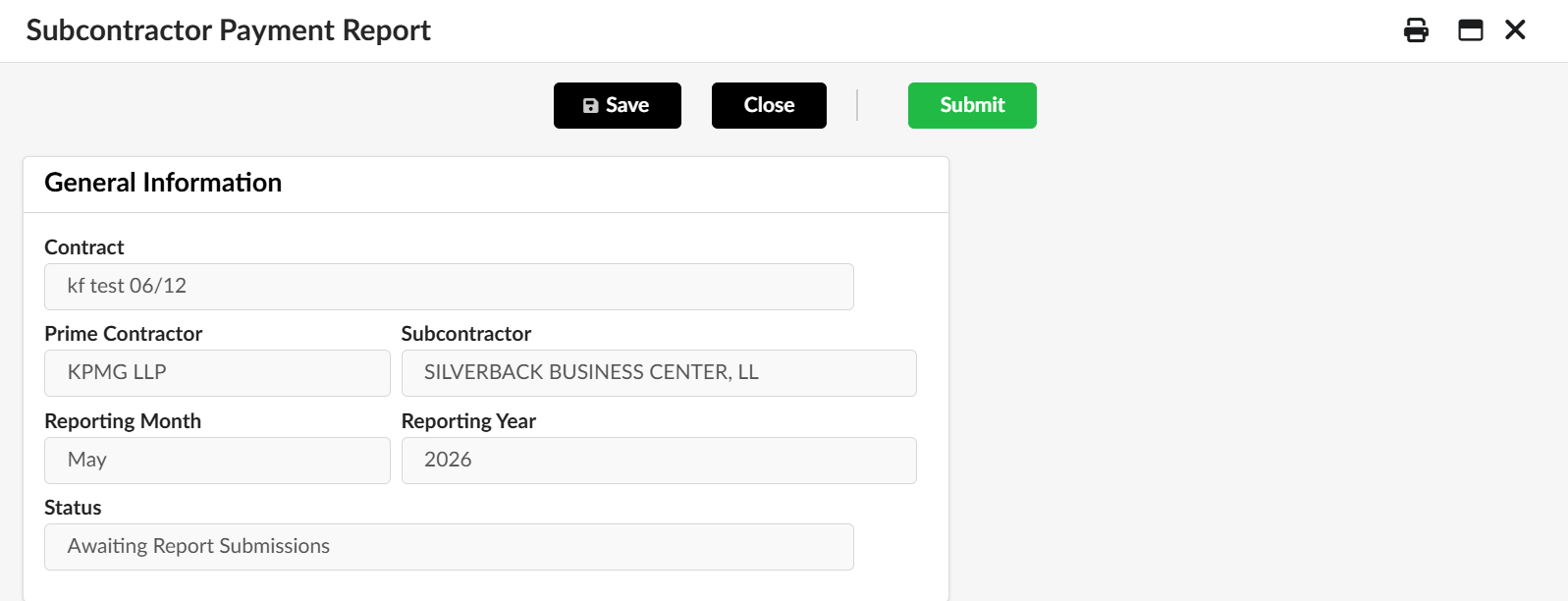
- Contract: The contract name as it appears in eMMA.
- Prime Contractor: The name of your company.
- Subcontractor: The name of the Subcontractor.
- Reporting Month: The payment month related to this record.
- Reporting Year: The payment year related to this record.
- Status: The workflow status of the payment report.
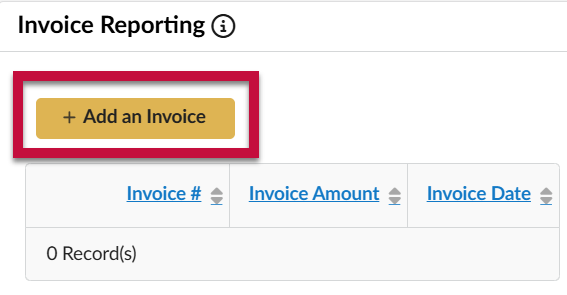
- Enter invoice information under the Invoice Reporting section by clicking +Add an Invoice.
- Complete the invoice information.
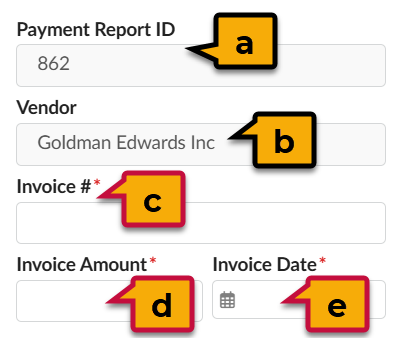
- Payment Report ID: Auto-generated ID number assigned to this invoice entry.
- Vendor: Auto-populated with the name of the Prime Vendor.
- Invoice #: The invoice number on the document sent by the Subcontractor.
- Invoice Amount: The total amount of the invoice sent by the Subcontractor.
- Invoice Date: The publish date of the invoice sent by the Subcontractor.
- Click Save & Close.
- Complete the invoice information.
- Enter payment information under the Payment Reporting section by clicking +Add a Payment.
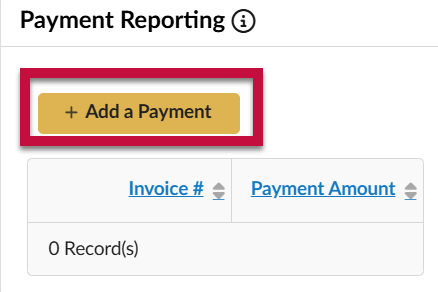
- Complete the payment information.
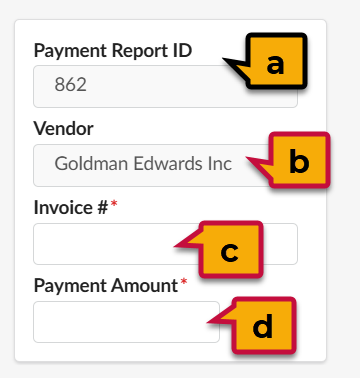
- Payment Report ID: Auto-generated ID number assigned to this invoice entry.
- Vendor: Auto-populated with the name of the Prime Vendor.
- Invoice #: The invoice number on the document sent by the Subcontractor.
- Payment Amount: The total amount paid to the Subcontractor.
- Click Save & Close.
- Complete the payment information.
- Once all payment entries are complete, click Submit.
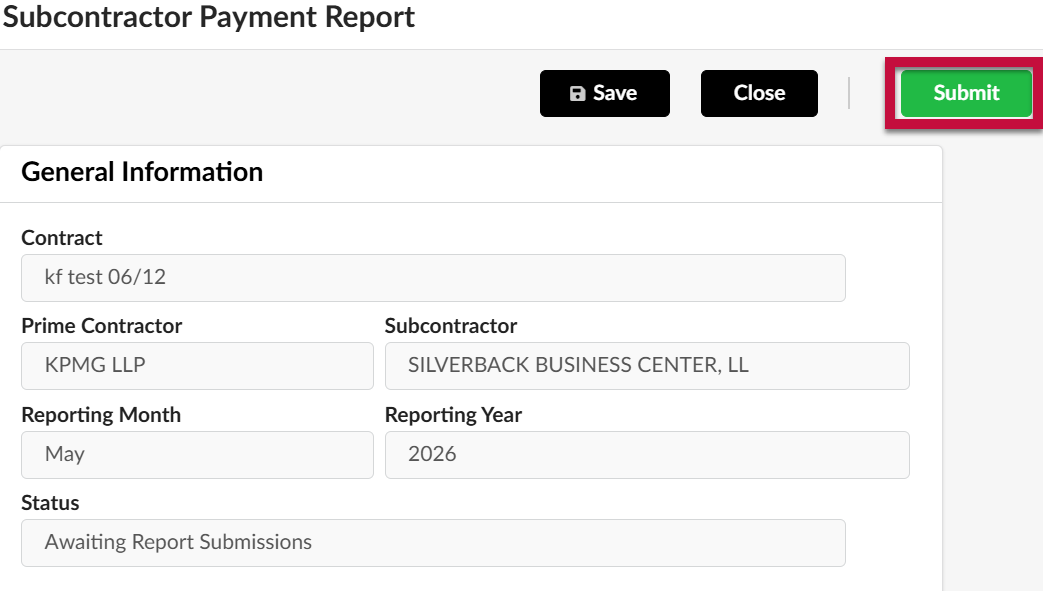
- Click Close to return to the Homepage.
If the data entered does not match the Subcontractor's report or if there are any other issues, then the report may be rejected back to you. Review and revise the information prior to resubmitting.
Entering Payment Records (Subcontractor)
When an actual payment is made from the prime vendor to a subcontractor, a payment record must be entered into eMMA. On the first of the month, a record will automatically be created for each subcontractor listed on the contract. The record will remain in Awaiting Report Submissions status until the Prime Vendor and Subcontractor enter the payment details.
Subcontractors do not have to wait for Prime Vendors to enter payment information before taking action and entering payment reports.
To review a payment record:
- Log into eMMA by navigating to emma.maryland.gov.
- The payment record for that month will be listed under My Pending Validations. Click the Pencil icon. If your company is listed as a Subcontractor for multiple contracts, then they will be listed as separate action items in this section.
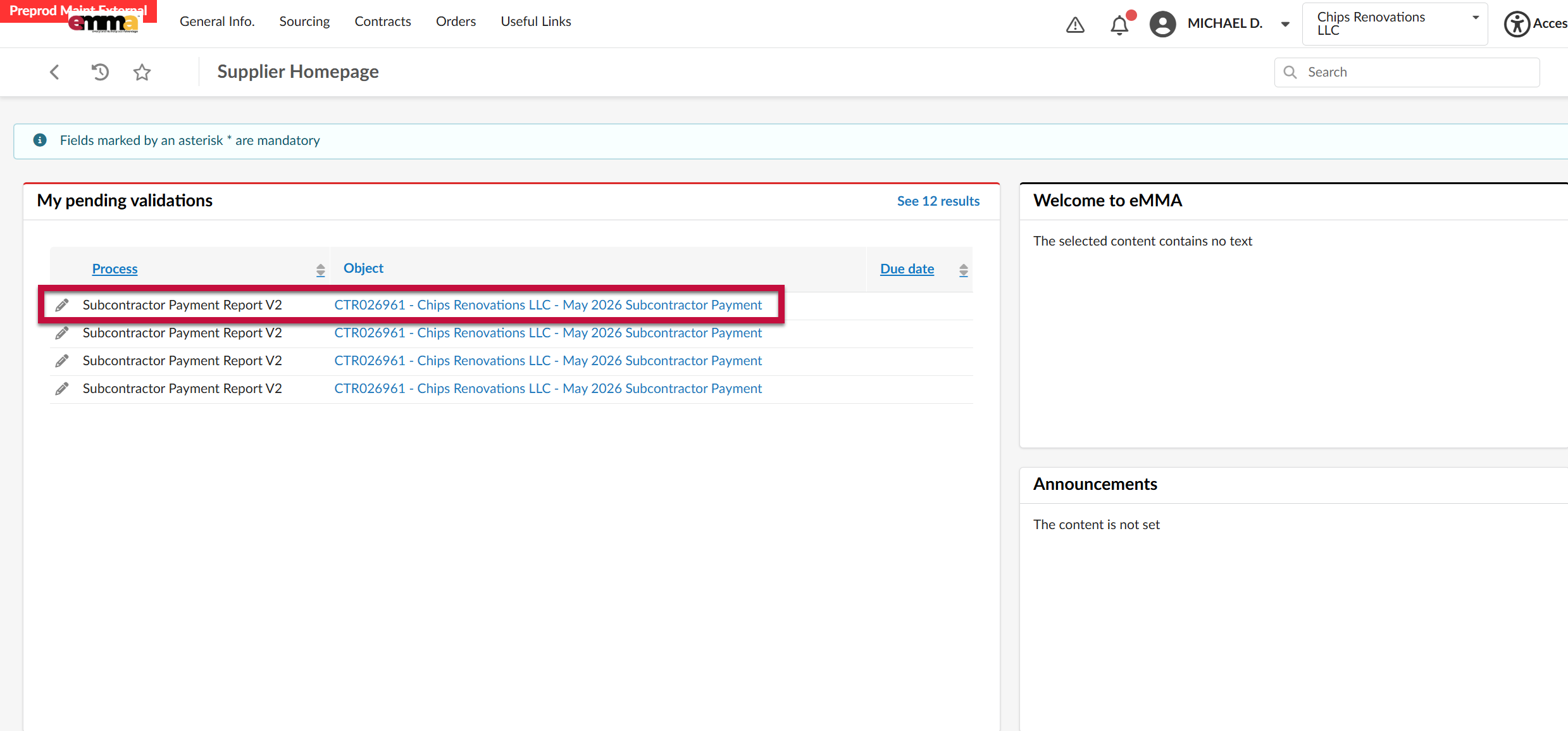
- Information related to the contract, your company, and the Subcontractor will be prefilled.
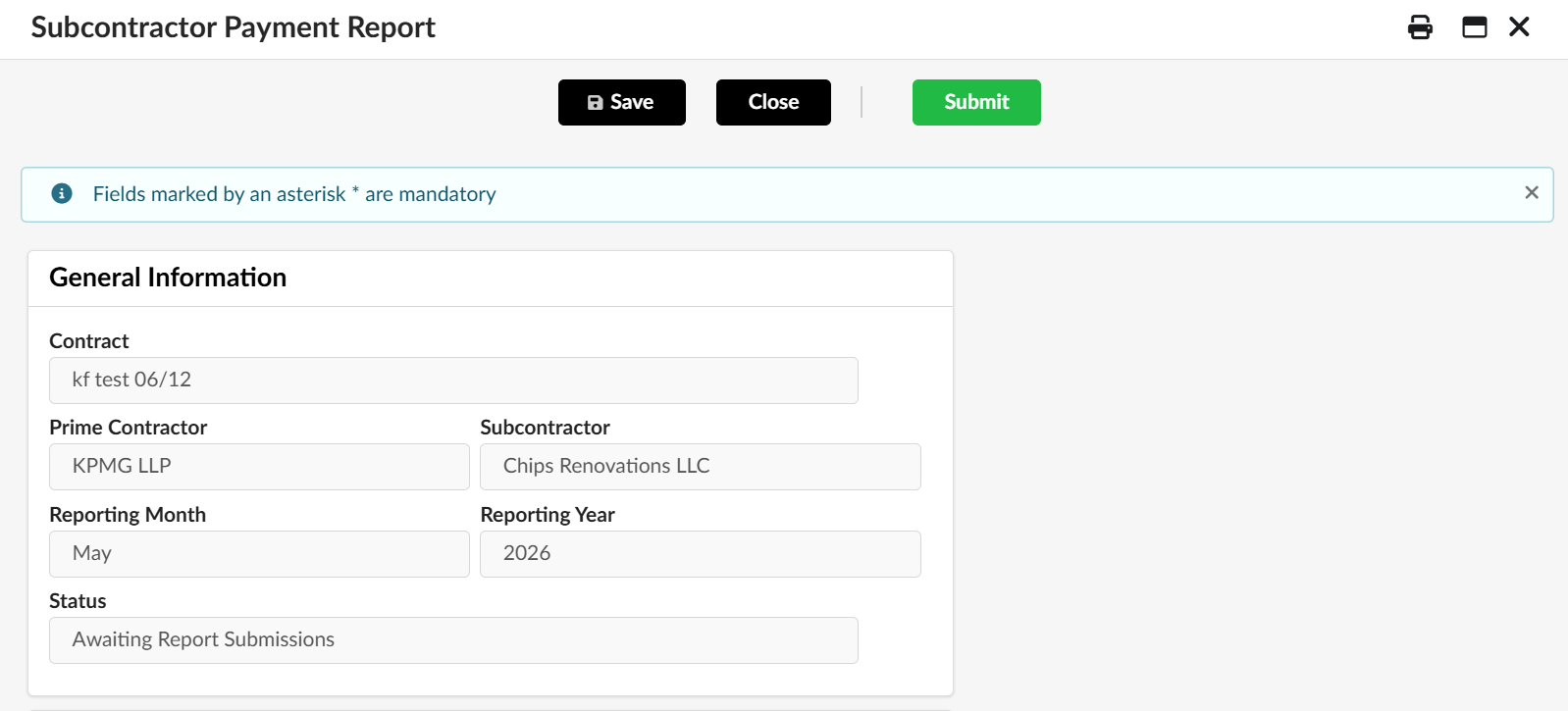
- Contract: The contract name as it appears in eMMA.
- Prime Contractor: The name of the Prime Vendor.
- Subcontractor: The name of your company.
- Reporting Month: The payment month related to this record.
- Reporting Year: The payment year related to this record.
- Status: The workflow status of the payment report.
- Indicate if there are any Report Issues by completing the Would you like to report an issue with the Prime Contractor? field.
 If "yes" is selected, then the Describe the issue field will become visible. Use this field to provide more information on the issue.
 - Enter invoice information under the Invoice Reporting section by clicking +Add an Invoice.
- Complete the invoice information.
- Payment Report ID: Auto-generated ID number assigned to this invoice entry.
- Vendor: Auto-populated with the name of the Subcontractor.
- Invoice #: The invoice number on the document sent to the Prime.
- Invoice Amount: The total amount of the invoice sent to the Prime.
- Invoice Date: The publish date of the invoice sent to the Prime.
- Click Save & Close.
- Complete the invoice information.
- Enter payment information under the Payment Reporting section by clicking +Add a Payment.
- Complete the payment information.
- Payment Report ID: Auto-generated ID number assigned to this invoice entry.
- Vendor: Auto-populated with the name of the Subcontractor.
- Invoice #: The invoice number on the document sent to the Prime.
- Payment Amount: The total amount paid by the Prime.
- Click Save & Close.
- Complete the payment information.
- Once all invoice and payment entries are complete, click Submit.
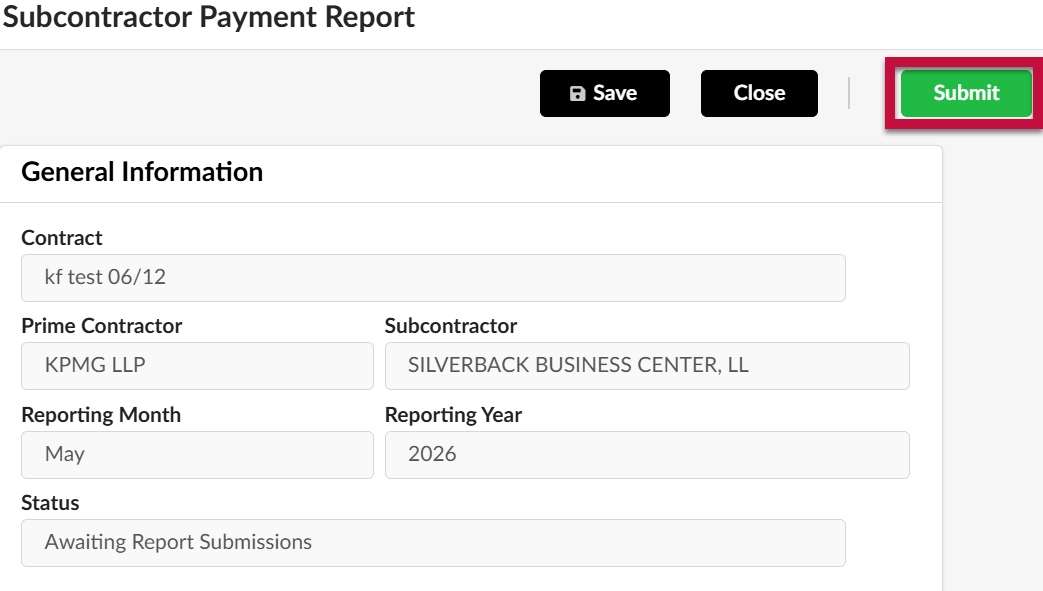
- Click Close to return to the Homepage.
If the data entered does not match the Prime Vendor's report or if there are any other issues, then the report may be rejected back to you. Review and revise the information prior to resubmitting.